Licensed

Campaign Workbench

Pick the cases, book the action, watch it land — without a developer in the loop.

Campaign Workbench — The list of projects

Filters with a live count, saved as templates for the campaigns you repeat

Books letters and manual actions directly into Nova or Aptic

Campaign period, allowed weekdays, bank holidays, hours of the day and a daily cap

Follow-up bundles from the cases an action did not reach

Export to Excel, CSV and JSON; import a list from Excel

Groups, permissions and an audit log

A filter–build–act–track workbench for bulk campaigns on Nova and Aptic Collect. Select the cases with filters and a live count, freeze them into a bundle, book letters or manual actions straight into the collection system under the rules you set, and follow every case to its outcome.

"Send this letter to every open case registered in 2024 with a balance above 5,000, no payment plan and no letter in the last 30 days, spread over the next two weeks, weekdays only." Today that sentence becomes a script someone writes, runs and forgets. Campaign Workbench turns it into something an operations person sets up in the browser, reviews before it runs, and can explain afterwards.

How a campaign runs

  1. Select. A selection is a saved set of filters over the cases — status, balance, dates, flags, legal state, last letter, last payment — with a count at the top that moves as you adjust them. Nothing is committed until you finalise, so you can move the boundaries as often as you like. A selection that worked can be saved as a template, which is how a recurring campaign is repeated.
  2. Build. Finalising freezes the matching cases into a bundle. You choose what happens when the underlying data changes: recall cases that no longer match, and optionally take in new ones. A bundle can also come from a spreadsheet: the import wizard reads the file, guesses the columns, matches the values against the instance's own data and tells you what it could not place.
  3. Act. Booking asks which cases the action applies to, which action to run, what it takes — a letter template, the text of a manual task — and when it may run. The action is written straight into Nova or Aptic under the rules you set: a campaign period, after which whatever was not carried out is recalled; allowed weekdays, skipping bank holidays; hours of the day; a daily cap; and a hold on cases that had a letter recently or already have one booked.
  4. Track. Every case carries its own progress — booked, sent, failed, recalled — read back from the collection system. A follow-up bundle is built from the cases that came back a particular way, and stays linked to its parent, so a campaign that runs in several passes reads as one tree. Every bundle can be exported as Excel, CSV or JSON and charted over time.

Wired to the collection system, not beside it

Campaign Workbench keeps its own copy of the cases, kept current every minute through change tracking, so a filter is answered from the workbench's own database and the collection system is never the thing being queried while you type. Booking goes the other way: a letter or a manual action is written into the collection system's own to-do tables, marked as the workbench's, polled for its outcome, and recalled by removing only what the workbench itself booked.

The connection to a source system is a package: the tables it mirrors, the filters, actions and exports it brings, and the jobs that keep it current. Packages ship for Nova in its Swedish and Norwegian variants, for debtor-level campaigns on Nova, and for Aptic Collect. They are installed from the admin pages or by a DBA who would rather review the SQL first, and upgraded in place with a review of what will change.

Run by a team, answerable afterwards

Permissions are not given to people directly: they are given to groups, and people are put in groups. A project is visible to the group that owns it. Everything the instance does on its own — syncing, refreshing bundles, sending booked actions — is a job with a step-by-step log, and everything people do is in the audit log, by category: data in, data out, actions, administration, sign-ins. The interface is in English, Norwegian and Swedish.

Campaign Workbench in pictures

36 screens, and what each one does.

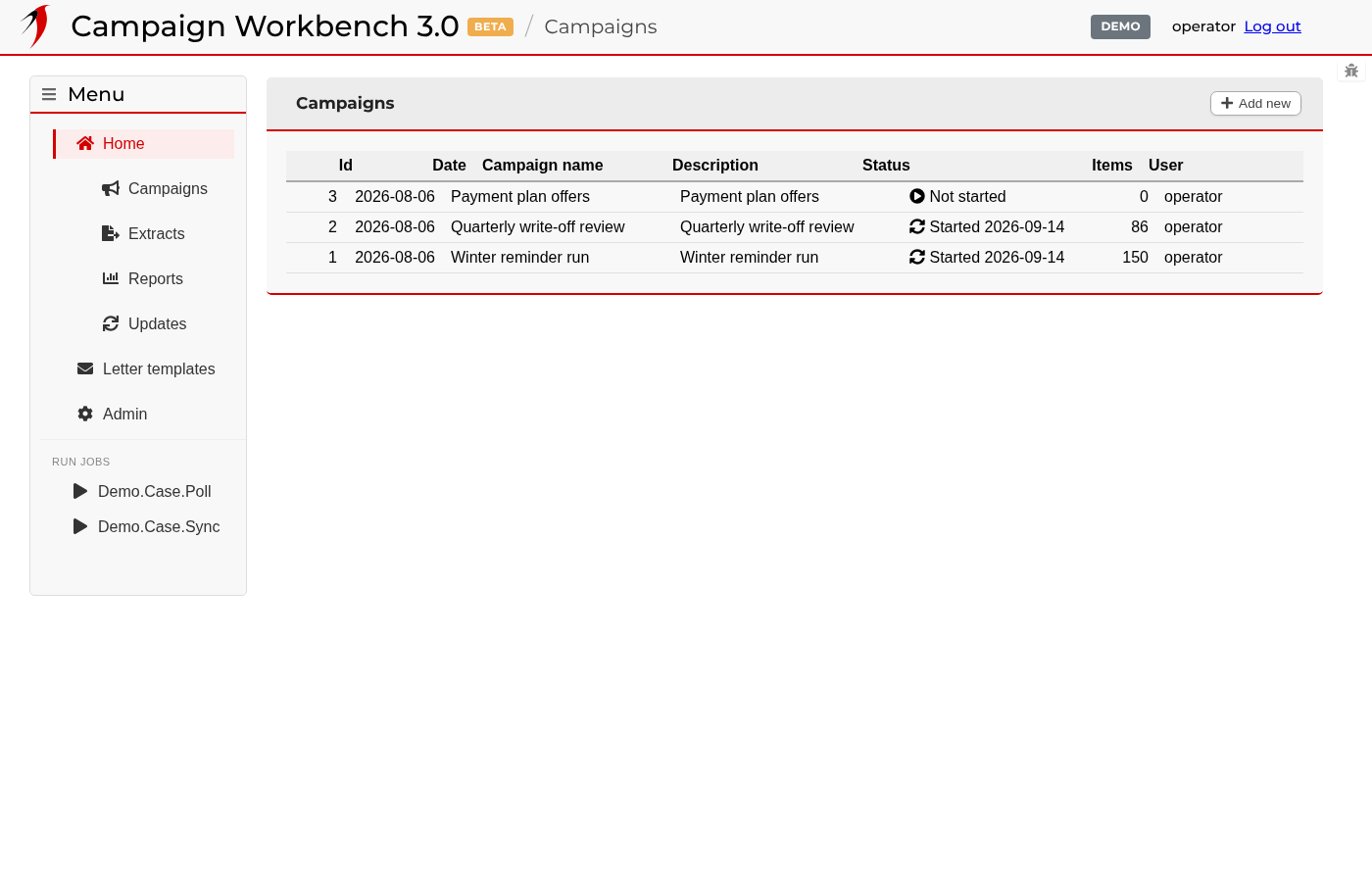
The list of projects

The list of projects

The first thing you see. Every project of one kind is listed here — a project is the folder a piece of work lives in, holding the selections you build, the bundles they produce and the files you import. The left-hand menu has one entry per kind of project the instance is set up for. Click a row to open the project; Add new starts an empty one.

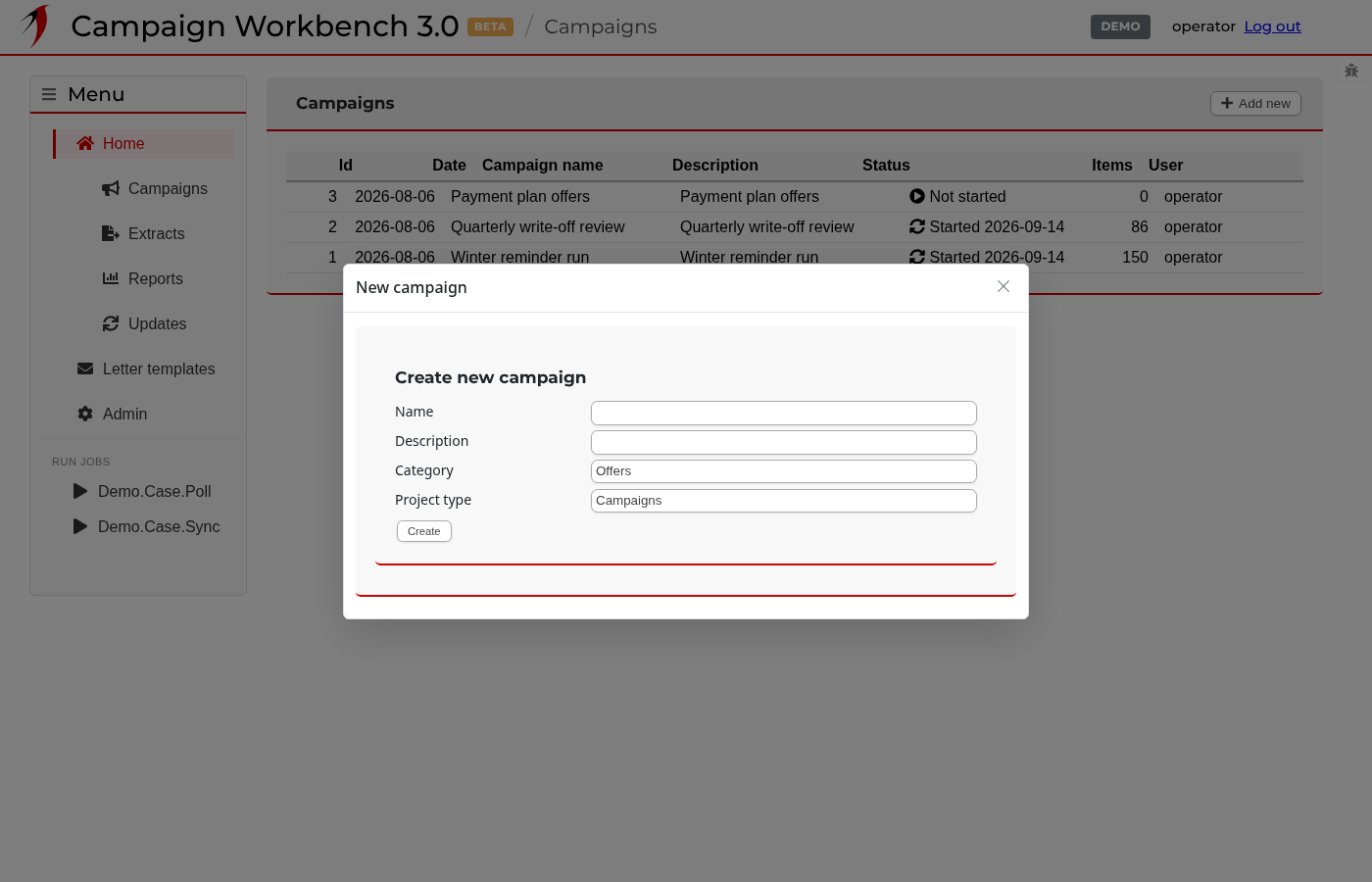
Starting a new project

Starting a new project

Add new asks for the few things a project needs: a name you will recognise later, an optional category to group it with related work, and a description. Nothing here is permanent — all of it can be edited from the project afterwards.

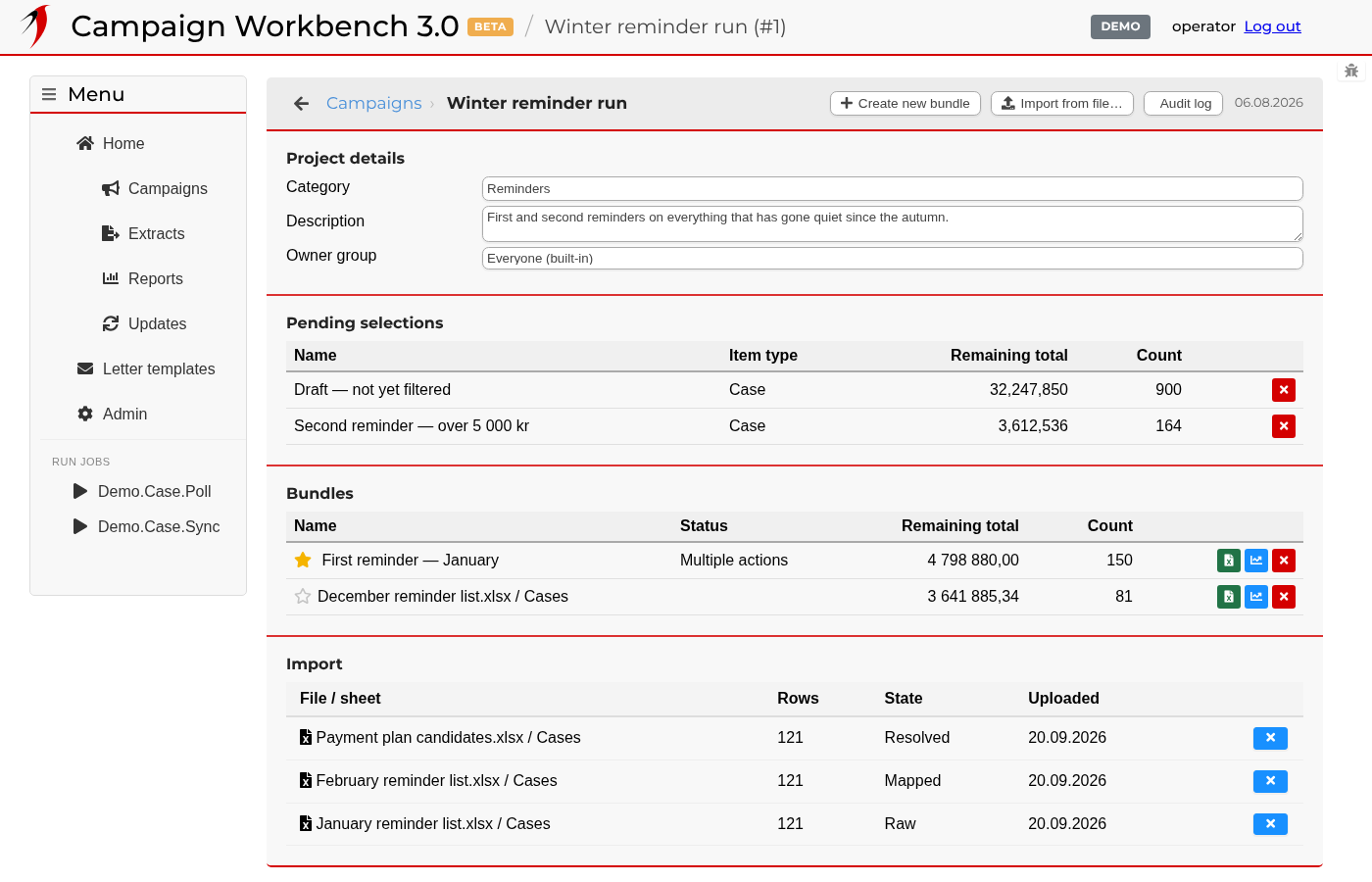
Inside a project

Inside a project

The project is the hub for everything that follows. Its details are at the top; underneath, the selections still being worked on, the bundles they have produced, and the files imported into the project. The two buttons at the top right are the two ways work starts: build a selection by filtering, or import a list of items from a file.

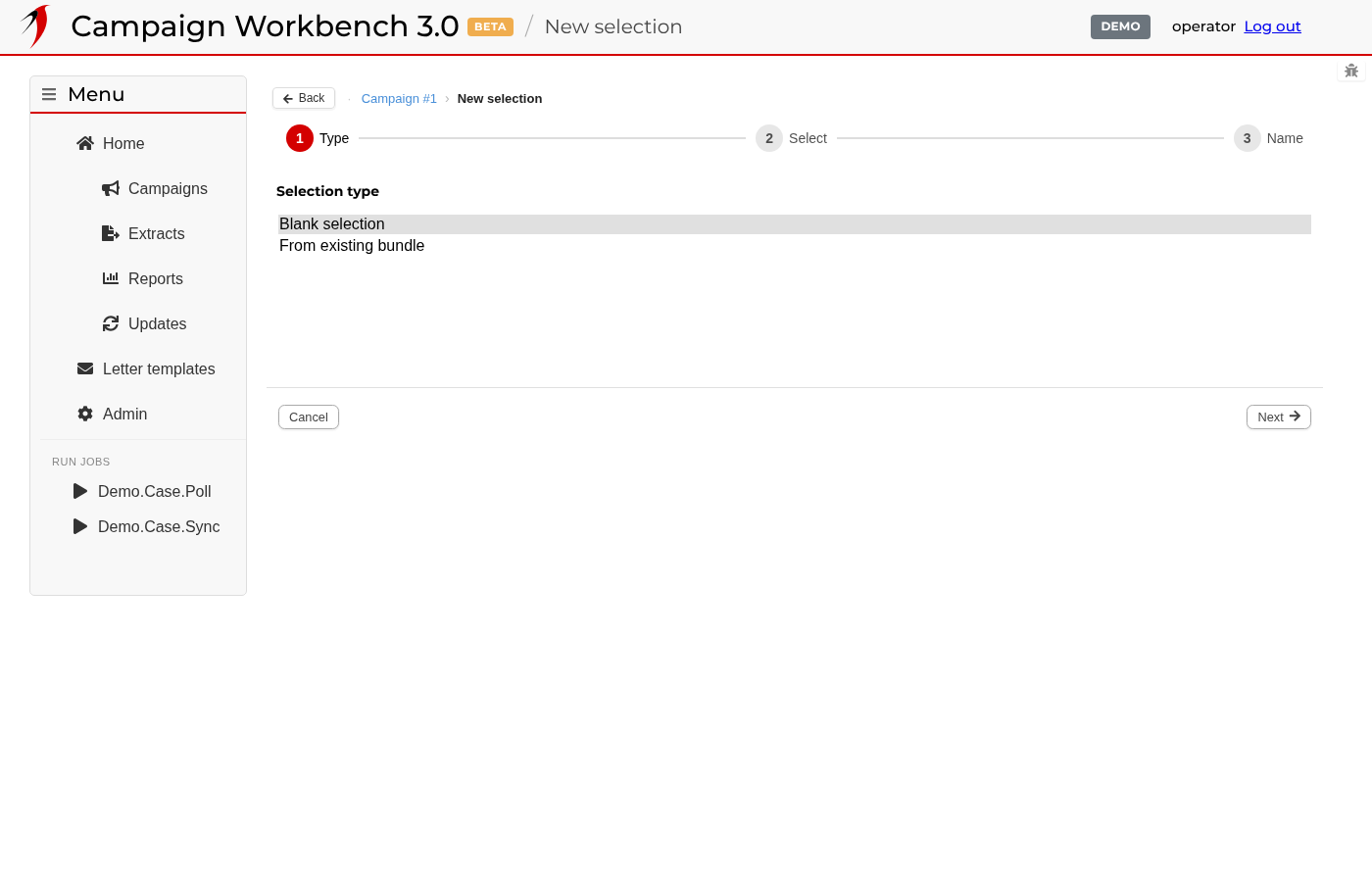
Starting a selection

Starting a selection

A selection is a saved set of filters. The wizard asks three questions: where it starts from — empty, from an existing bundle, or from a saved template — what kind of item it works on, and what to call it. Starting from a template copies a set of filters someone has already tuned, which is the usual way a recurring campaign is repeated.

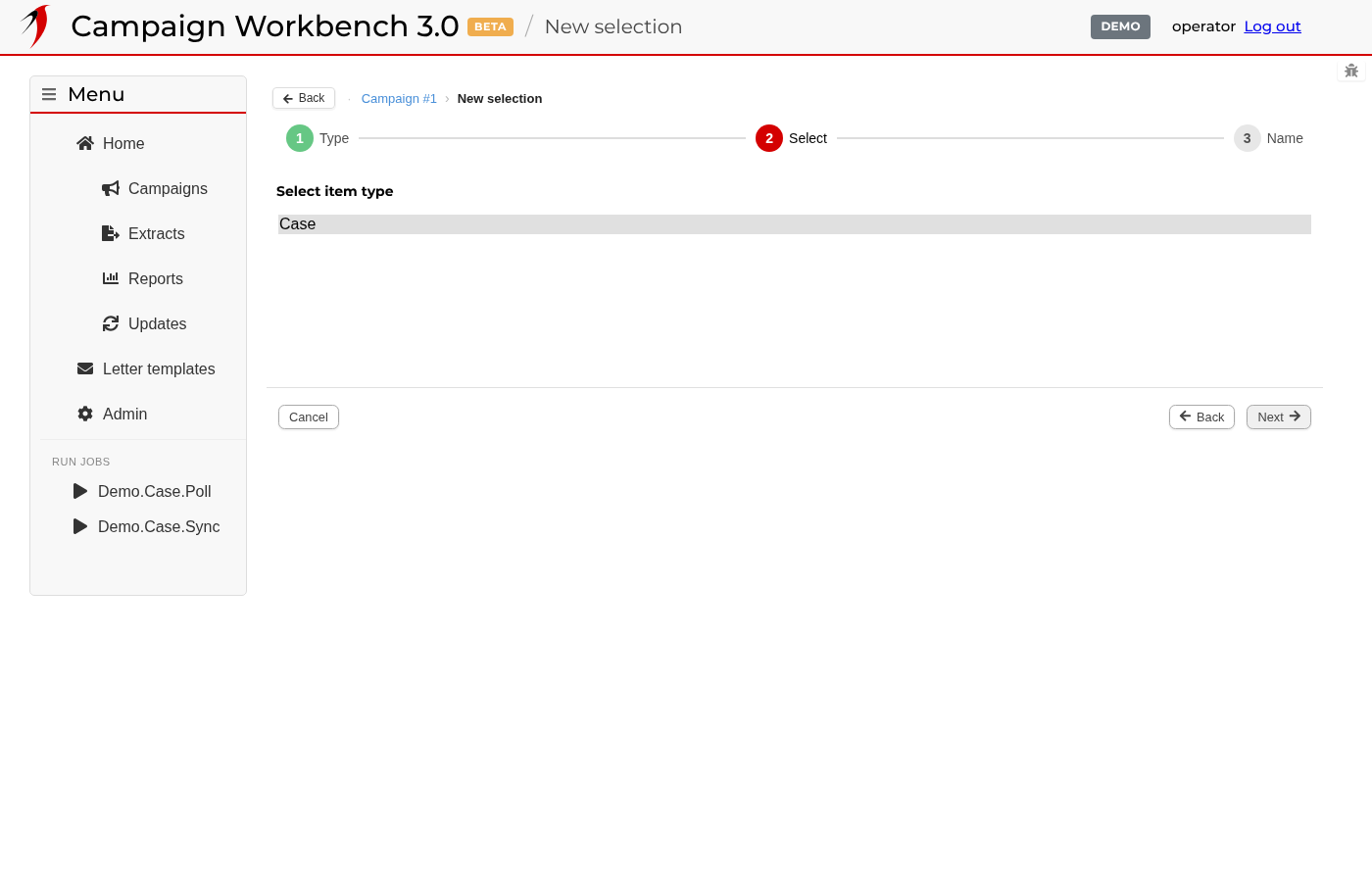
Choosing what the selection works on

Choosing what the selection works on

The second step picks the kind of item the selection will produce. What is on offer is decided by the integrations installed on the instance — each one brings its own item types, its own filters and its own exports.

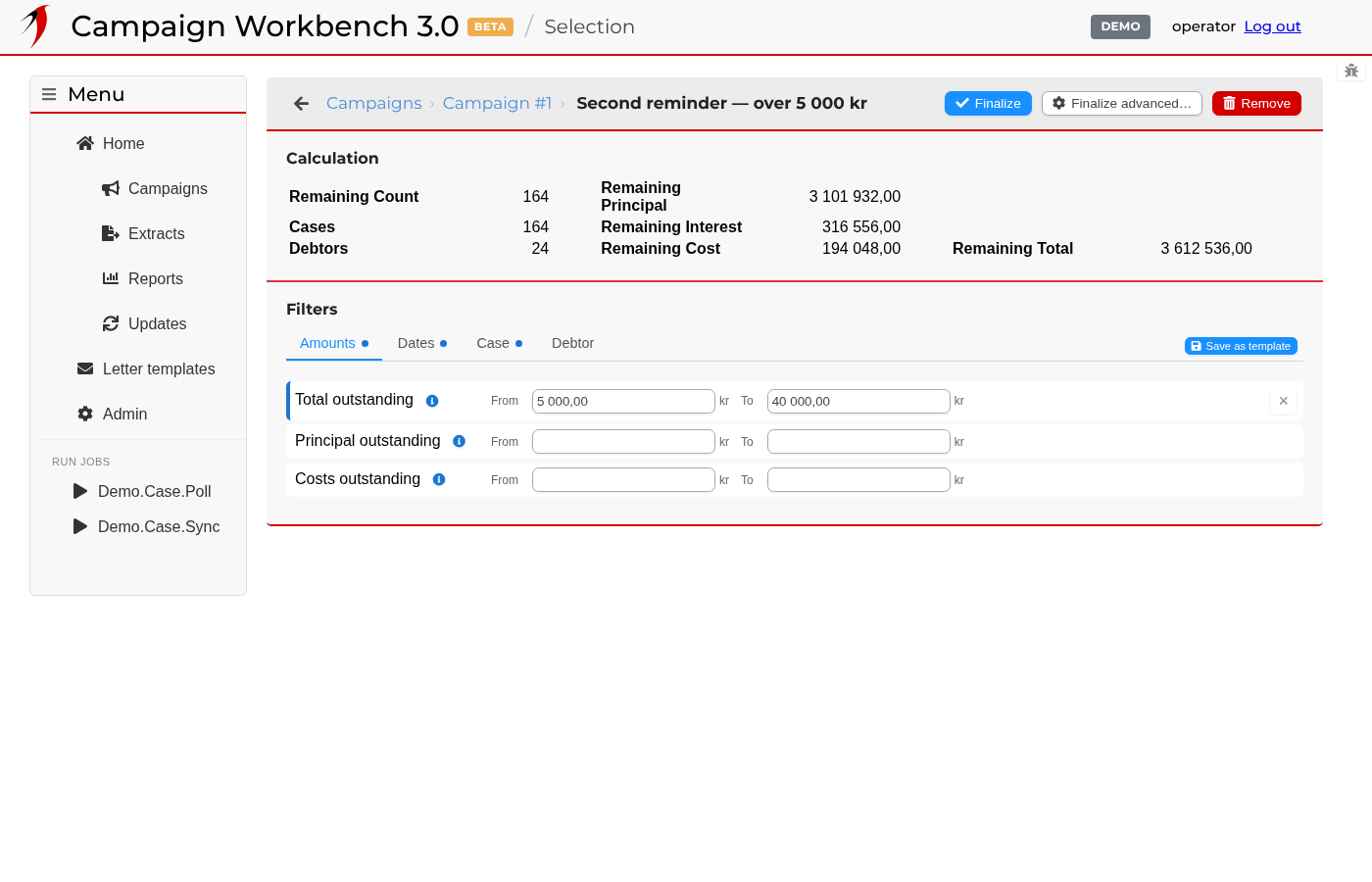
Building a selection

Building a selection

This is where the work happens. Each tab is a group of related filters; setting one narrows the set, and the count at the top tells you how many items are left. Filters that are switched on are highlighted, and the small × on a row clears it again. Nothing is committed until you finalise: until then you can move the boundaries as often as you like and watch the number move.

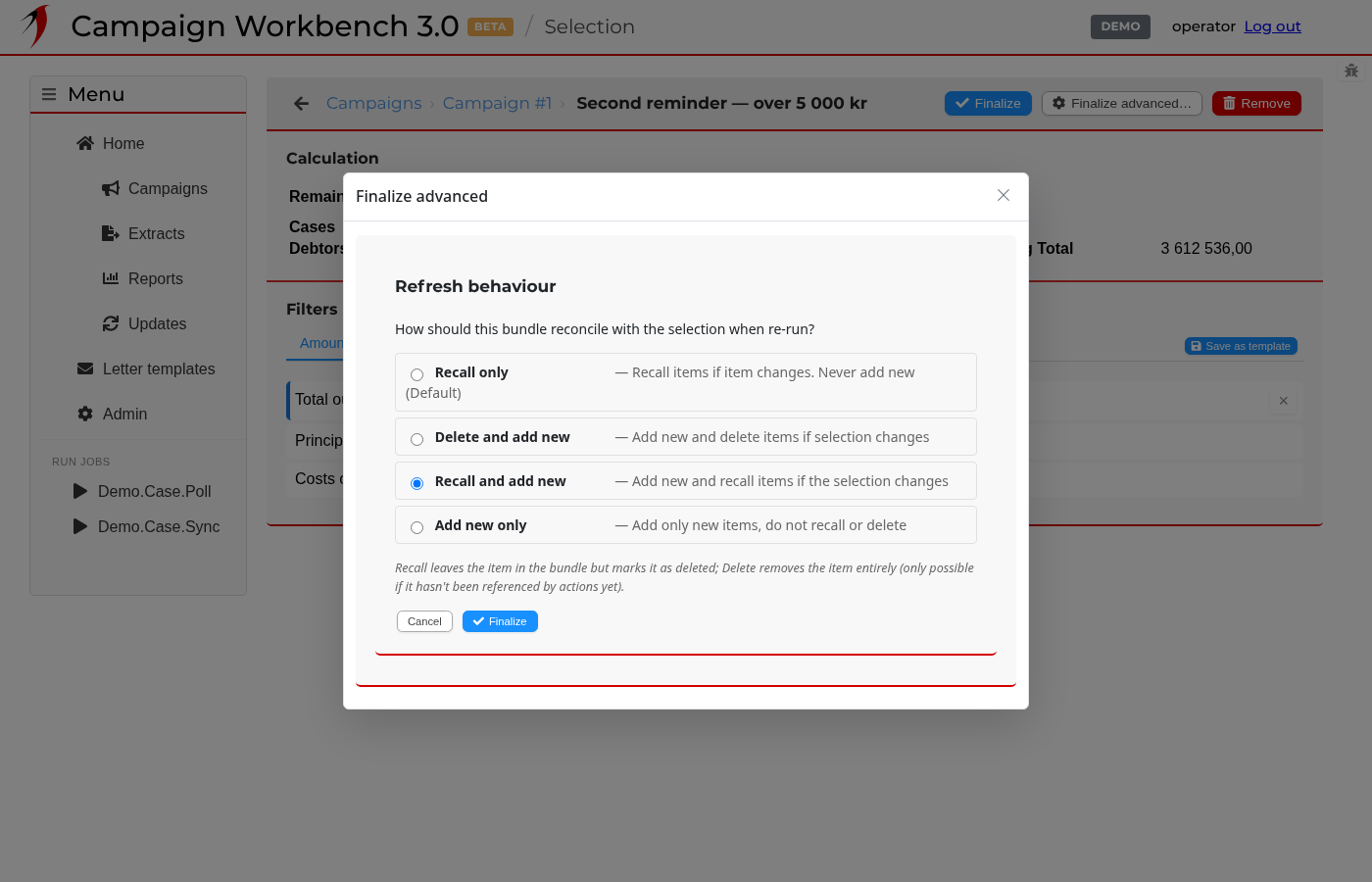
Finalising a selection

Finalising a selection

Finalising turns the selection into a bundle — a fixed list of items you can act on. The advanced dialog is about what should happen when that bundle is refreshed later: whether items that no longer match should be recalled or deleted, and whether items that have started to match should be added. Recall and add new is the usual choice for a campaign that runs for a while.

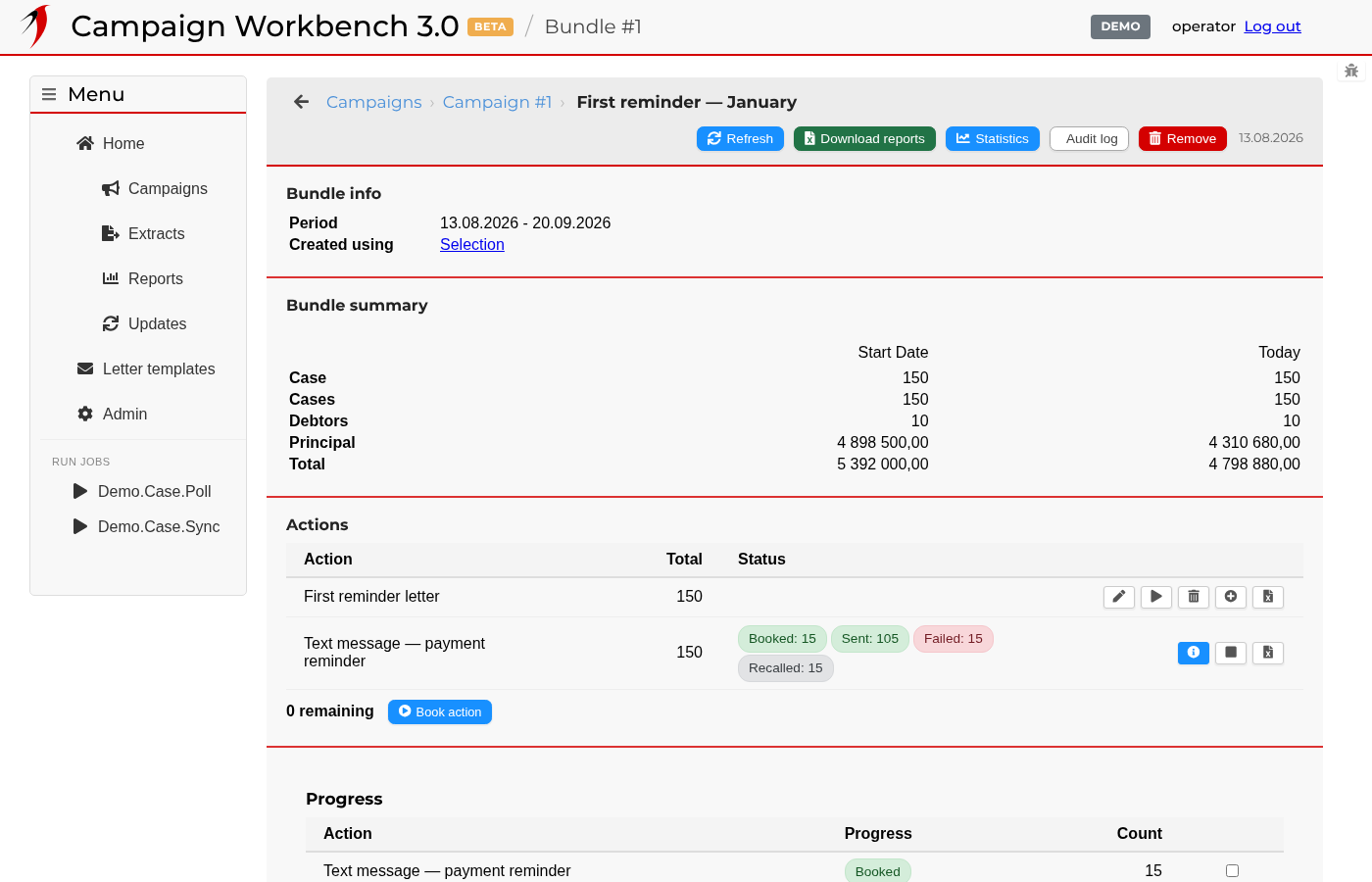
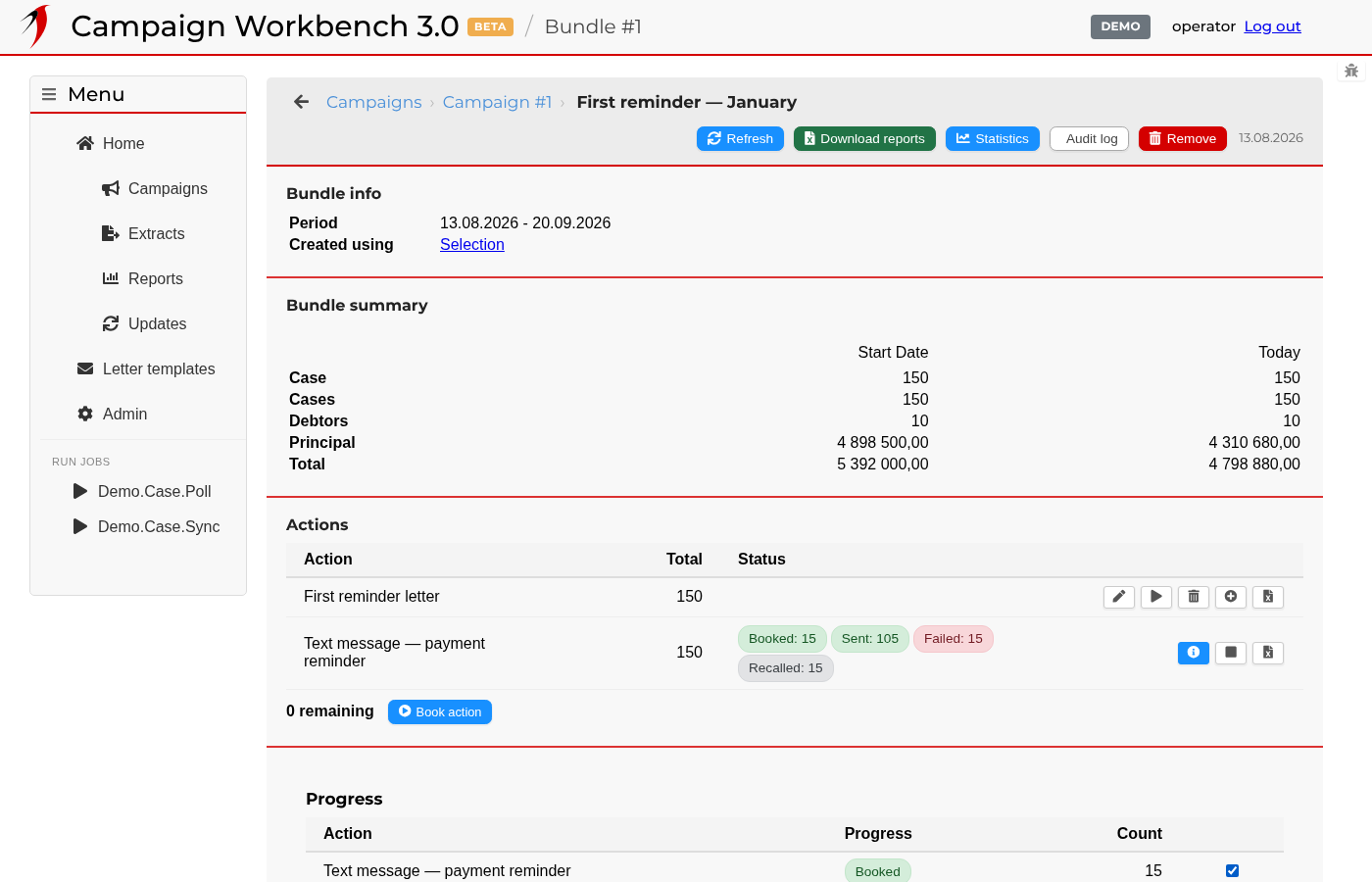
A bundle and its actions

A bundle and its actions

A bundle is a fixed set of items plus the actions booked against them. The summary at the top counts the items and totals the amounts; the table underneath is one row per action, with how far each has got. Book action adds another; Refresh re-runs the selection behind the bundle using the rule chosen when it was finalised.

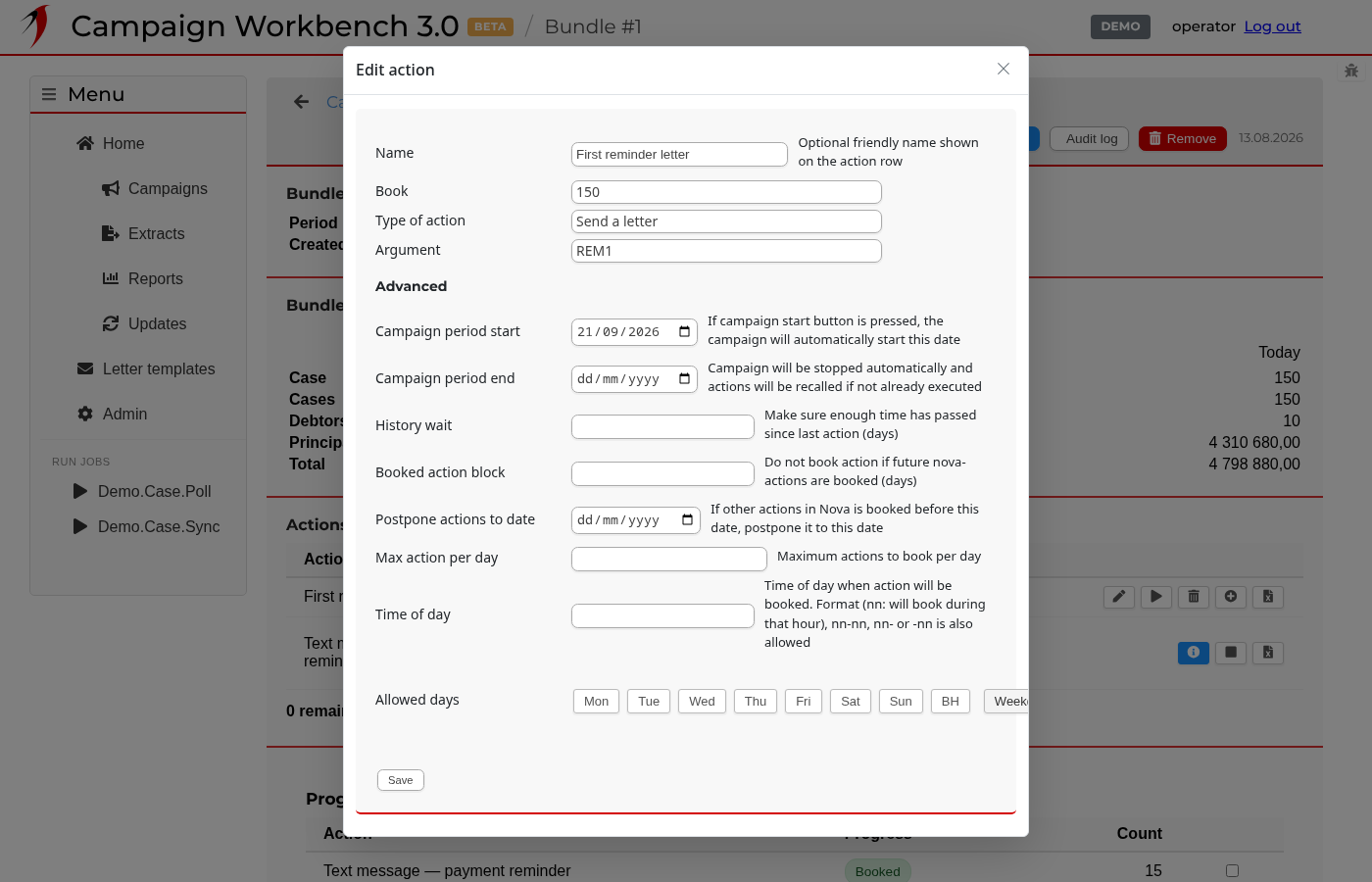
Editing a booked action

Editing a booked action

Before an action is sent, everything about it can still be changed: its name, the argument it carries — which letter to send, for example — when it should start, and which days of the week it is allowed to run on. Once it has started the same dialog opens read-only, so the settings it ran with stay visible.

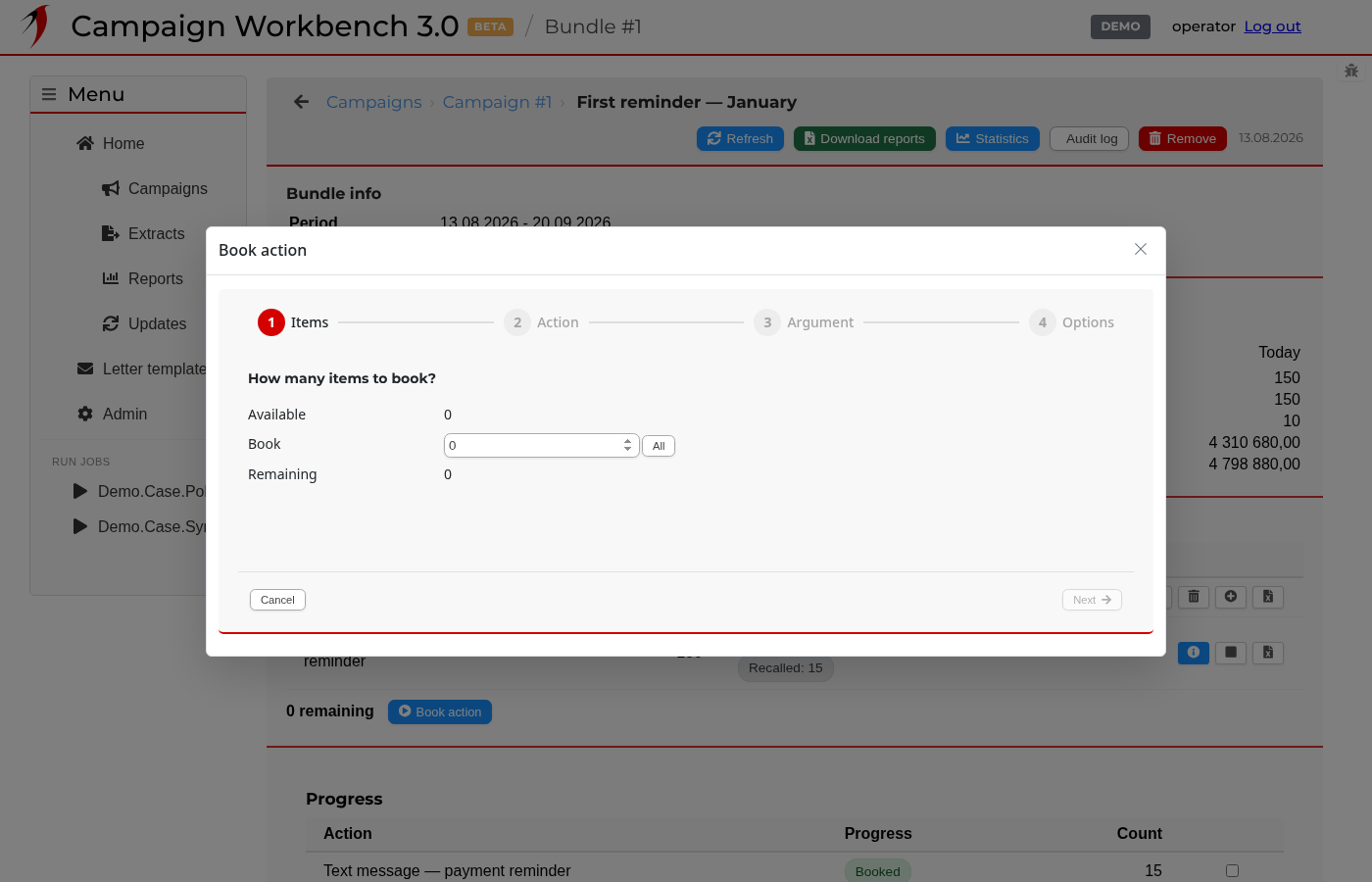
Booking an action

Booking an action

Booking asks which items the action applies to, which action to run, what argument it takes and when it may run. The list of available actions and the values each one accepts come from the installed integration, so this wizard looks different on an instance wired to a different source system.

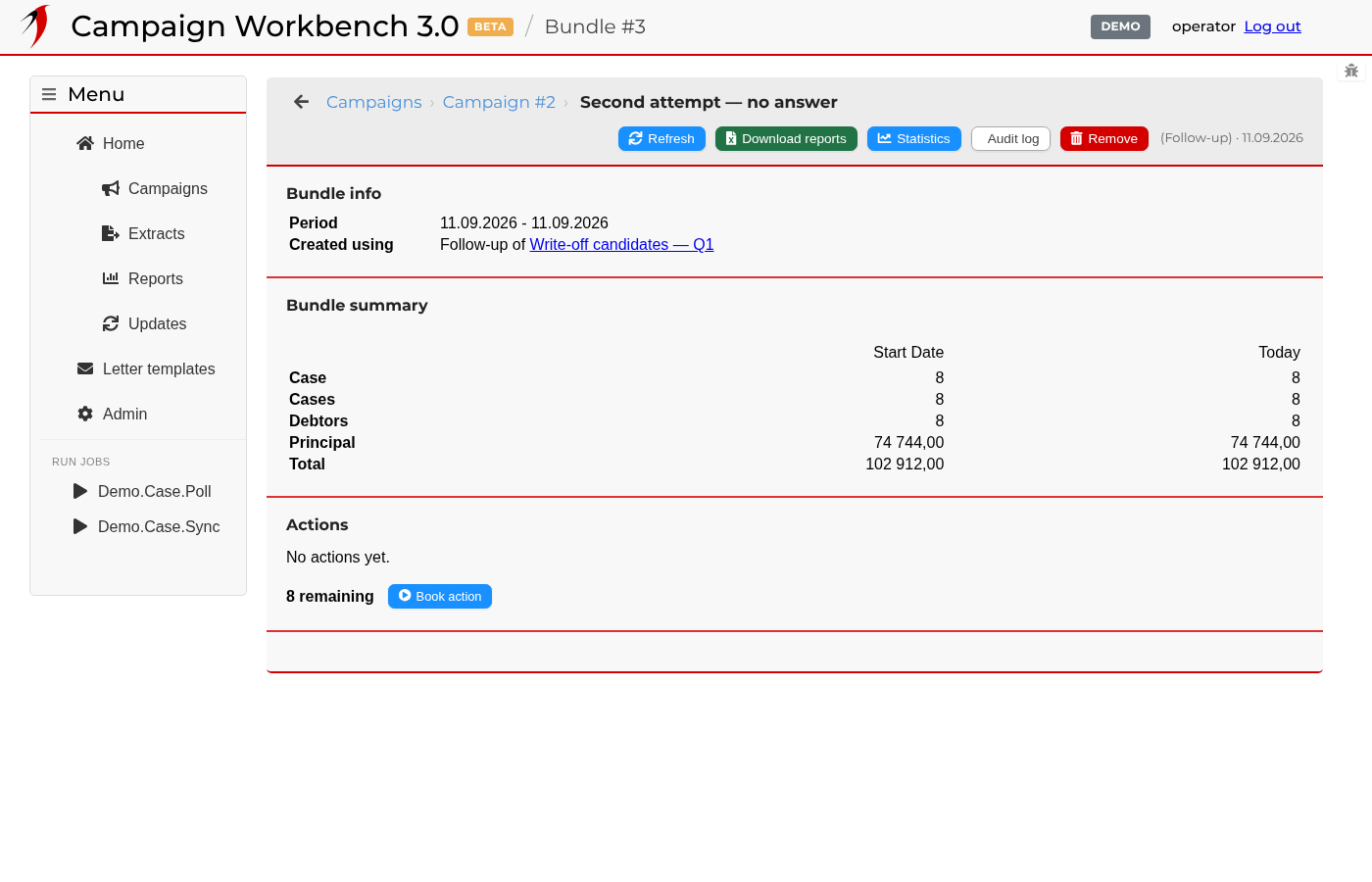
A follow-up bundle

A follow-up bundle

A follow-up is a new bundle made from part of an old one — typically the items an action did not reach, or the ones that came back a particular way. It keeps a link to the bundle it came from, so a campaign that runs in several passes stays readable as one tree rather than a pile of unrelated lists.

Choosing what to follow up

Choosing what to follow up

The progress table breaks a bundle down by how each item ended up. Ticking one or more rows and pressing Create follow-up carries exactly those items into a new bundle — which is how a second attempt at the ones that did not land is set up.

Exporting a bundle

Exporting a bundle

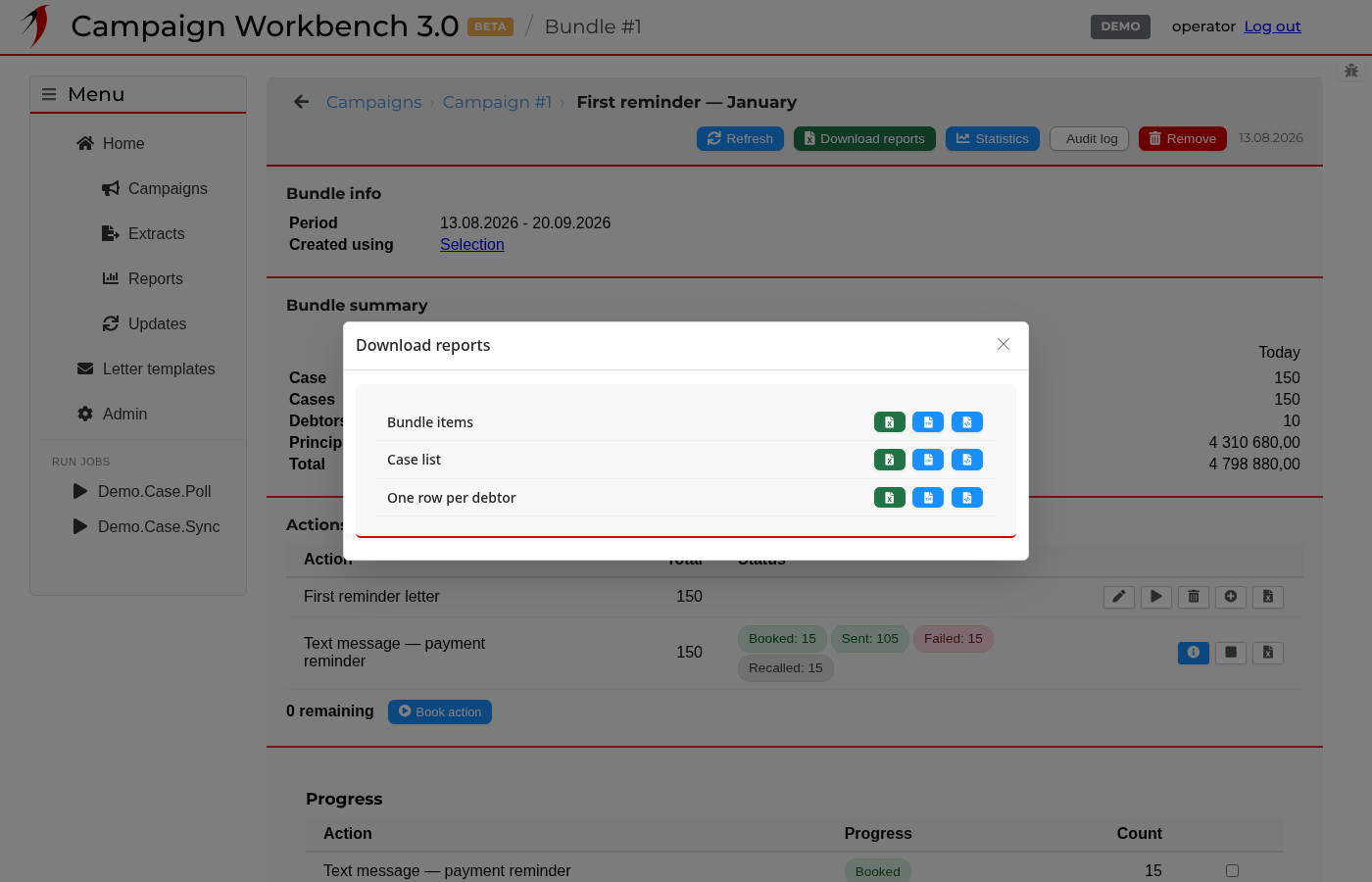
Every bundle can be written out as a file. The plain item list is always offered; the exports below it come from the installed integration and each shapes the same items differently. Each one can be taken as a spreadsheet, as CSV or as JSON.

How a bundle moved over time

How a bundle moved over time

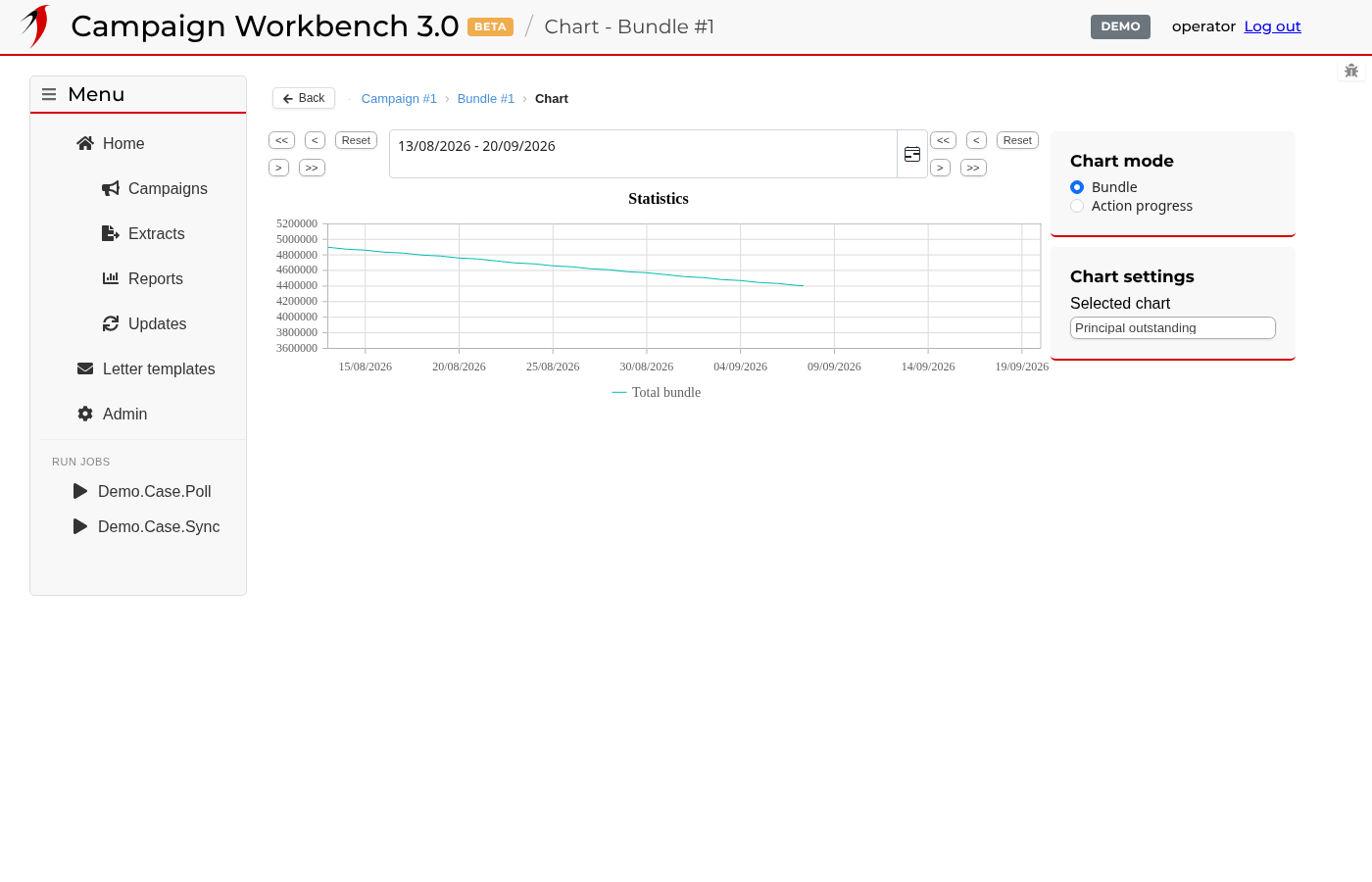
The statistics view plots a bundle against time: how many items it holds, what they are worth and how that has changed since the bundle was made. The panel on the right chooses what is plotted and how it is grouped.

Importing a file — choosing it

Importing a file — choosing it

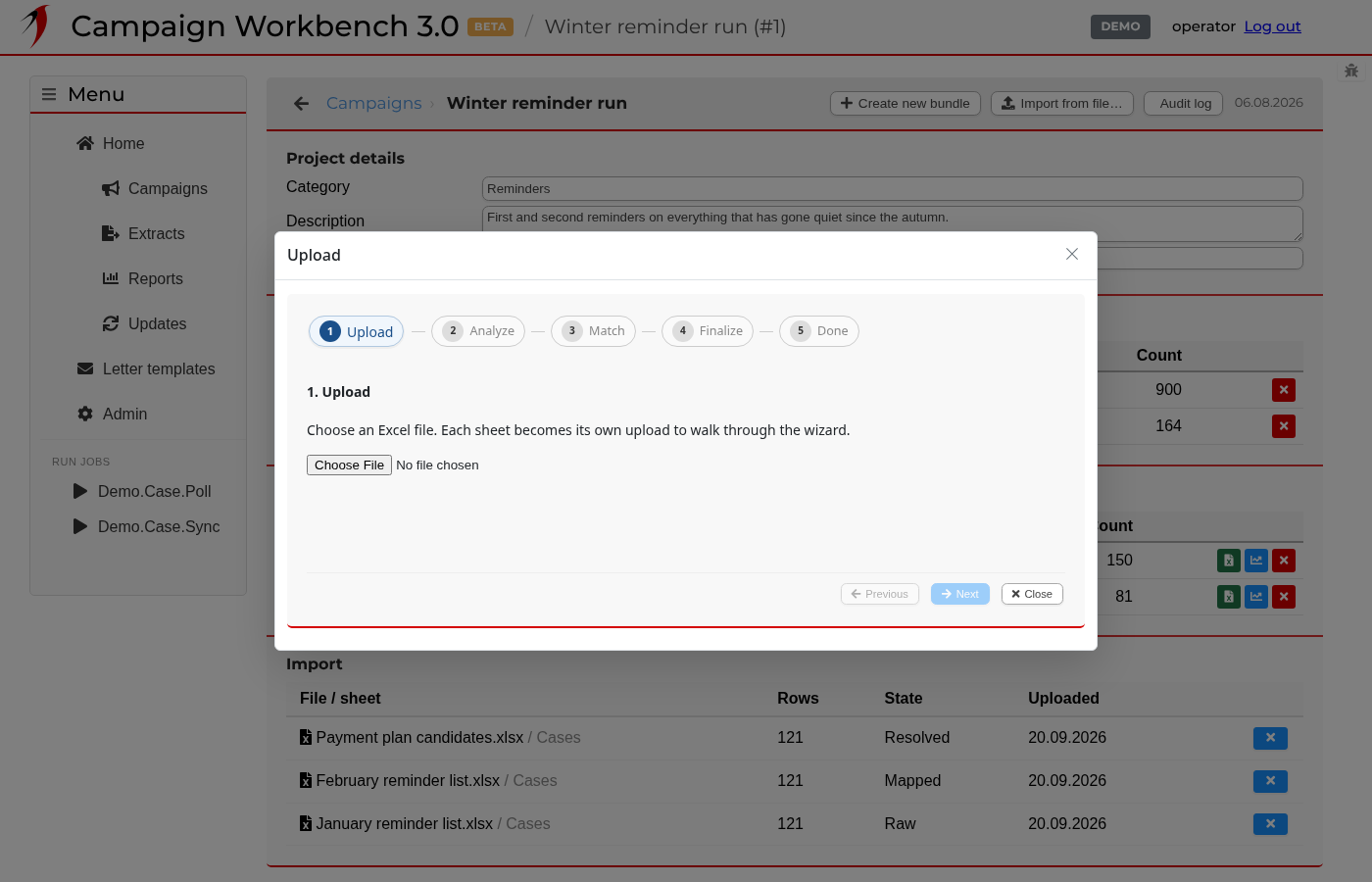
Not every bundle is built by filtering; sometimes the list comes from somewhere else as a spreadsheet. Import from file… opens a five-step wizard, and the first step is simply picking the file.

Importing a file — matching the columns

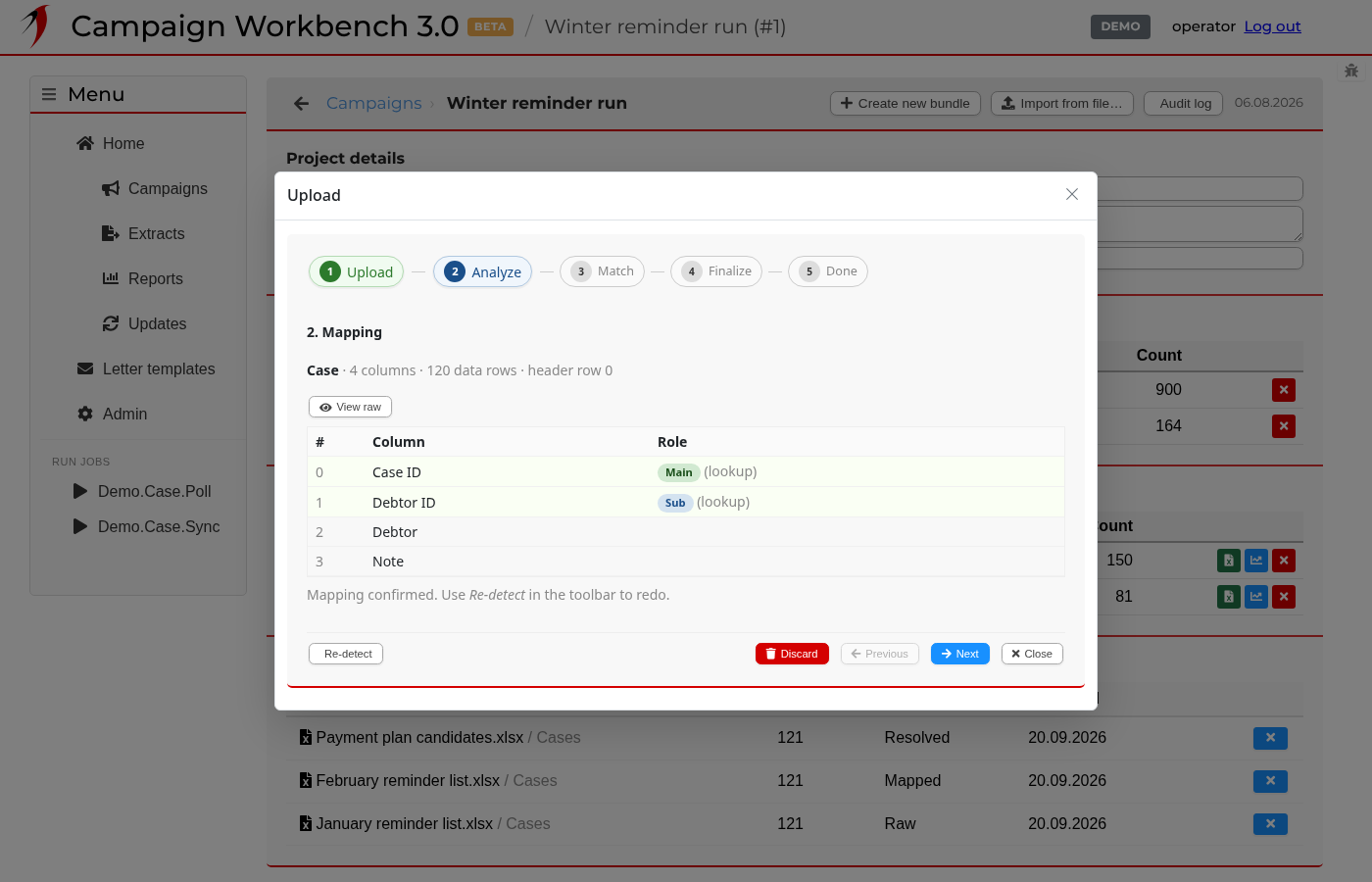
Importing a file — matching the columns

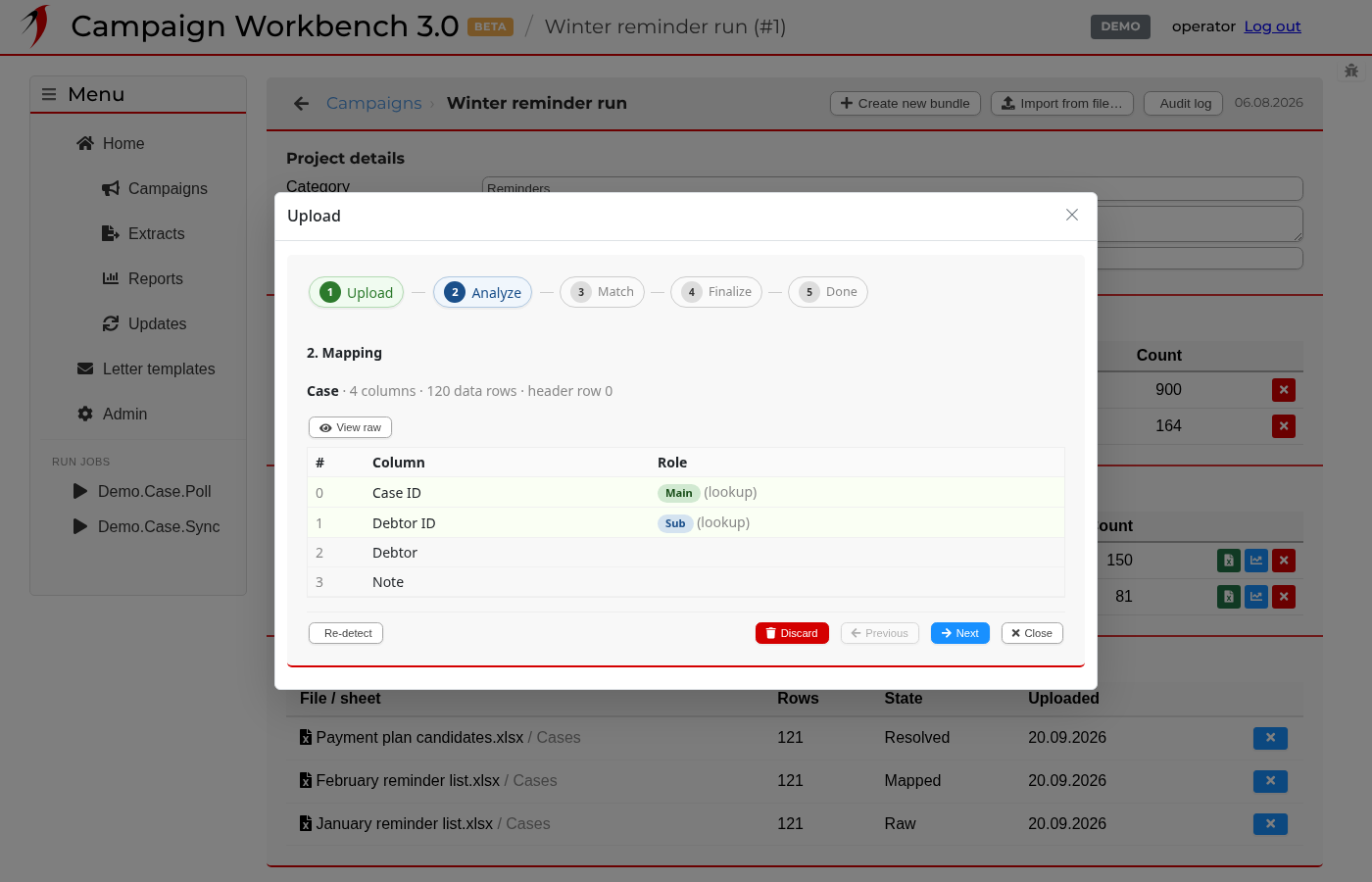
The wizard reads the file's header row and works out which column is which. It shows what it decided and how confident it is; if it has guessed wrong, the mapping can be corrected before anything is read in. View raw shows the first rows of the file exactly as they arrived.

Importing a file — matching the values

Importing a file — matching the values

With the columns settled, the values in them are matched against the instance's own data: item references are looked up, and coded values are translated. Anything that cannot be matched is reported here rather than silently dropped.

Importing a file — finalising

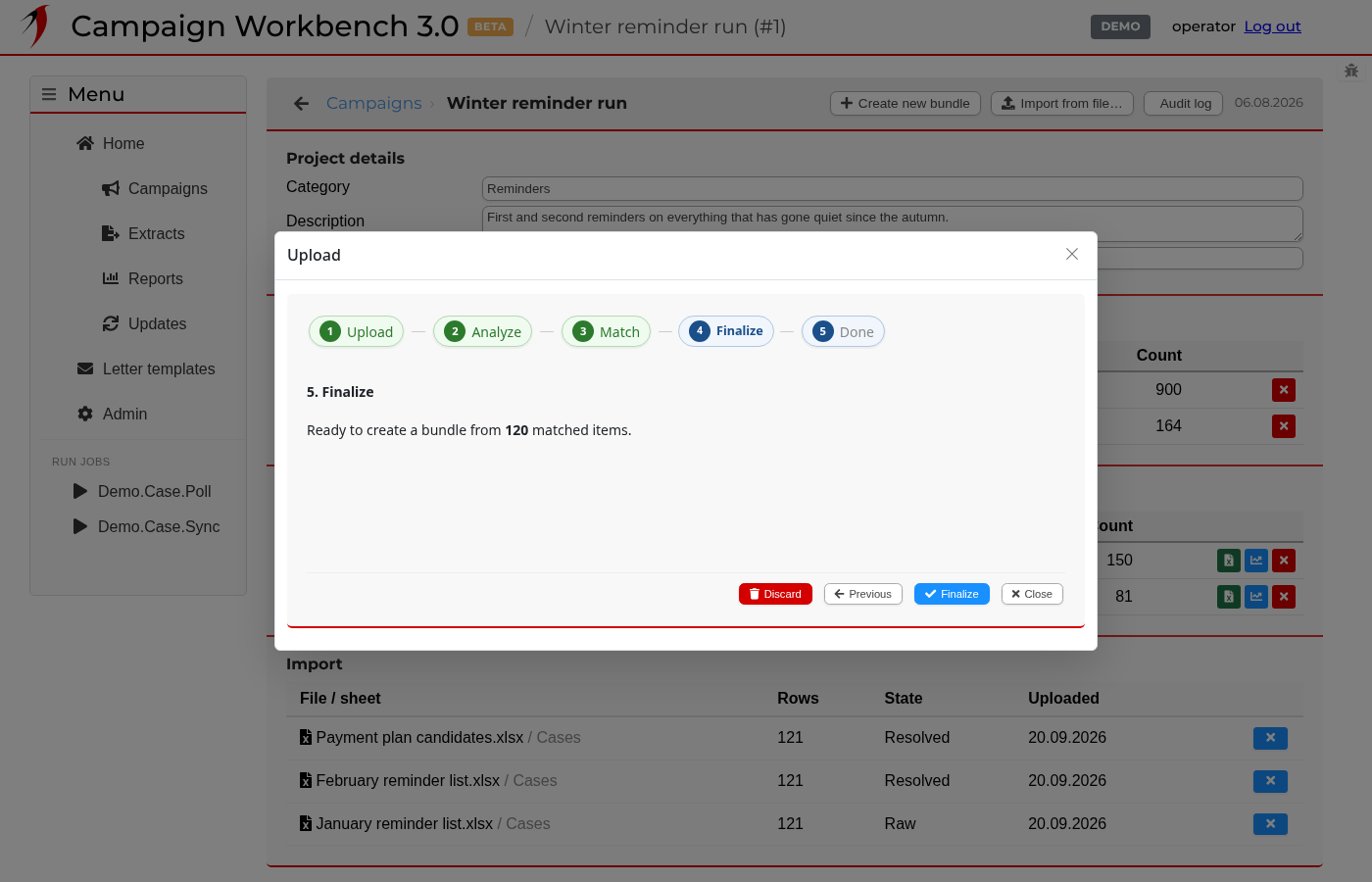
Importing a file — finalising

The last step before the import lands: a summary of what will be created, and the button that turns the file into a bundle you can book actions against. Pressing it moves the wizard on to Done, which confirms the bundle and offers to open it.

A lookup of letter templates

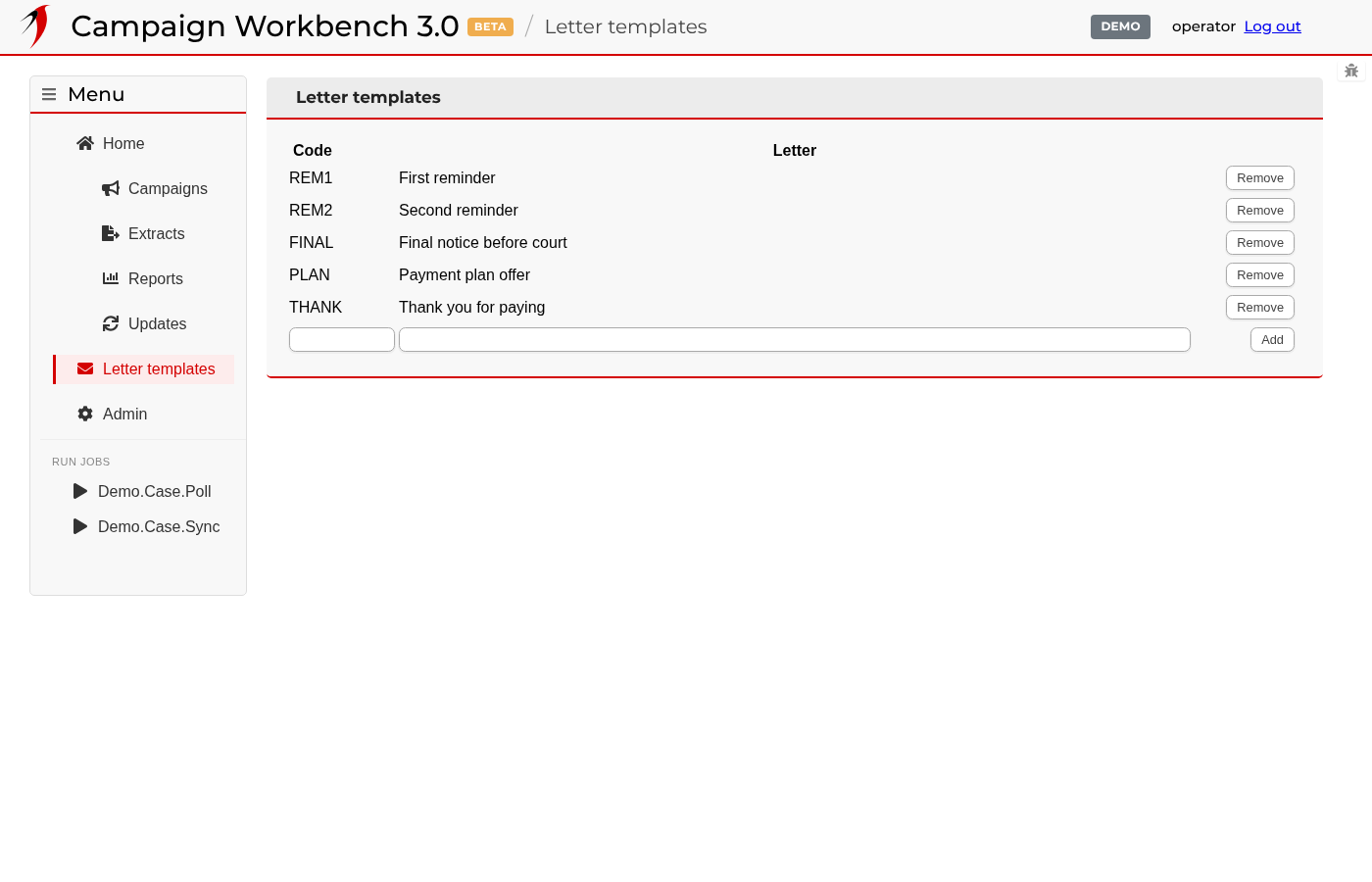
A lookup of letter templates

A lookup is a list the instance keeps for itself — here, the letters an action can send. Anything an operator needs to maintain without a developer tends to live in a lookup, and any lookup can be given its own entry in the left-hand menu.

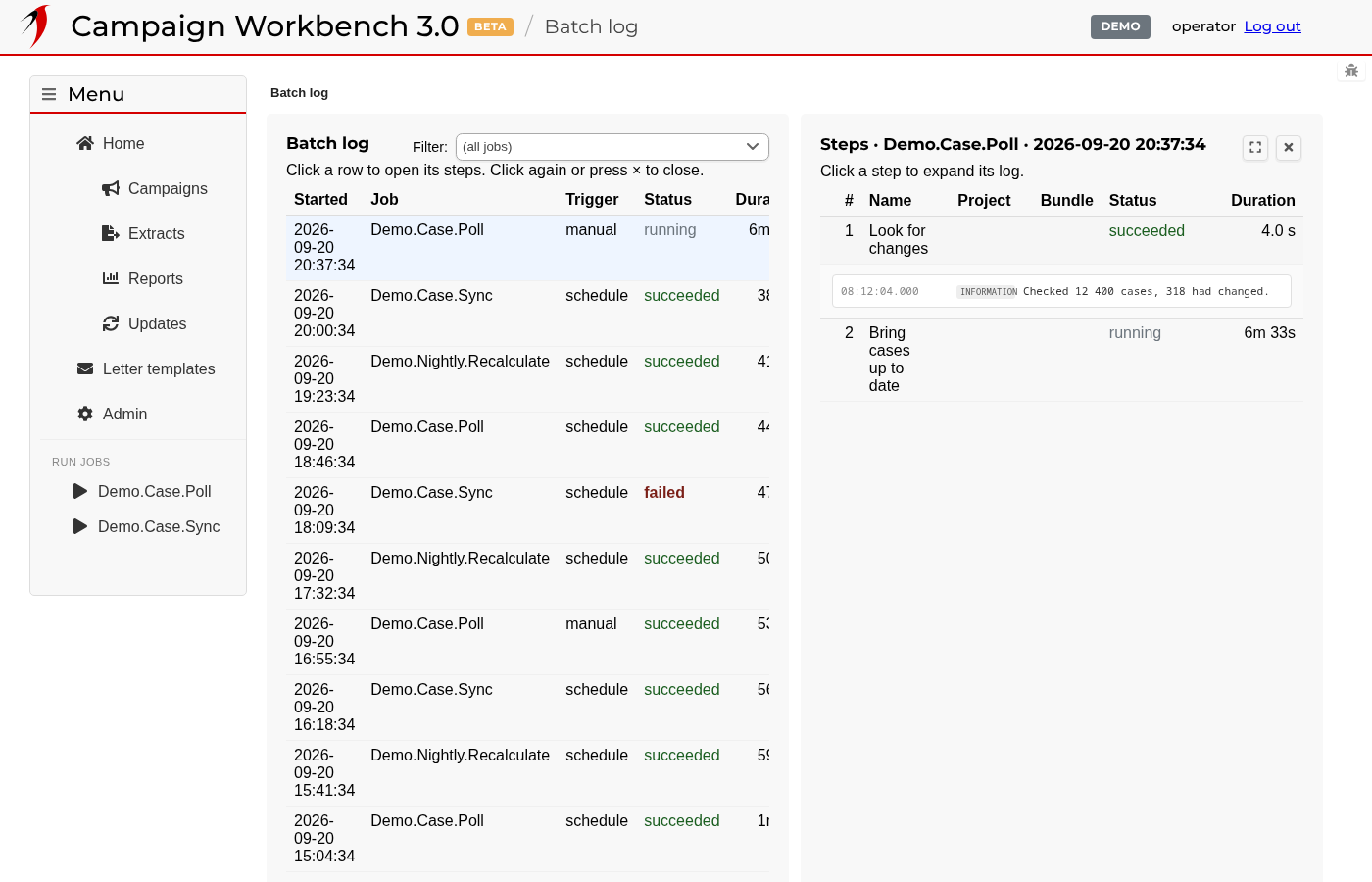
What the instance did overnight

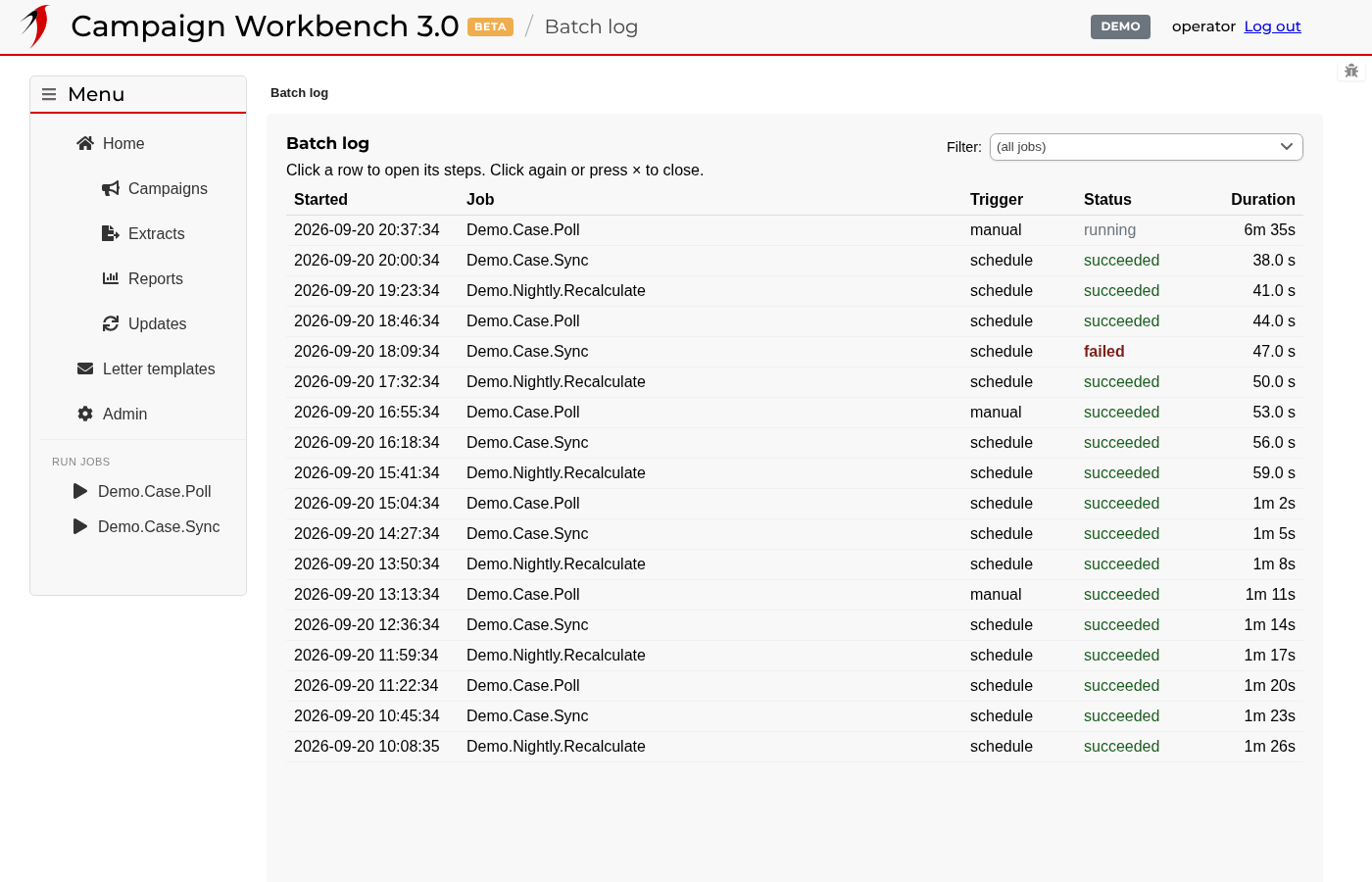
What the instance did overnight

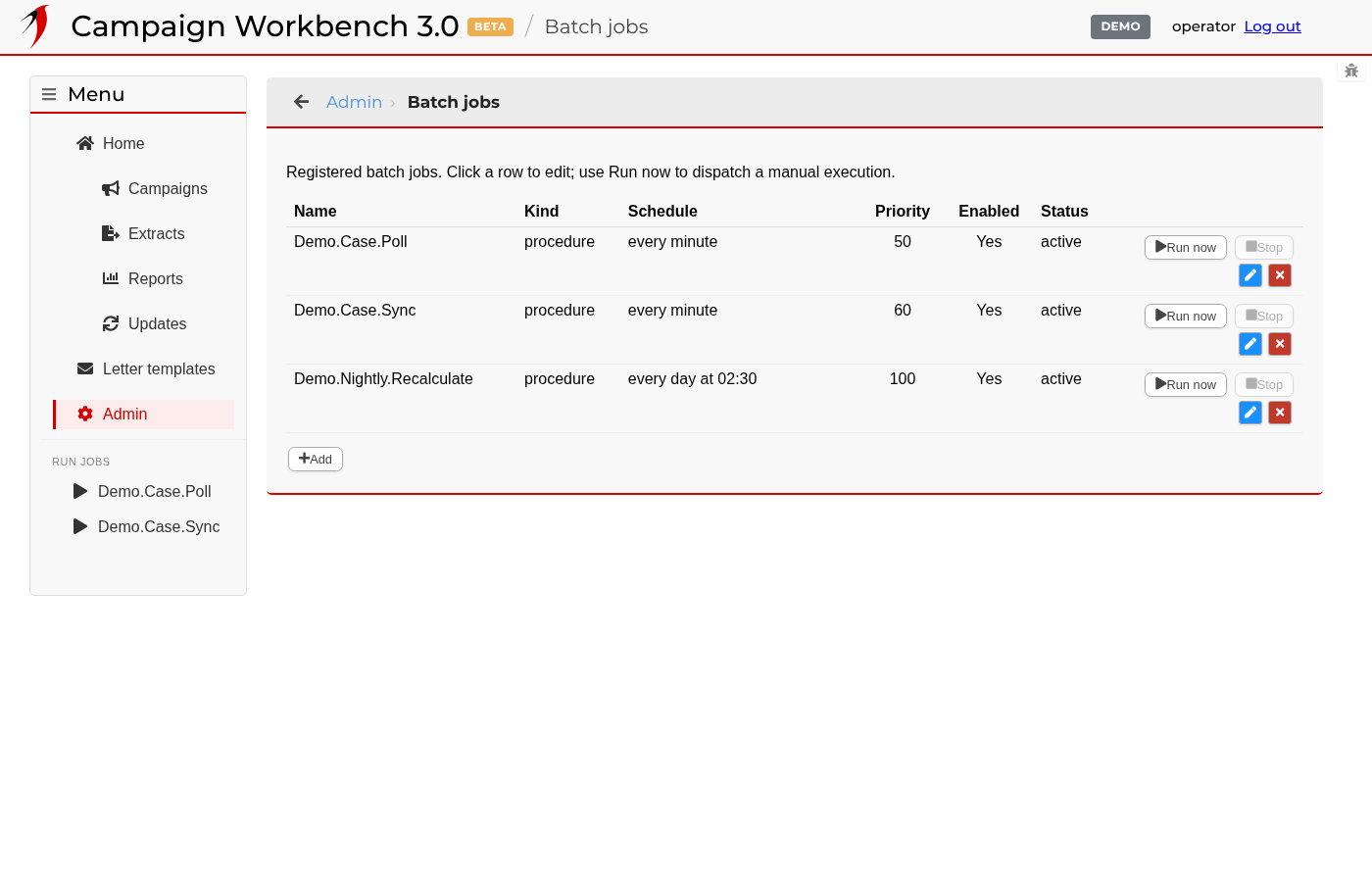
Everything the instance does on its own — keeping its copy of the source system current, refreshing bundles, sending booked actions — is a job, and every run is logged here. The list on the left is the runs; clicking one opens its steps on the right. A run that is still going updates as it goes.

Inside one job run

Inside one job run

Each run breaks into steps, and each step keeps its own log. Clicking a step expands it, which is where you look when a job failed: the step that broke, what it was doing, and the error it reported.

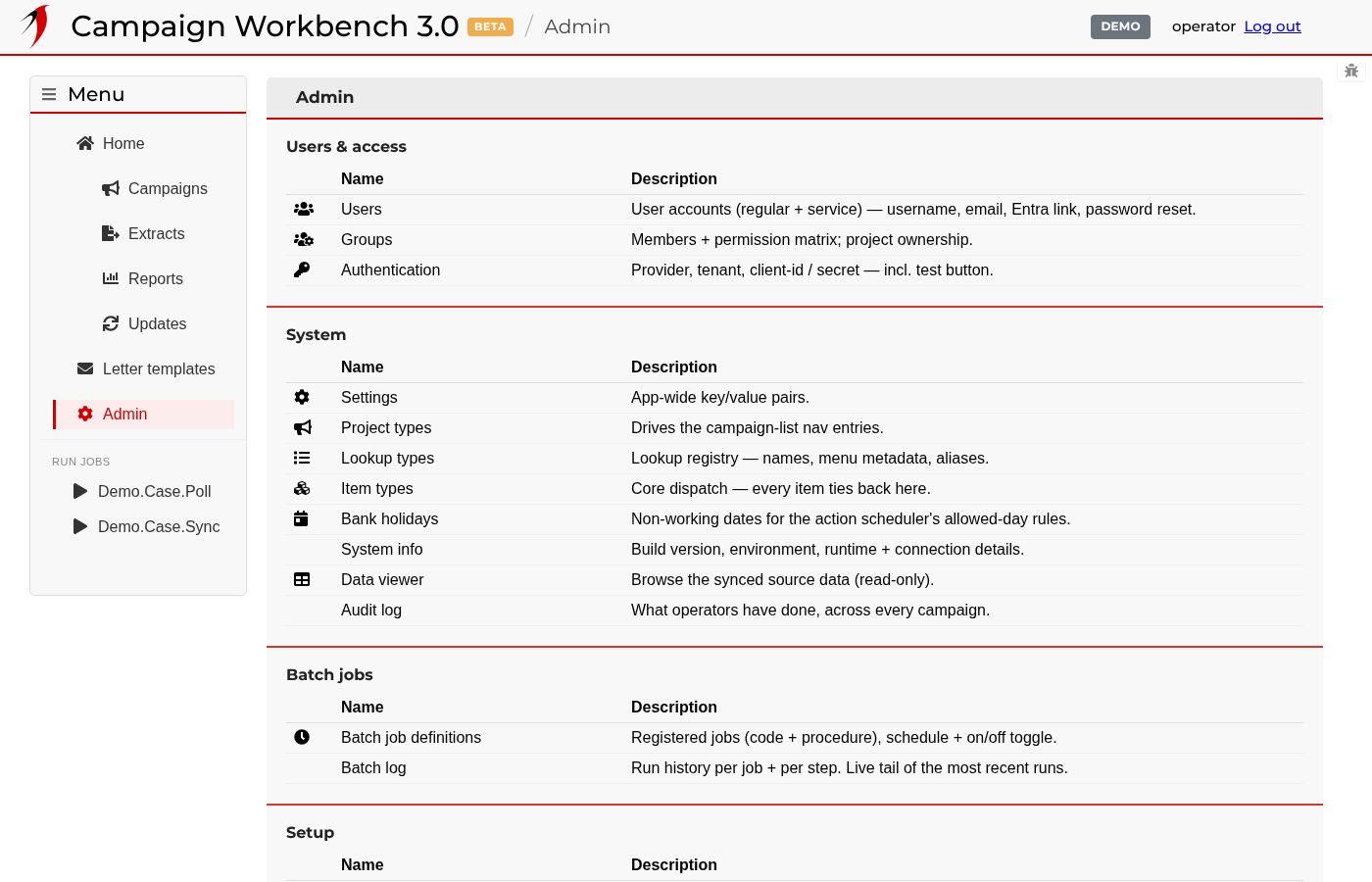
The administration pages

The administration pages

One index for everything that decides how the instance behaves: who may use it, what the selections can filter on, what actions can be booked, what can be exported, and what runs on a schedule. Most of it is set up once when an integration is installed and then left alone.

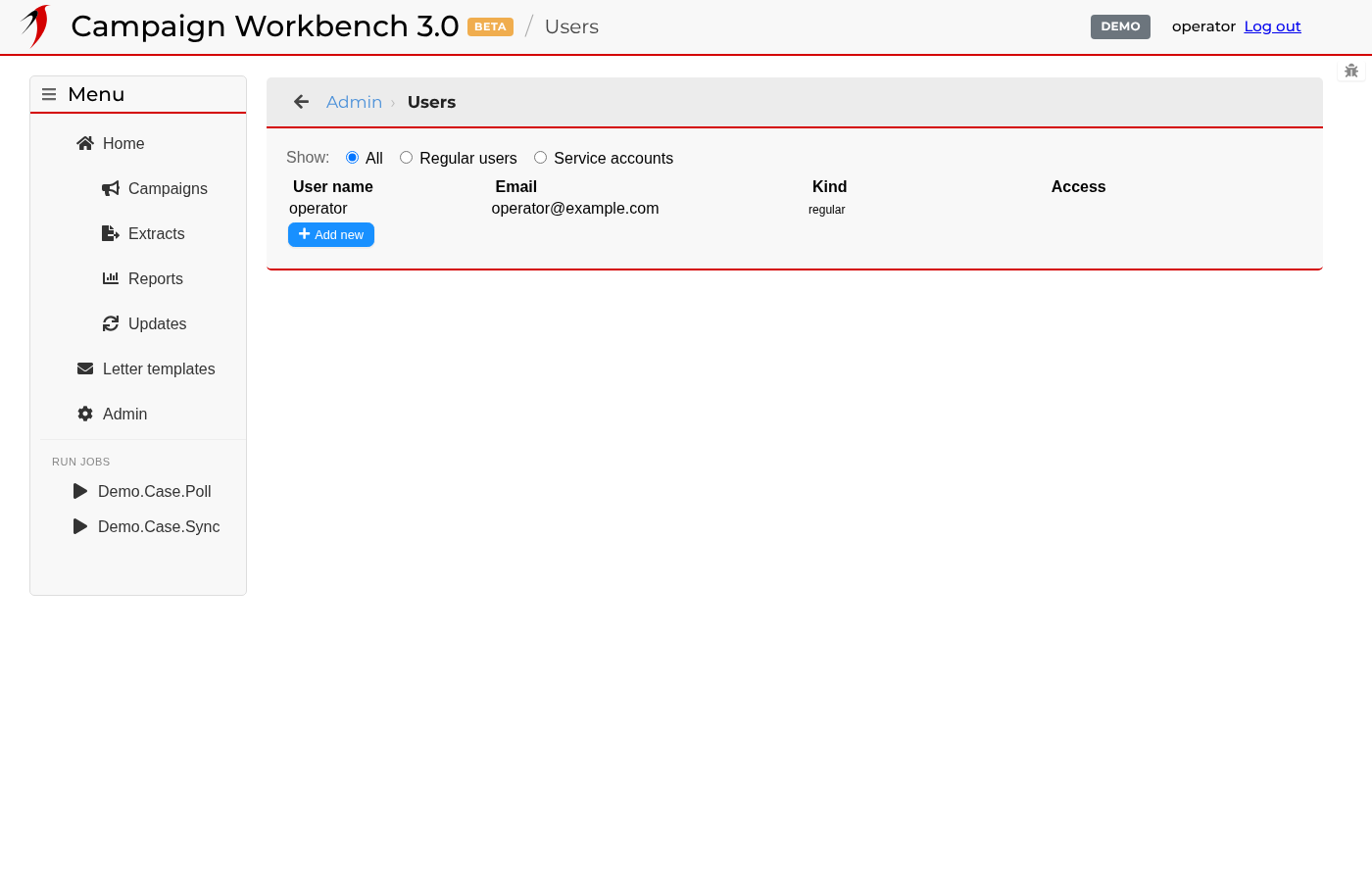
User accounts

User accounts

The accounts that can sign in. The filter separates the people from the service accounts and from anyone whose request for access has not yet been approved.

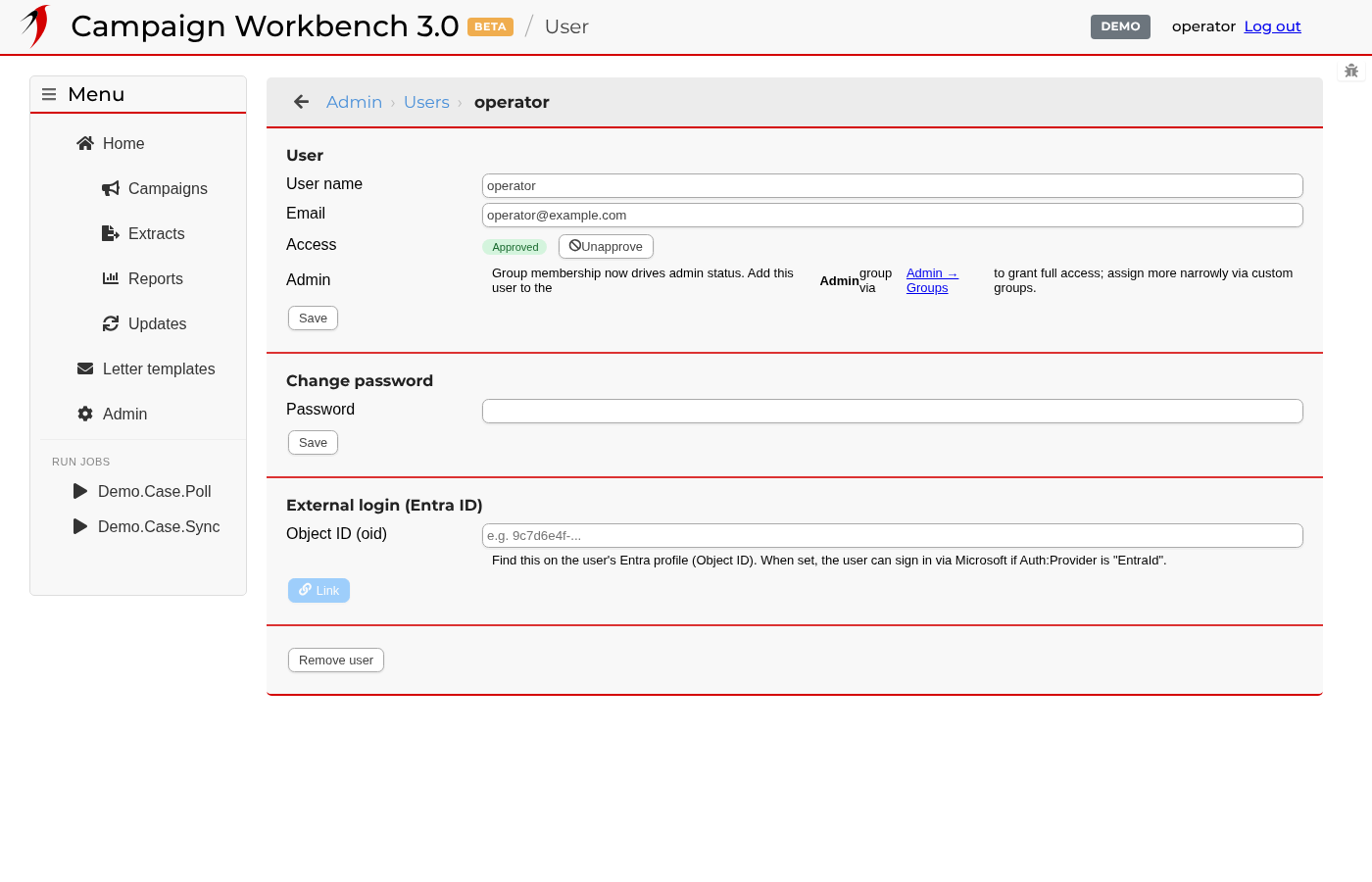
One user

One user

A single account: its name and address, whether it is approved, and the group memberships that decide what it may do. This is also where a password is reset and where an account is linked to a directory sign-in.

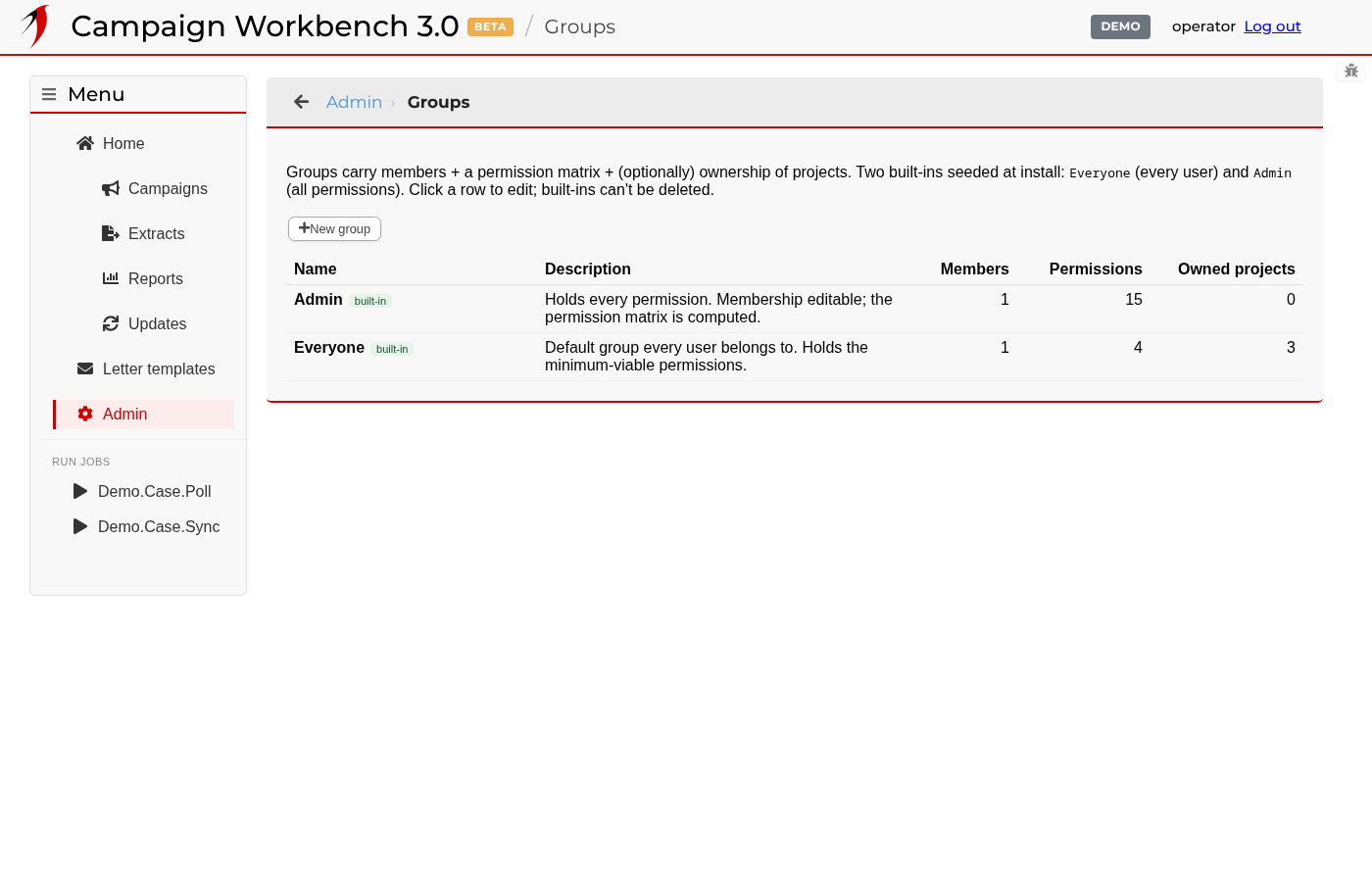
Groups and permissions

Groups and permissions

Permissions are not given to people directly — they are given to groups, and people are put in groups. Two groups exist from the start: everyone who signs in belongs to one, and administrators to the other.

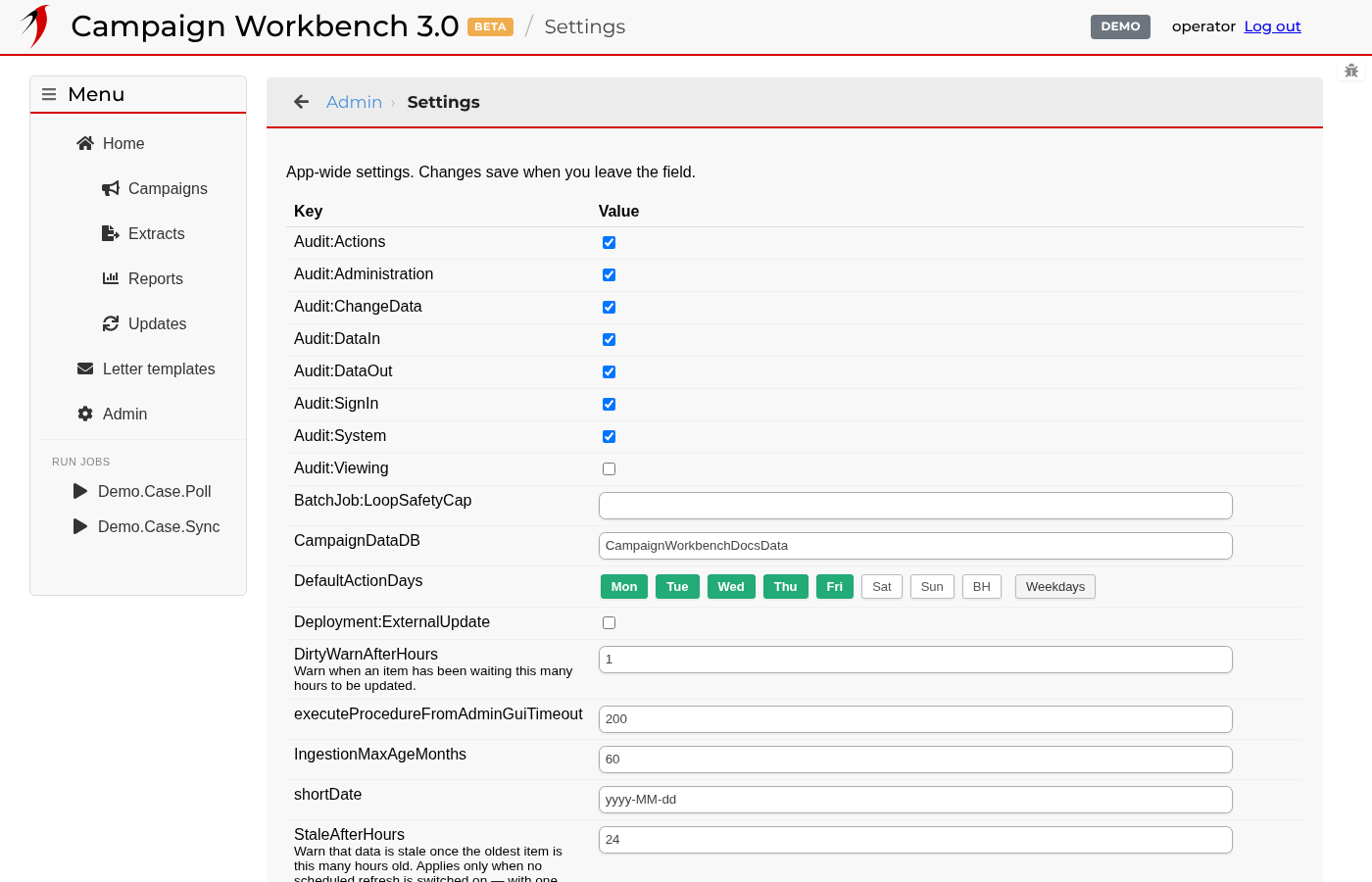
Instance settings

Instance settings

The knobs that apply to the whole instance: which database holds the mirrored source data, how dates are shown, how long a value may go unrefreshed before a selection warns you it is filtering on stale data. Each is saved as you leave the field.

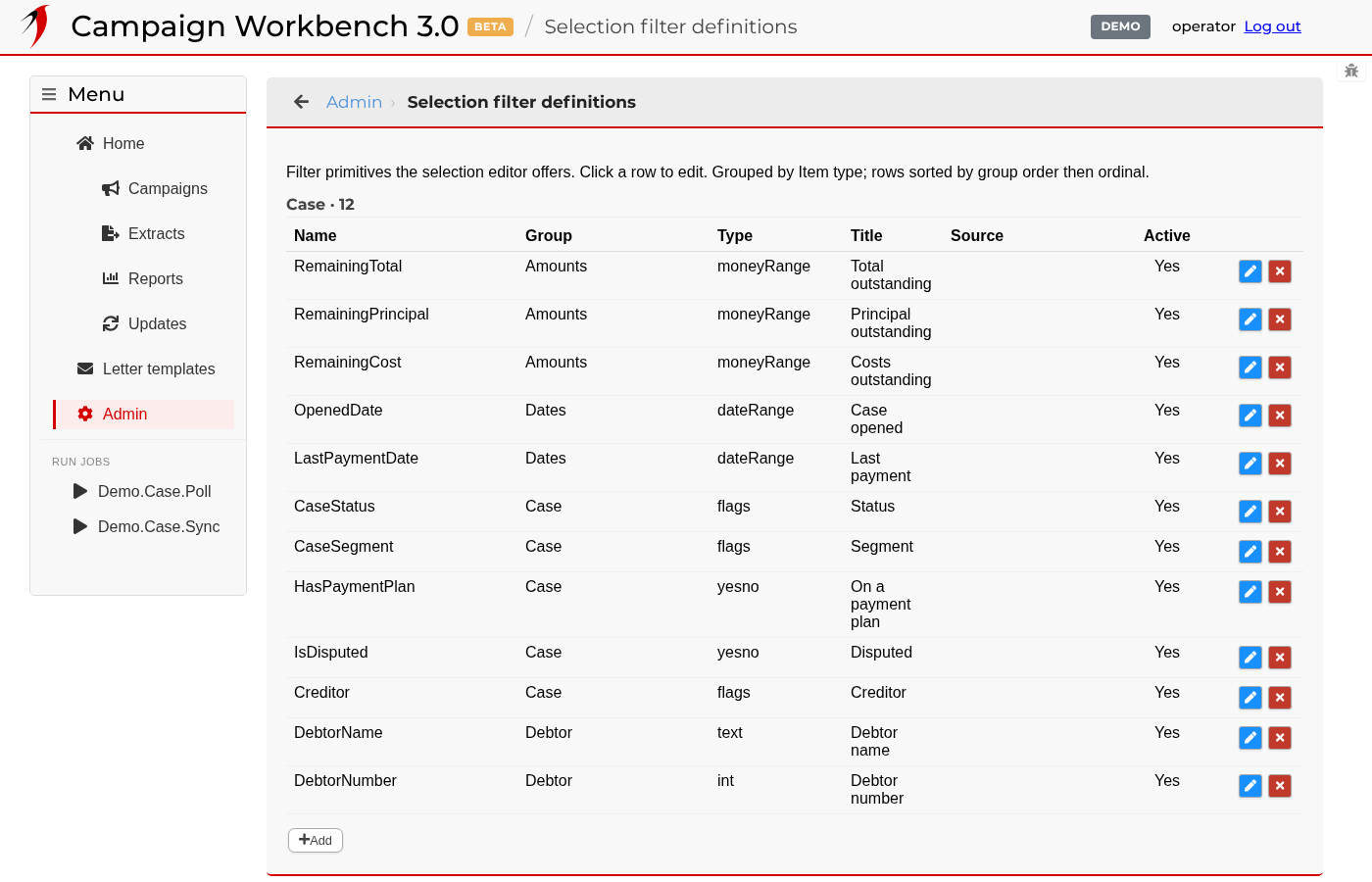
What a selection can filter on

What a selection can filter on

Every filter an operator sees on a selection is defined here: what it is called, which group of tabs it appears under, what kind of input it draws, and the query behind it. Installing an integration fills this list in; a site can add its own.

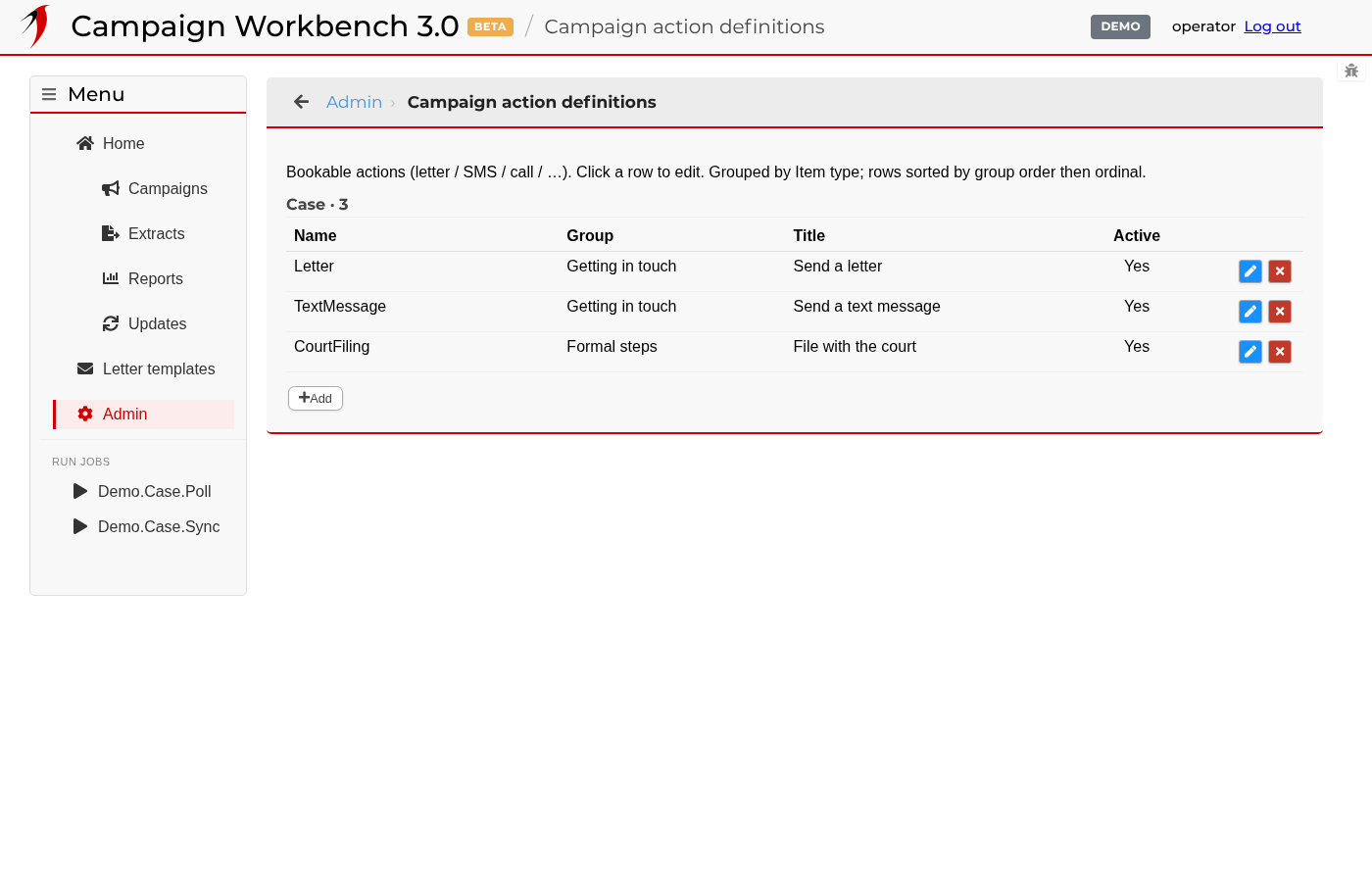
What can be booked against a bundle

What can be booked against a bundle

The catalogue of actions. Each one names what the instance should do to the items in a bundle, where the list of allowed arguments comes from, and whether booking it needs a permission of its own.

The scheduled jobs

The scheduled jobs

Every job the instance can run, with how often it should run and whether it is switched on. A job can also be started by hand from here, which is what you do after fixing whatever made it fail.

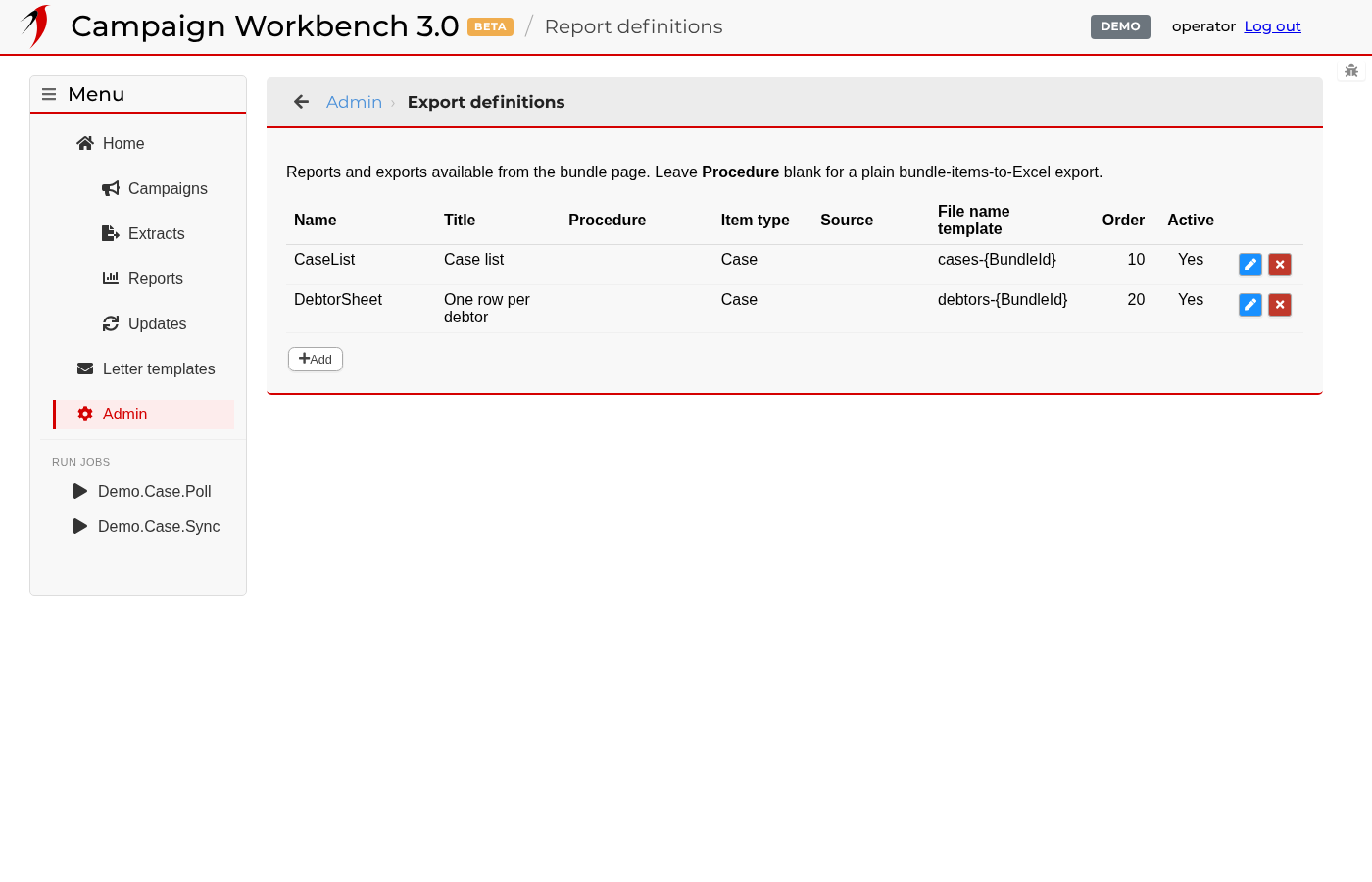
The exports on offer

The exports on offer

The exports that appear in a bundle's download dialog. Each names the query that shapes the file and, optionally, the item type it applies to, so a bundle is only offered exports that make sense for what is in it.

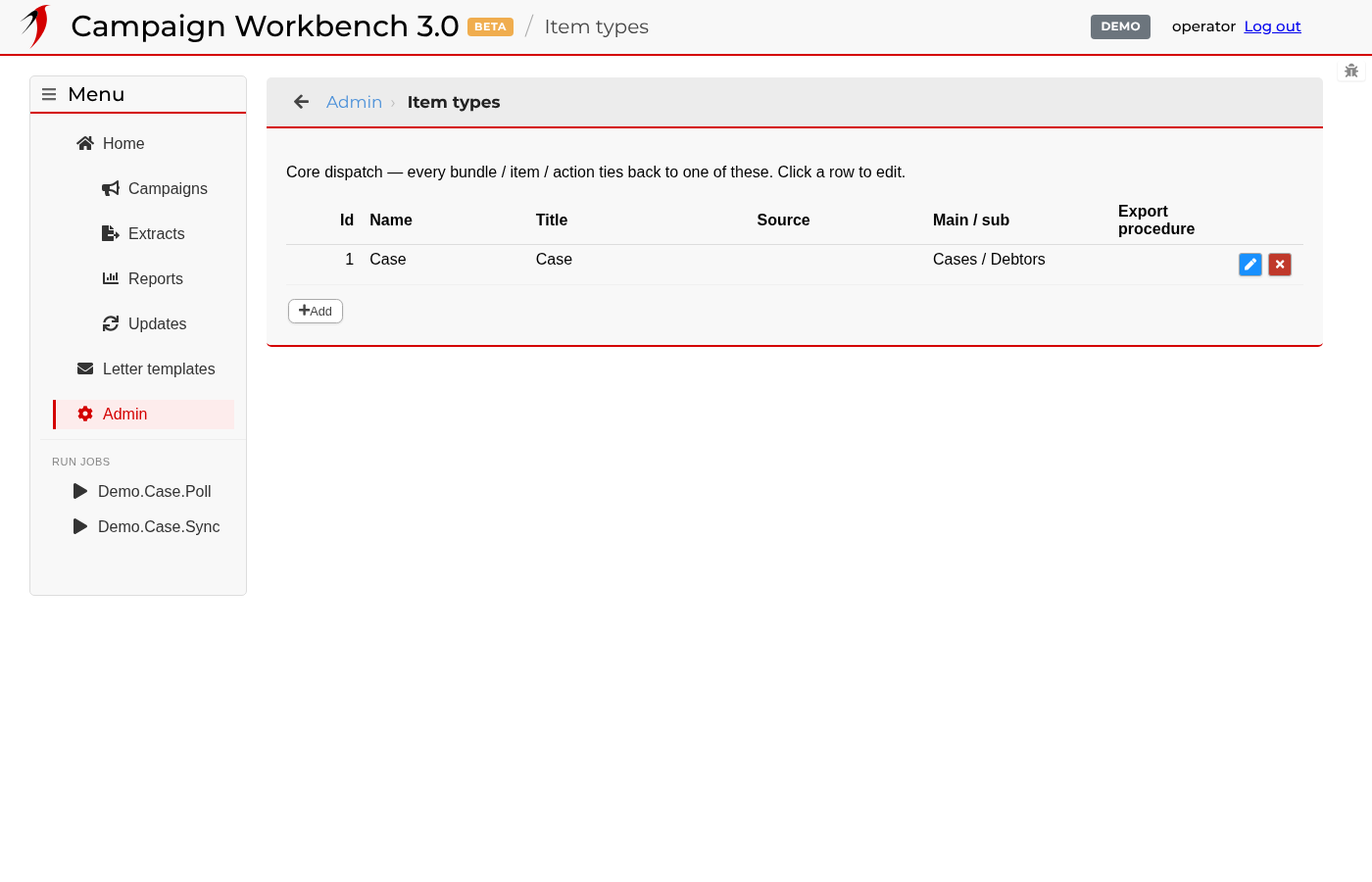
Item types

Item types

An item type is the answer to "what is a bundle a bundle of?" — a case, a debtor, an invoice. It carries the query that reaches the underlying data and the columns a bundle summarises. Integrations bring their own.

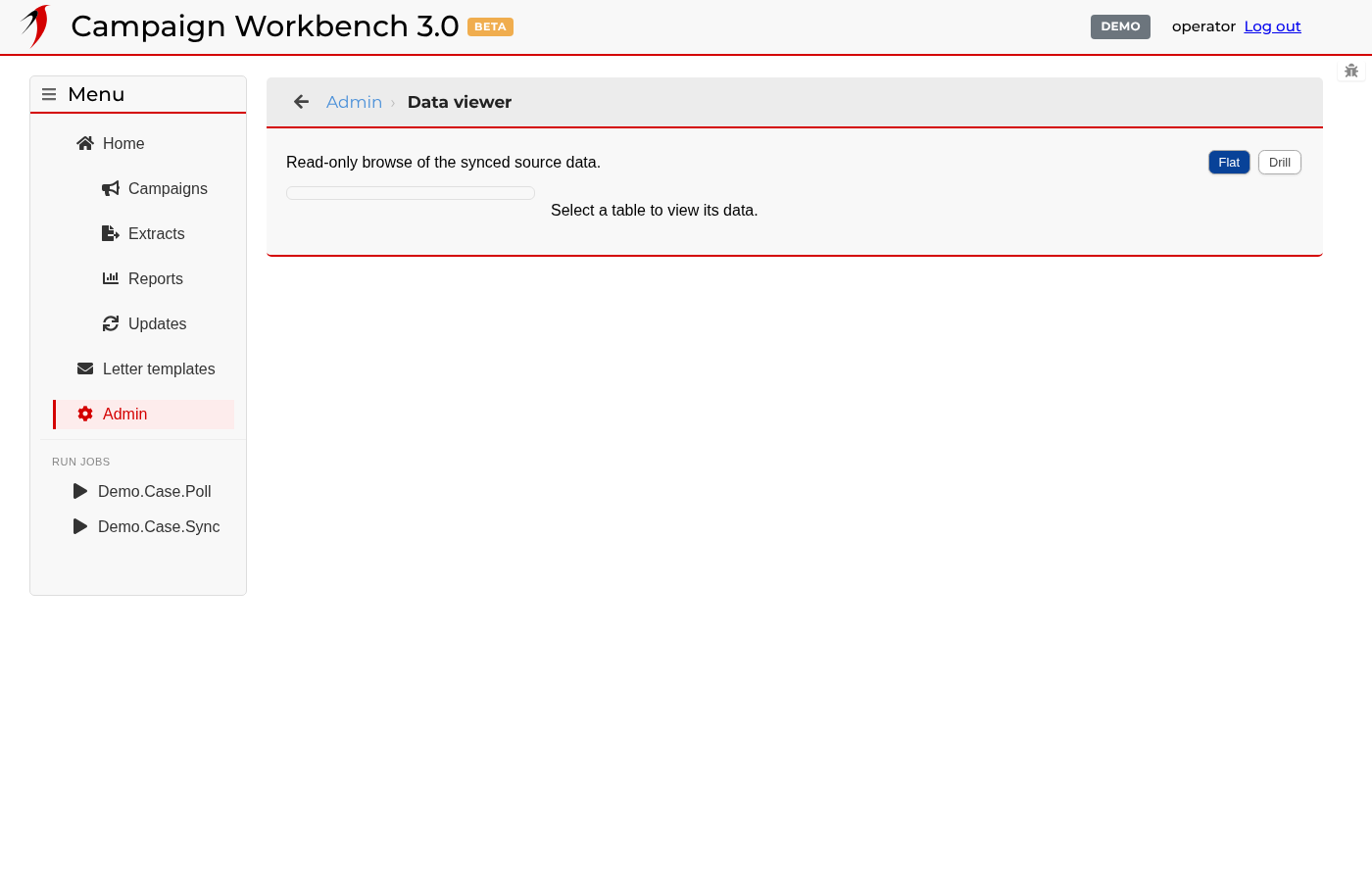
Looking at the data directly

Looking at the data directly

A read-only window onto the tables behind the instance, for the times a number on a page needs explaining. It is a diagnostic tool, not a place to change anything.

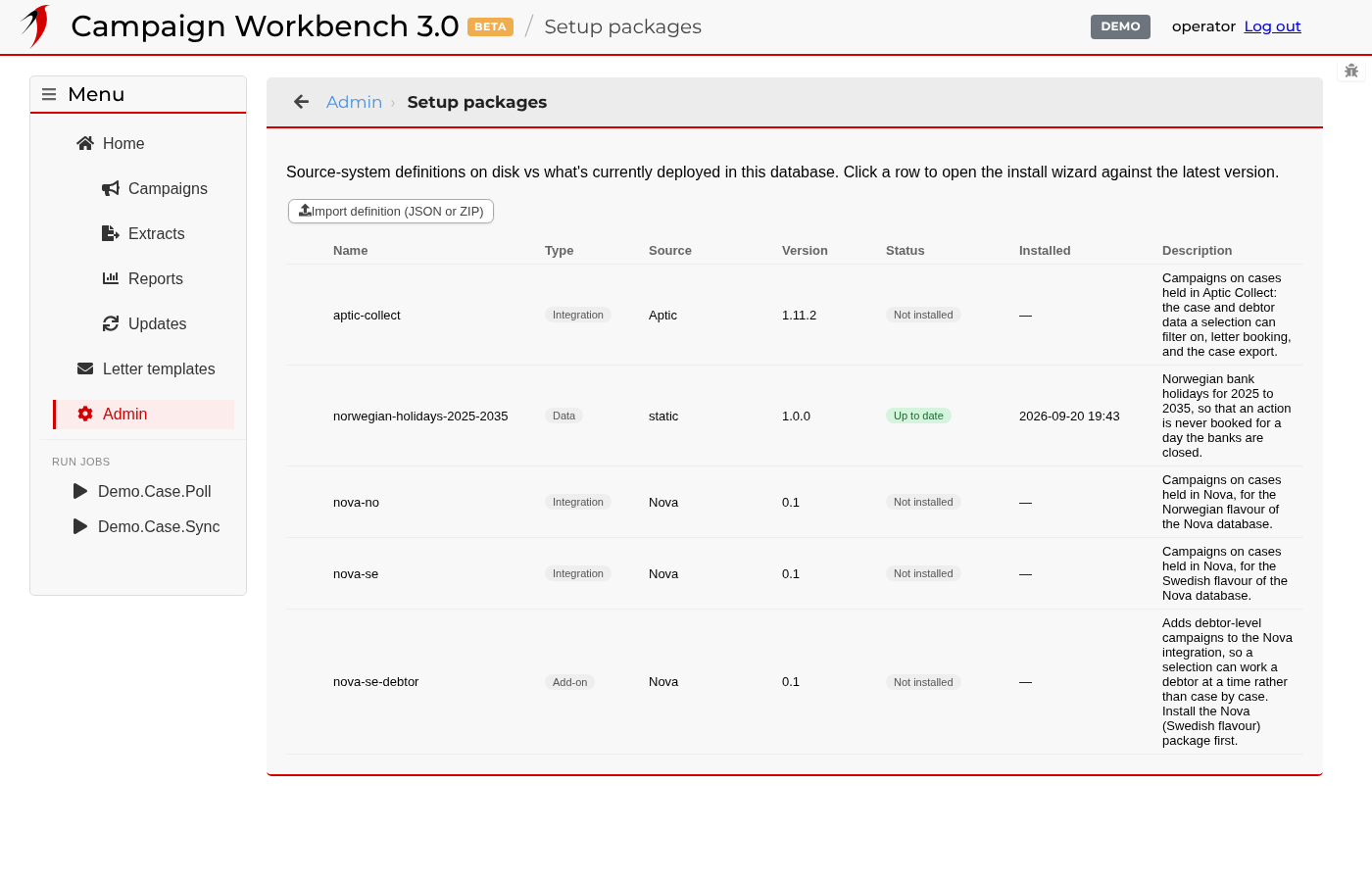
Installed packages

Installed packages

An integration arrives as a package: the tables it mirrors from a source system, the filters, actions and exports it brings, and the jobs that keep it current. This page lists what is installed, what version, and what is available to install.

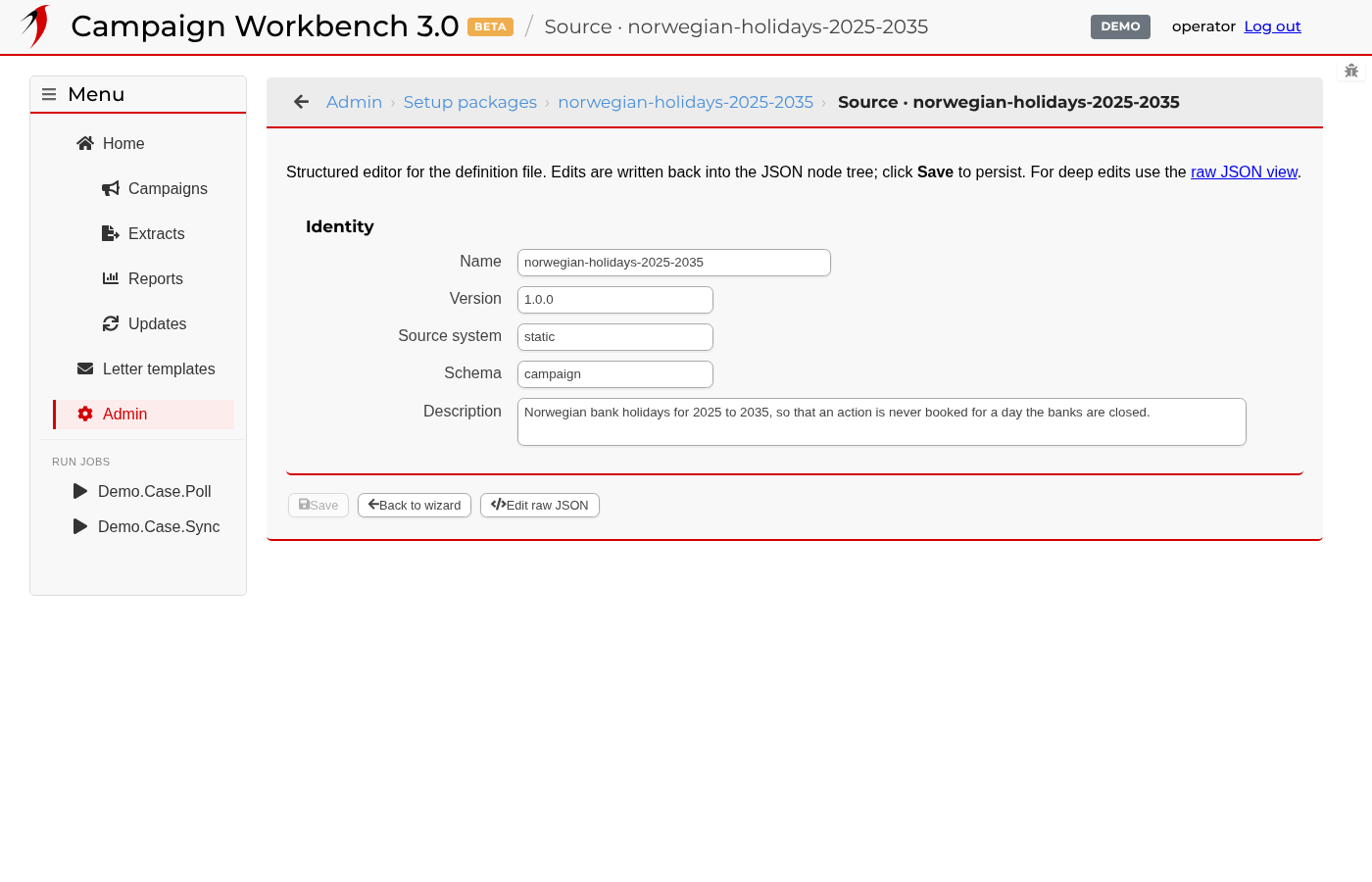
What a package contains

What a package contains

A package can be read before or after it is installed: every object it declares, every filter and action it seeds, and the raw definition behind them. Useful when working out why an instance offers a filter that another one does not.

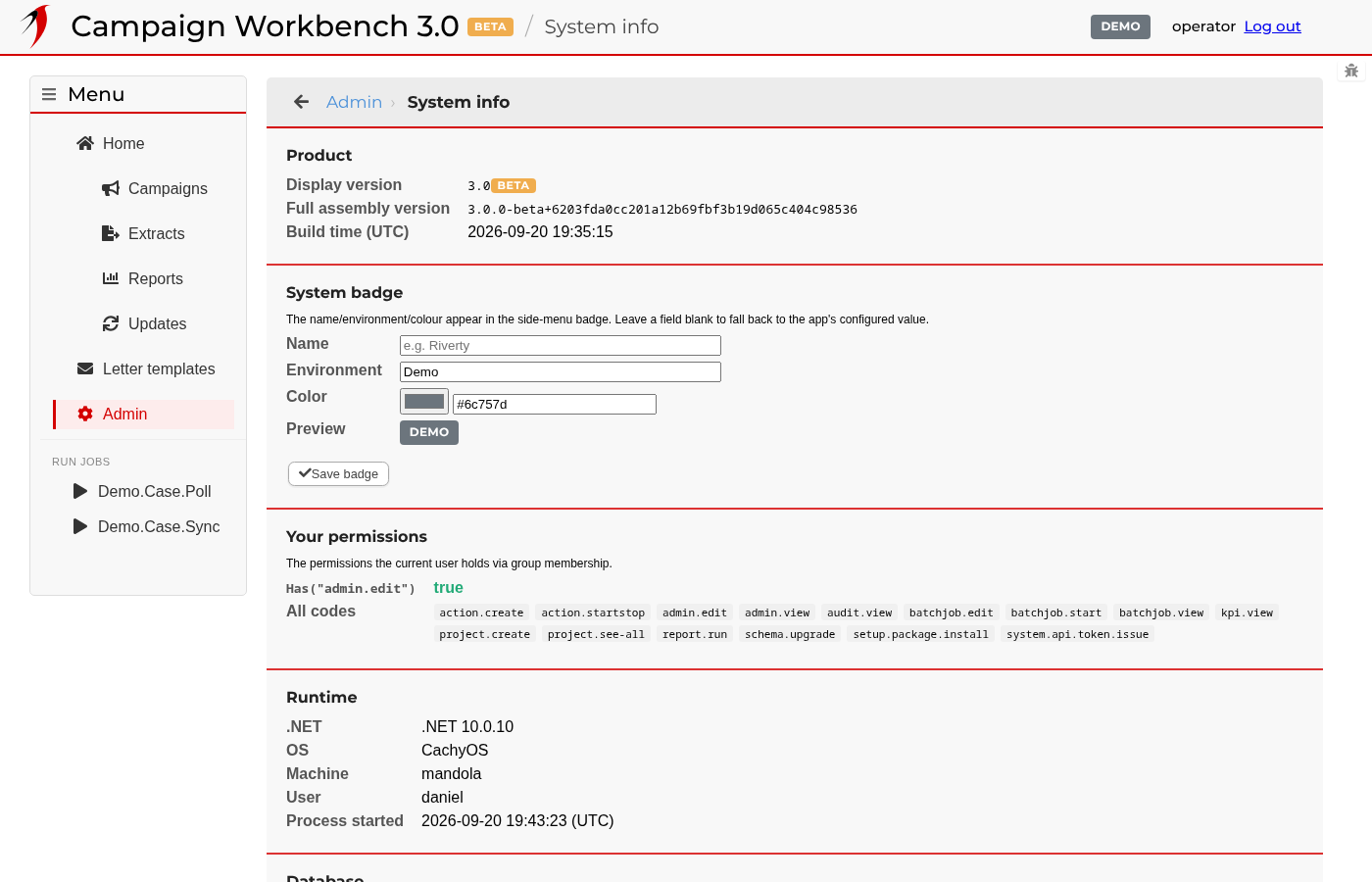
What this instance is

What this instance is

Version, database, which integrations are installed and what the signed-in account is allowed to do. The first page to open when something is behaving differently from another instance.

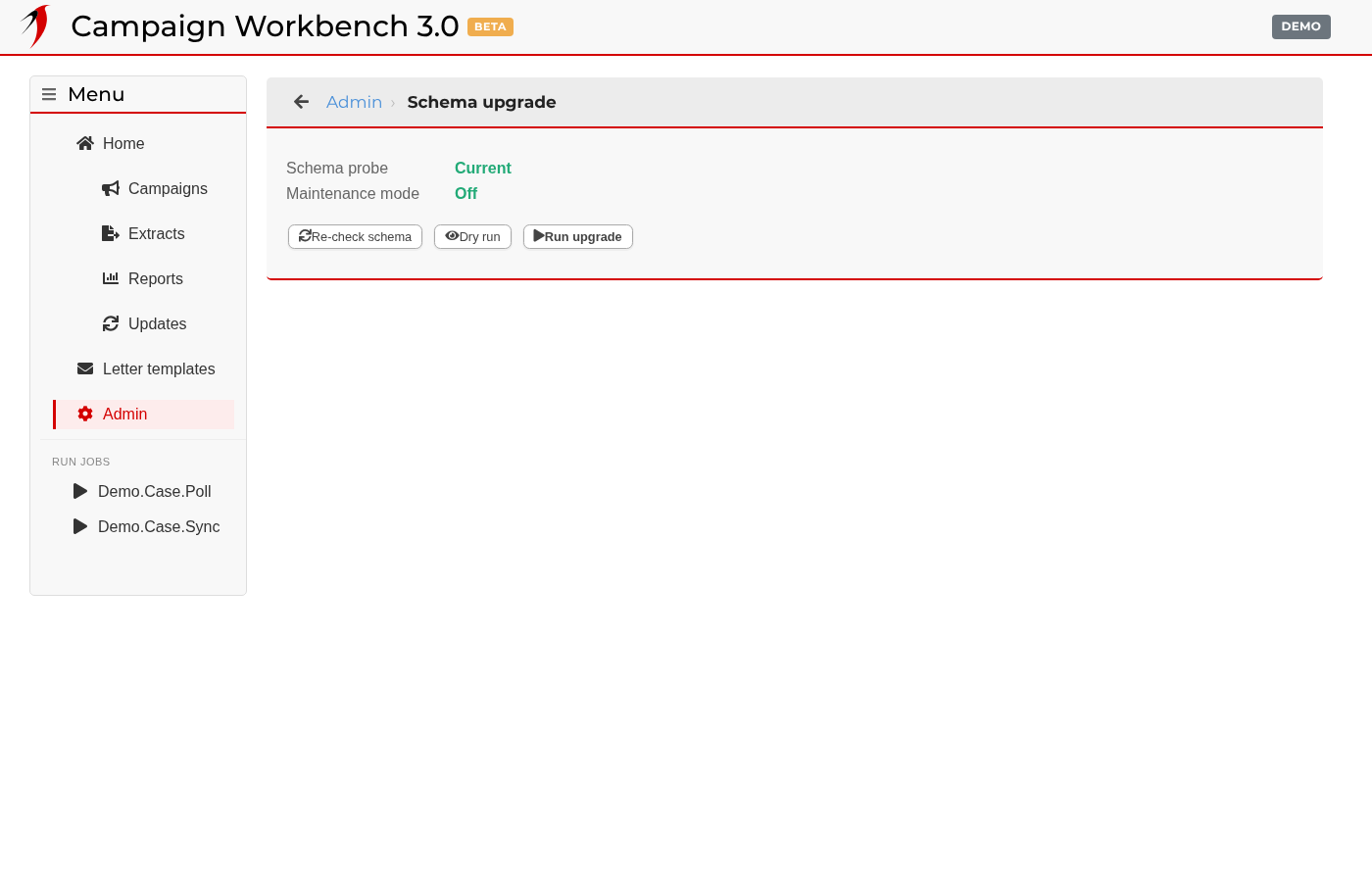
Bringing the database up to date

Bringing the database up to date

After new code is deployed the database it works against may need changes of its own. This page checks, says whether anything is outstanding, and runs the upgrade — with a dry run first if you want to see what it would do. When something is outstanding the instance puts itself into maintenance and sends everybody here until it has been run. On an empty server the same page is the first-run wizard that creates the databases and the first administrator. Here the schema is current, which is what an instance should look like after a deployment has settled.

Get Campaign Workbench

Licensed per installation, supported directly by the person who wrote it.

Requirements

  • Windows Server, as a Windows service or under IIS
  • .NET 10 runtime
  • SQL Server 2017 or later
  • A current browser