Free v0.13.114

SQL Workbench

A SQL tool that treats production as production.

Free to download. No registration, no email address.

SQL Workbench — Object explorer

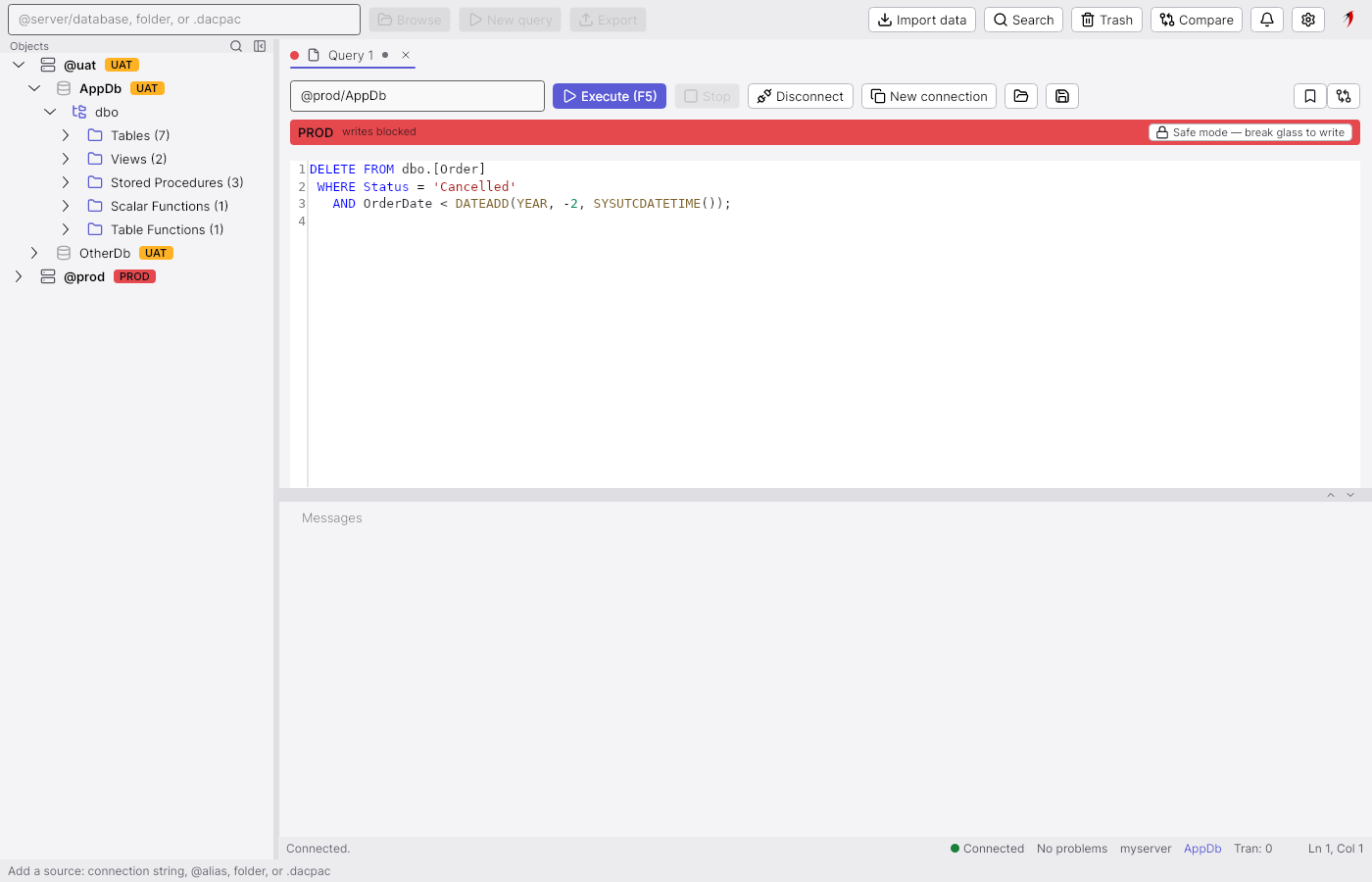
Environment guards — production is blocked until you unlock it

A result grid built for a hundred thousand rows

Schema and data compare between any two sources

Export to Excel, CSV, JSON, XML, SQL, Markdown

Command palette — every command a few letters away

Light and dark, on Windows, macOS and Linux

A fast, cross-platform SQL workbench for people who live in collection databases: a grid that scrolls a hundred thousand rows without flinching, schema and data compare, imports and exports in every format you actually need — and environment guards that stop you writing to production by accident.

Every SQL tool can run a query. This one is built around the two things that actually go wrong: losing an afternoon to a grid that cannot cope with the result you asked for, and running a statement against the wrong server.

Connections carry an environment. A UAT connection asks before it writes. A production connection refuses until you unlock it, and says so in the tab, the banner and the badge — so the answer to "which server am I on?" is never more than a glance away.

SQL Workbench in pictures

27 screens, and what each one does.

Object explorer

Object explorer

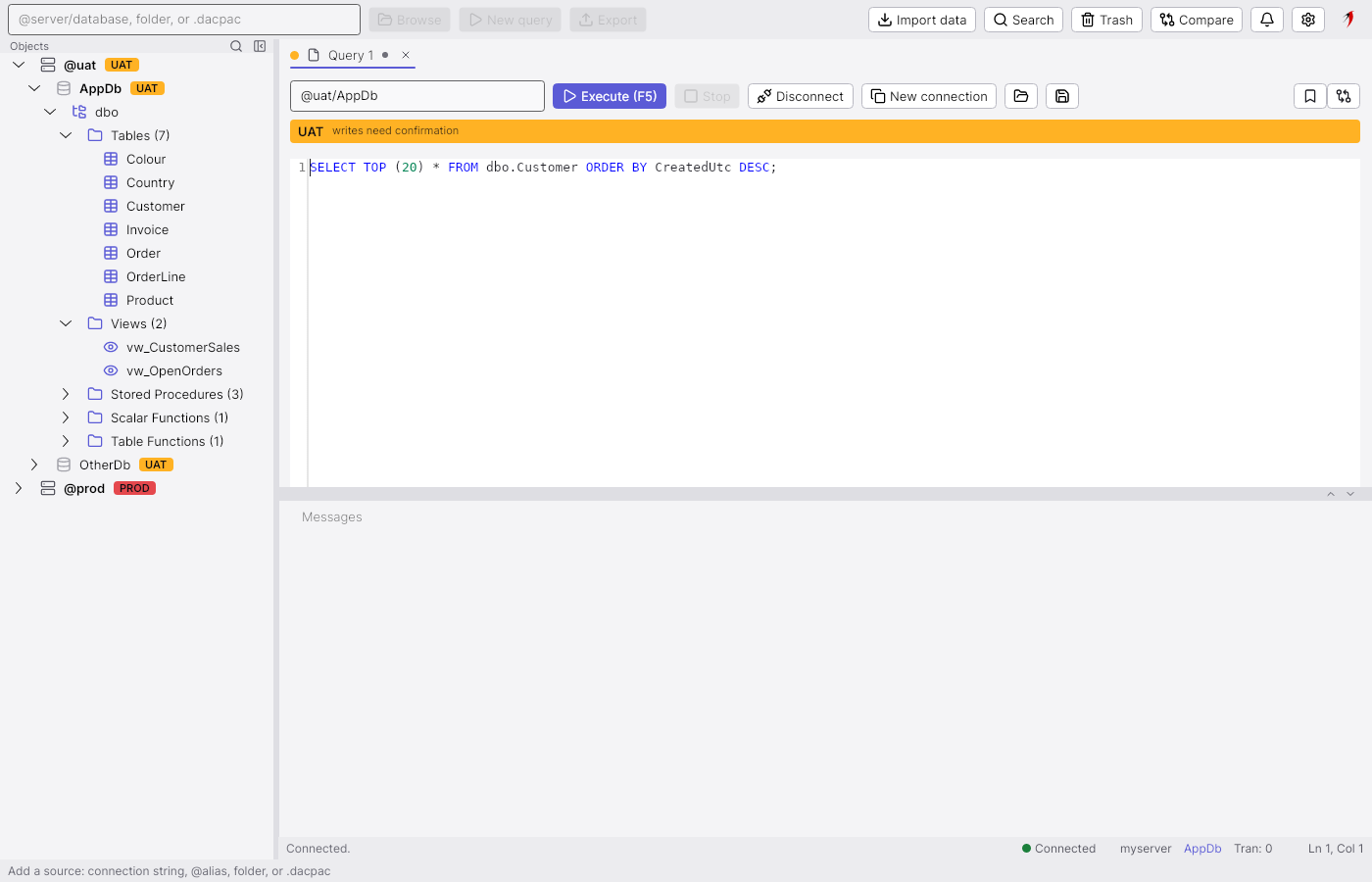
Servers, their databases and the objects inside, grouped by type.

The left panel is the explorer. Each named connection is a server row (@uat, @prod) with the badge of its environment; under it are the databases the server listed, and under an opened database the schemas and the object folders with their counts. A database row is read once, cached, and refreshed on a schedule or when the server reports a change, so opening folders costs nothing. The main area holds the tabs: here a query tab connected to @uat/AppDb, whose source box, banner and status bar all say where it points. The toolbar's dimmed Browse, New query and Export act on whatever is typed in the source box at the top left, which accepts a connection string, an @alias, a folder of SQL files or a .dacpac.
Explorer filter

Explorer filter

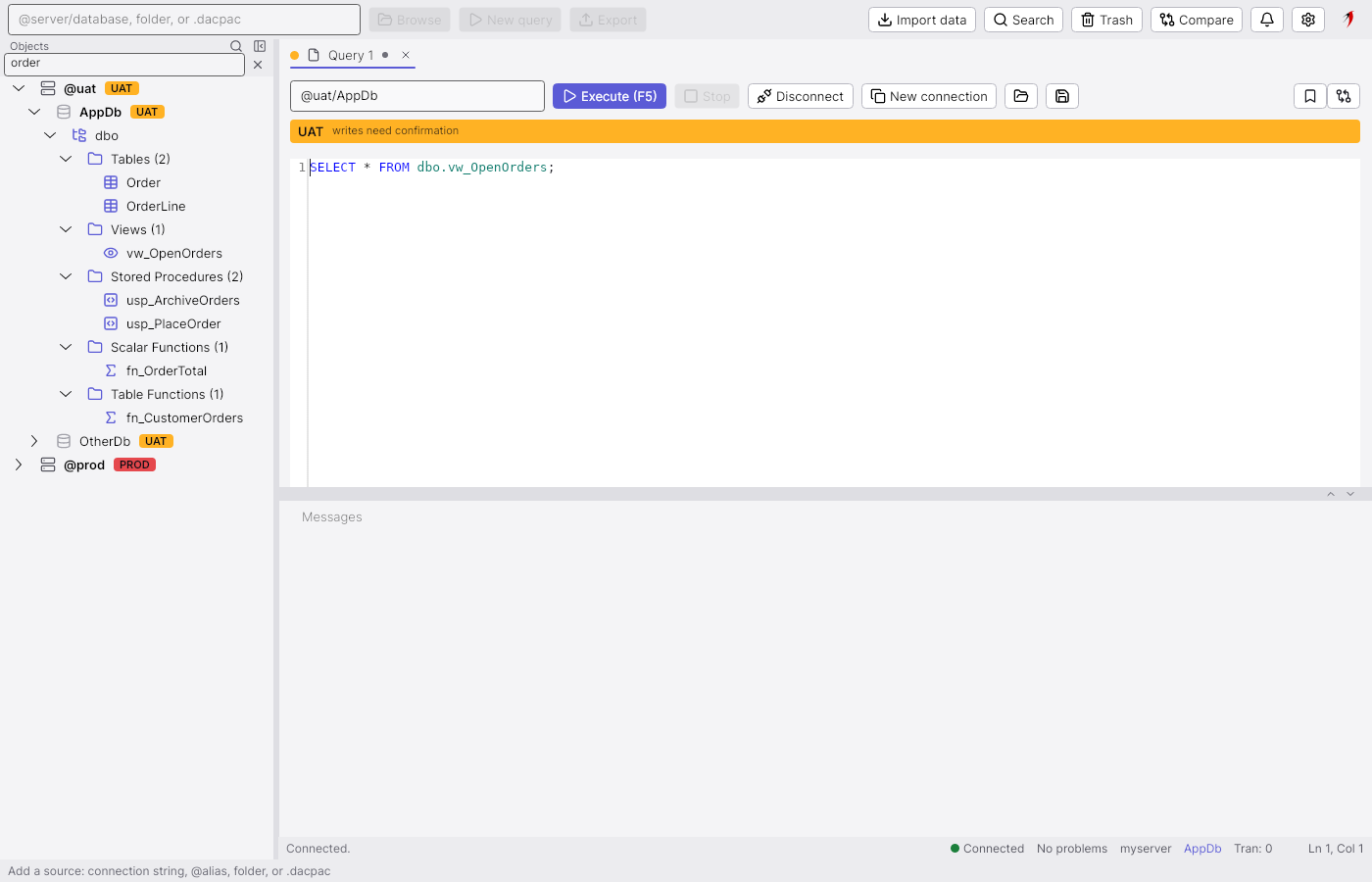
Ctrl+F in the explorer narrows the tree to the objects whose name matches.

Ctrl+F while the explorer has the keyboard opens the find box above the tree. As you type, the tree keeps only the objects whose name contains the text and the folders that lead to them, with the counts recalculated: order leaves two tables, one view, two procedures and two functions of the fourteen objects. The filter is per explorer, not per database, so it applies to every loaded source at once; the ✕ beside the box clears it and gives the whole tree back.

Query editor

Query editor

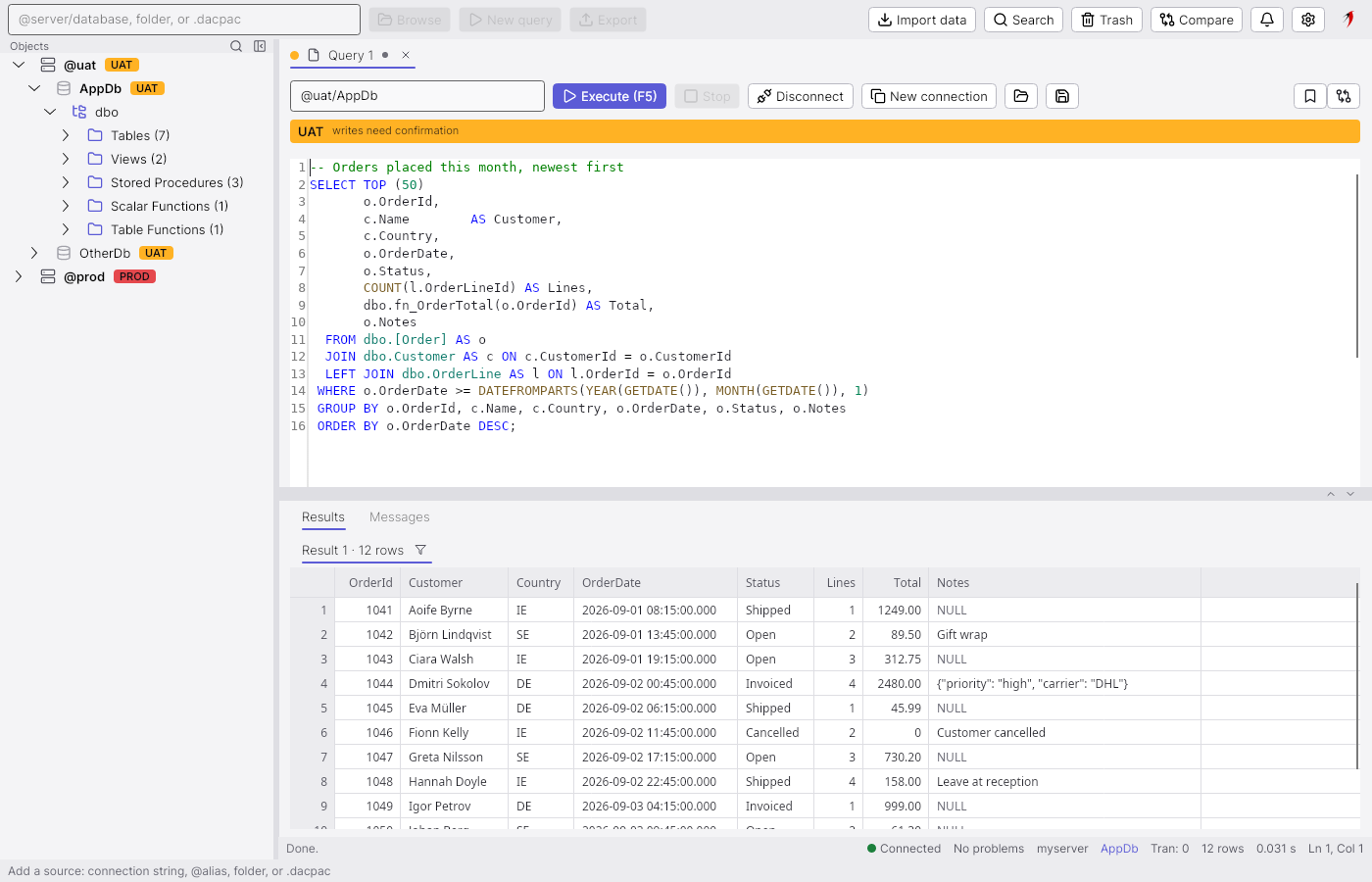
A connected query tab: syntax colouring, the environment badge and the status bar.

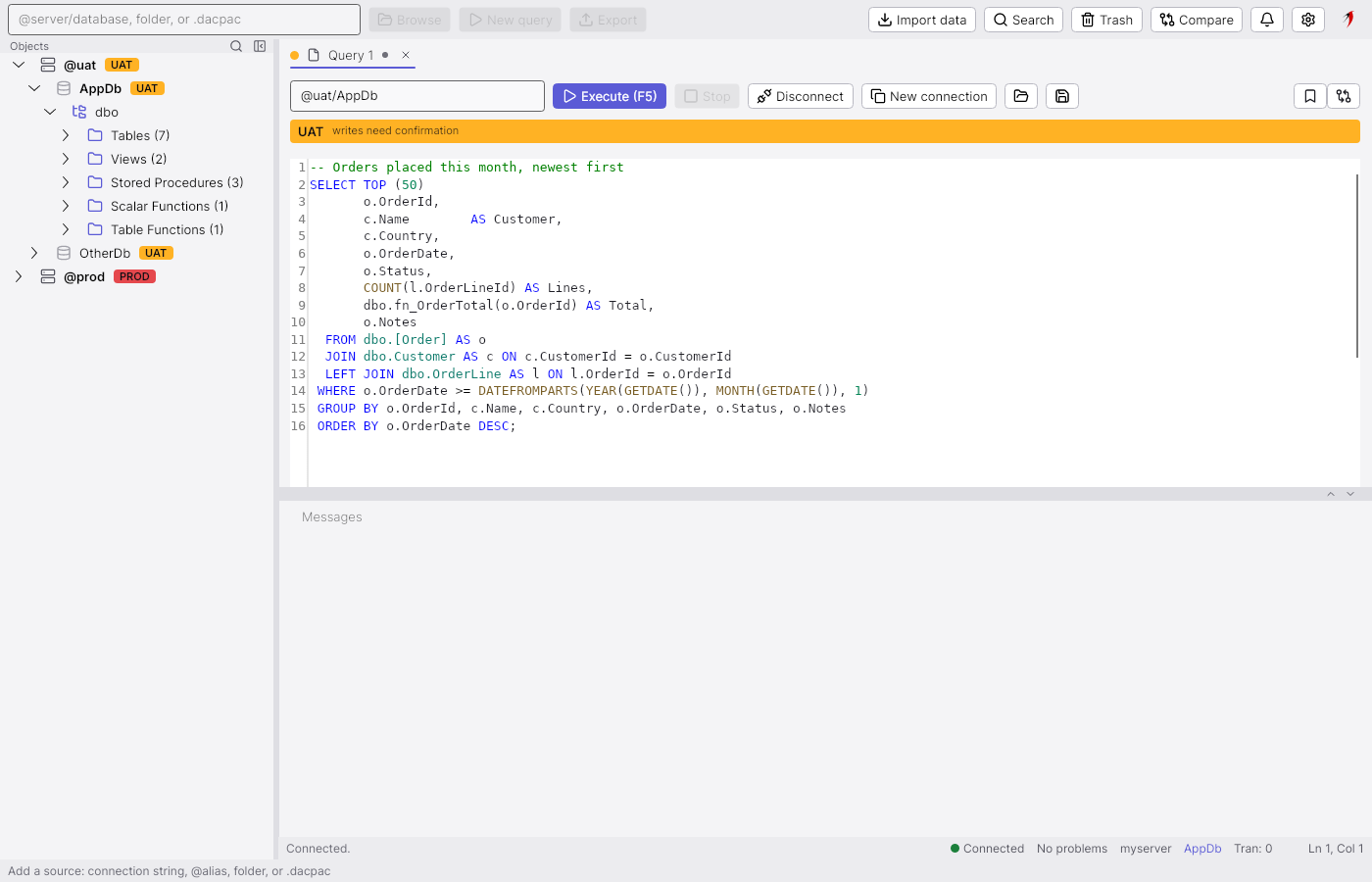
A query tab has a source box (the connection it runs on), the Execute, Stop and Disconnect buttons, and the editor. T-SQL is coloured by the shipped grammar; the editor also completes object and column names from the explorer's cache, and the analysis of the text reports what it cannot resolve in the status bar's problem count. The band under the toolbar is the environment banner: @uat is a confirm-writes environment, so the tab says UAT — writes need confirmation and will ask before running a statement that writes. The status bar carries the connection state, the server and database, the transaction count and the caret position; a dot on the tab header marks unsaved changes.

Query results

Query results

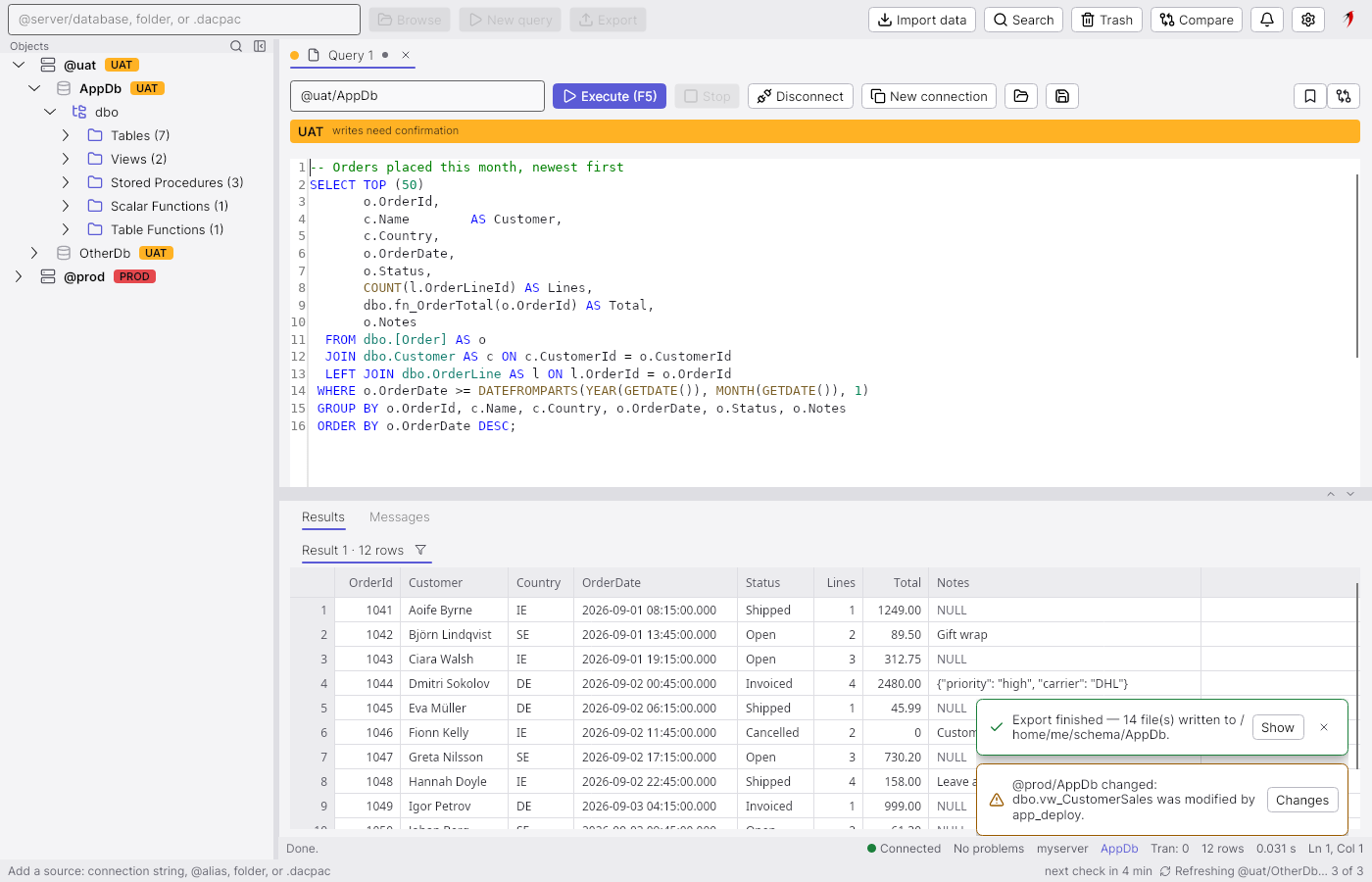
The result grid under the editor, with the messages of the batch.

Results arrive in the panel under the editor, one grid per result set and a Messages page for what the server printed. The grid is the workbench's own: it draws only the visible cells, so a hundred thousand rows scroll at full speed, and it shows NULL in its own style, right-aligns numbers and keeps the declared type of each column for exports. The footer of the tab reports the row count and elapsed time of the last execution. Click a cell, drag a block, click a header or the row gutter to select; the selection is what copy and export take.

Result filter

Result filter

Ctrl+Shift+L over a result narrows the rows to those that contain the text.

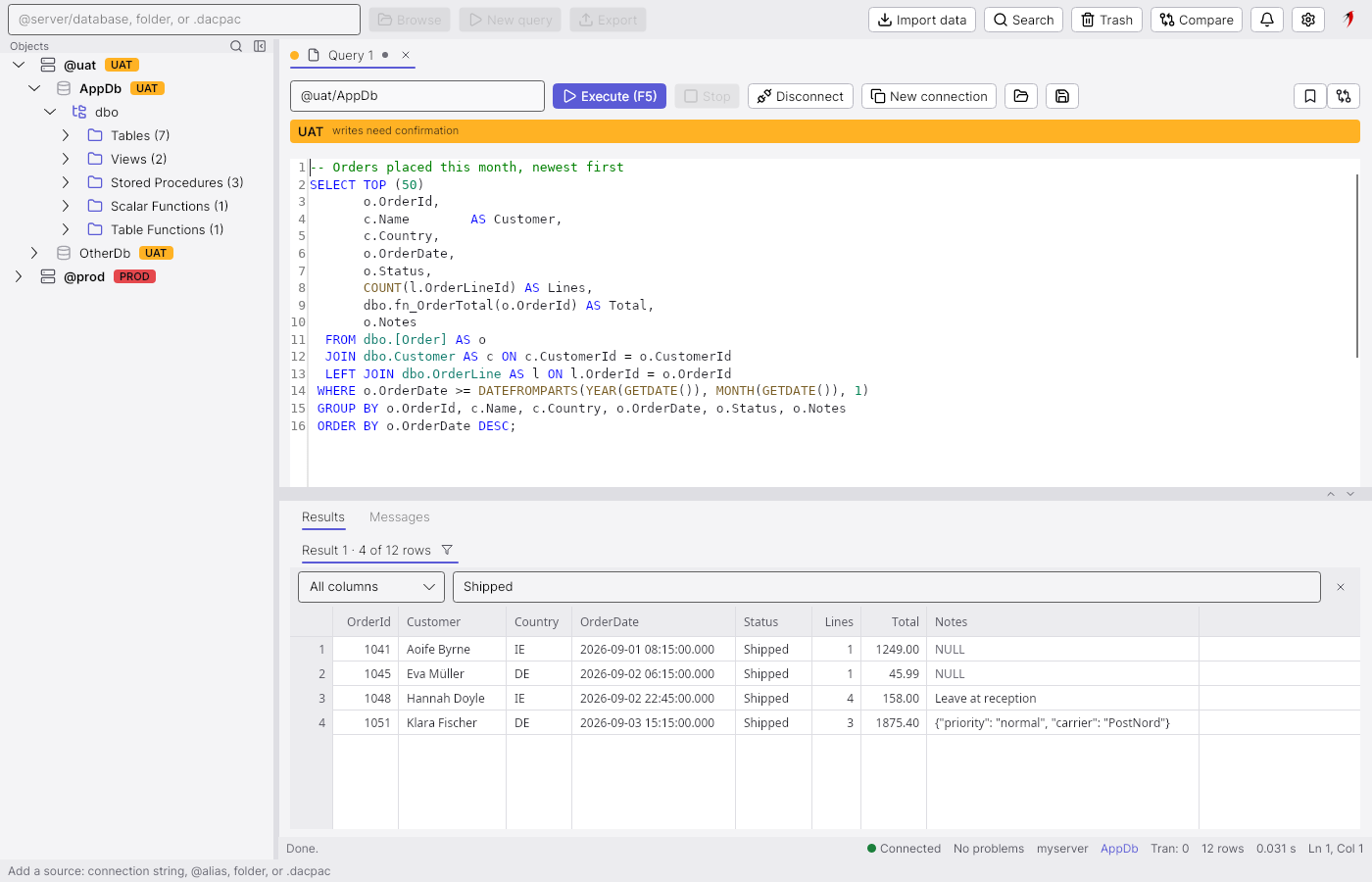
The funnel next to the result's name (or Ctrl+Shift+L with the grid focused) opens a filter row. The text is matched against every column, or one column picked from the drop-down, and the grid shows only the rows that contain it — here the four orders whose status is Shipped. The filter is a view over the result already fetched, so it is instant and never runs another query; the row count in the header changes to say how many of the rows are showing.

Export results

Export results

Save or copy a result as Excel, CSV, JSON, XML, SQL, Markdown and more.

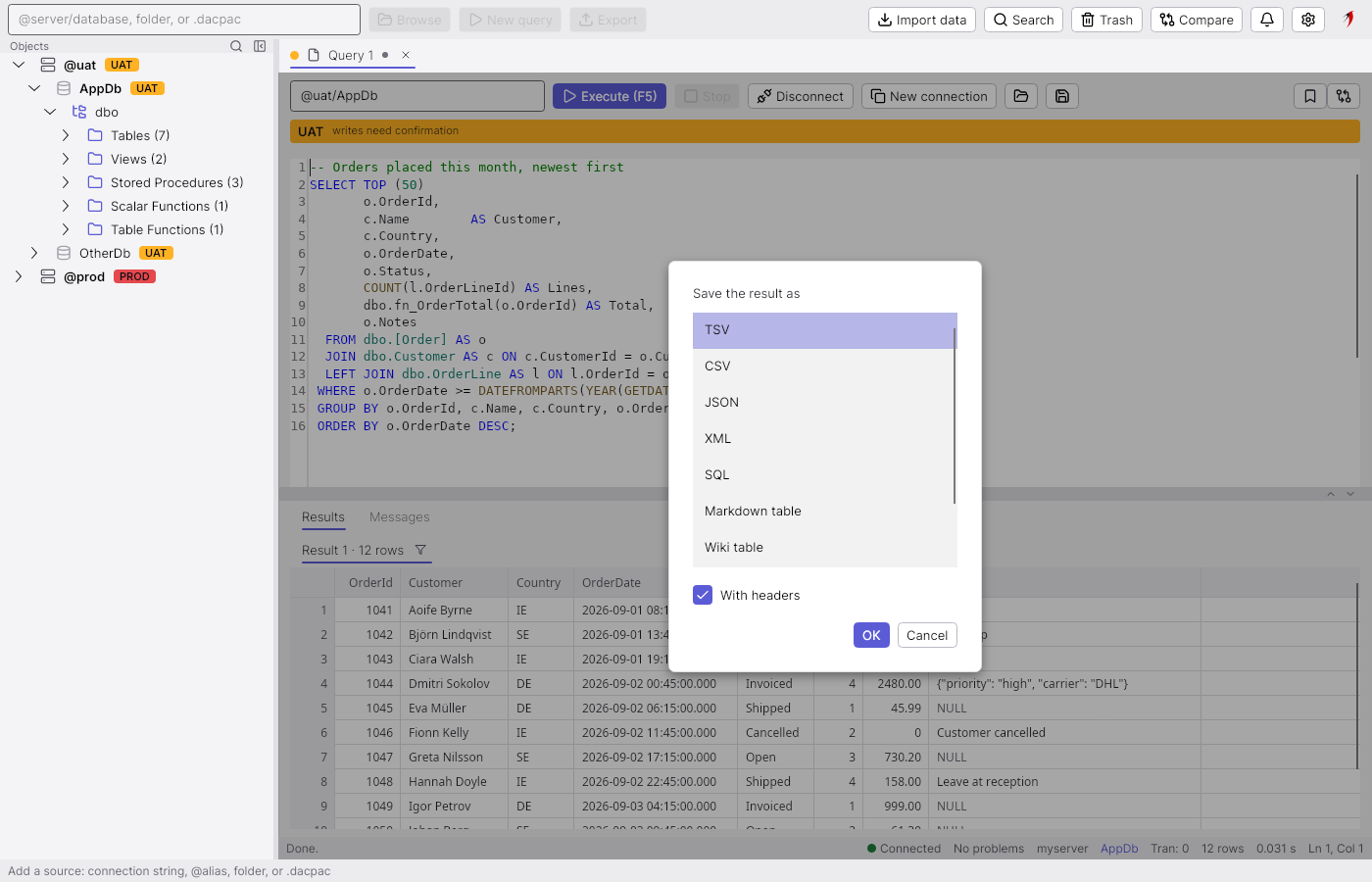
Copy as… and Save as… on the grid's menu ask for a format in this small dialog. The list is the same for both: TSV and CSV (with the header row as a choice, and the separator and quoting from Settings → Results), JSON, XML, SQL (a CREATE TABLE plus batched INSERTs that run anywhere), a Markdown table, a Confluence/Jira wiki table, fixed-width text, and Excel for a file. What is written is exactly the selection in the grid, or the whole result when nothing is selected.

Cell viewer

Cell viewer

A long or structured cell opens in a tab of its own.

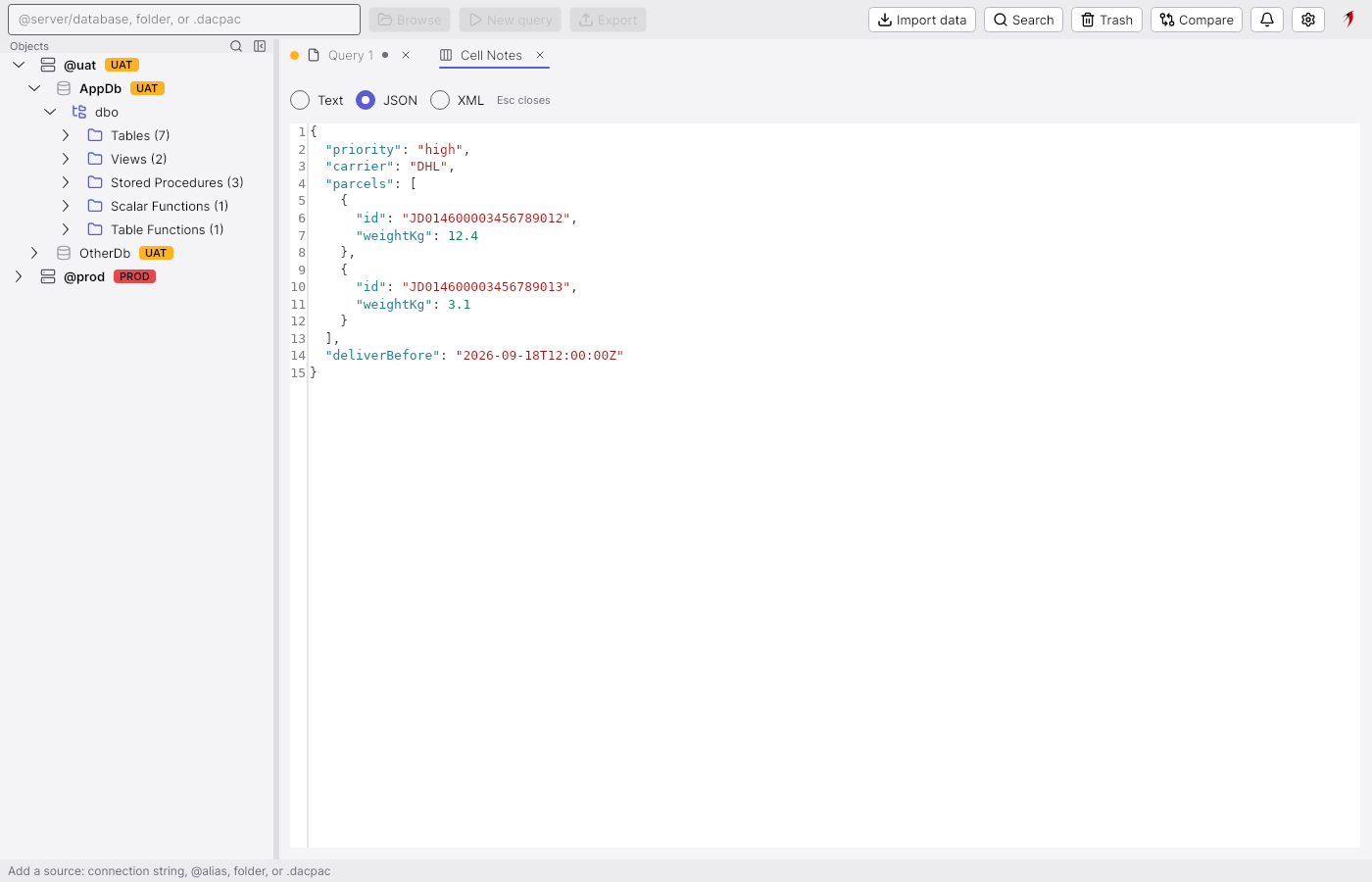
A cell that holds more than a grid can show — JSON, XML, a long text, a script stored in a table — opens in a viewer tab from the grid's menu (View cell content…) or by activating the cell. The tab is named after the column and shows the value wrapped, as plain text, or pretty-printed as JSON or XML with the buttons at the top. It is a transient tab: Escape closes it and puts the keyboard back on the grid cell it came from.

Changes since the object was opened

Changes since the object was opened

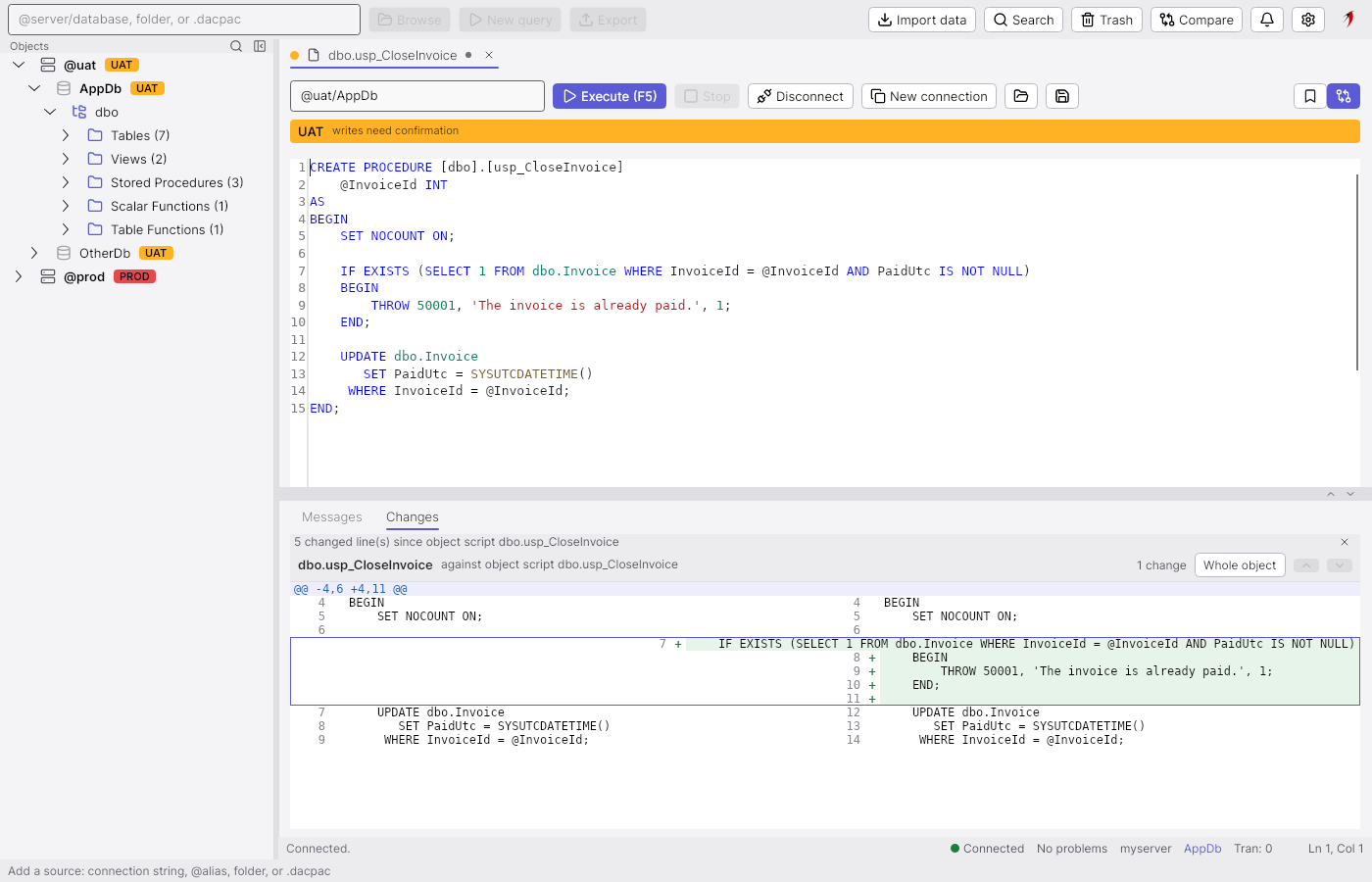
The diff between the script as opened and the text in the editor.

A tab opened from an object in the explorer remembers the script as it was read: its baseline. The Changes page under the editor (the toggle at the top right of the tab, or Ctrl+Shift+D) shows the baseline on the left and the editor text on the right, with added lines green, removed lines red and a gutter glyph on each; F7 and Shift+F7 walk the changes. Here the procedure gained a guard against paying an invoice twice. The same diff decides whether closing the tab asks first, and follows the tab into the trash.

Schema compare

Schema compare

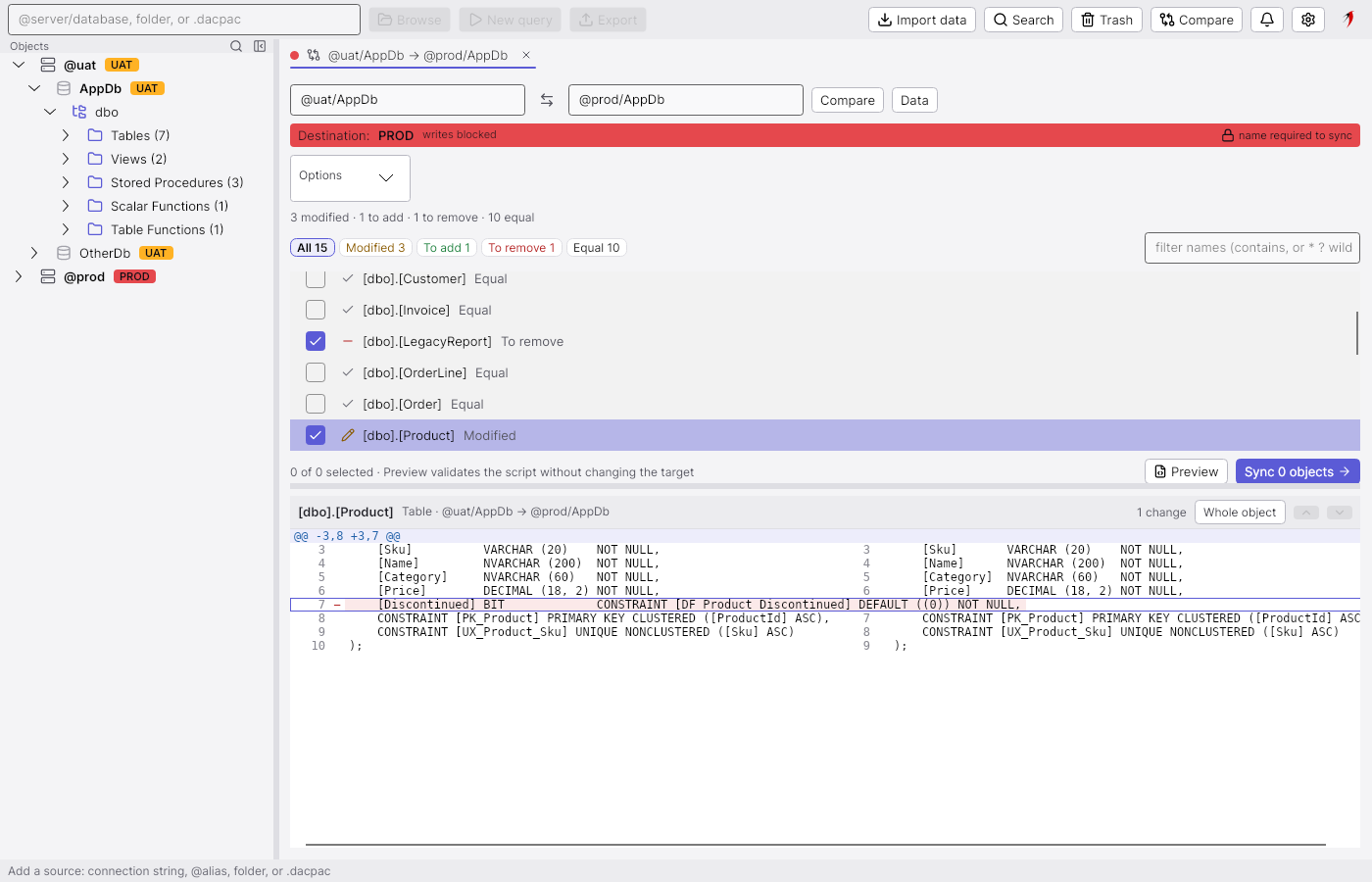
Two sources side by side: what a sync would add, change and remove, with the diff of the selected object.

The compare tab takes a source on the left and a destination on the right — a database, a folder of SQL files or a .dacpac on either side — and lists every object with what a sync would do to the destination: Modified, To add, To remove or Equal. The chips above the list filter it by outcome and the box on the right by name. Each row has a checkbox; only ticked rows go into a sync, and Space, Shift+Space and Ctrl+A tick from the keyboard. The pane below is the diff of the selected object, here the Product table whose Discontinued column exists only on UAT. The red band is the destination's environment: @prod blocks writes, so a sync will ask for the environment's name.

Sync confirmation

Sync confirmation

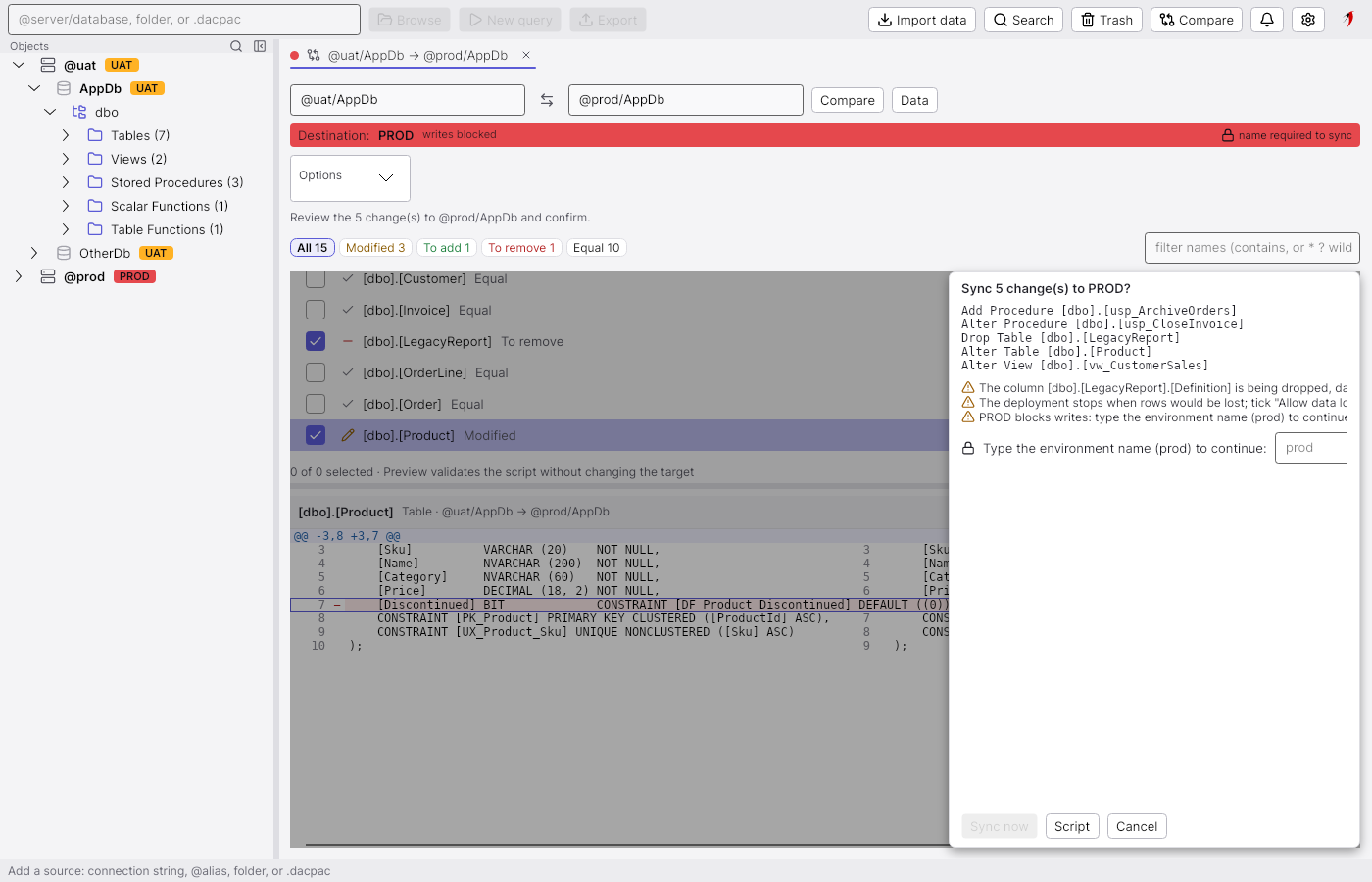
Before anything is written the plan is shown, with the environment's guard in front of it.

Sync never writes straight away. The ticked objects are planned first; the plan comes back as this sheet, which lists every statement's effect (add, alter, drop, per object), the changes the engine adds by implication, and the engine's warnings — a column being dropped, a deployment that stops when rows would be lost. A destination whose environment blocks writes adds the last line: the environment's name has to be typed before Sync now enables. Script writes the same plan to a query tab instead, to read, edit and run by hand. Every confirmation given here is journaled.

Data compare

Data compare

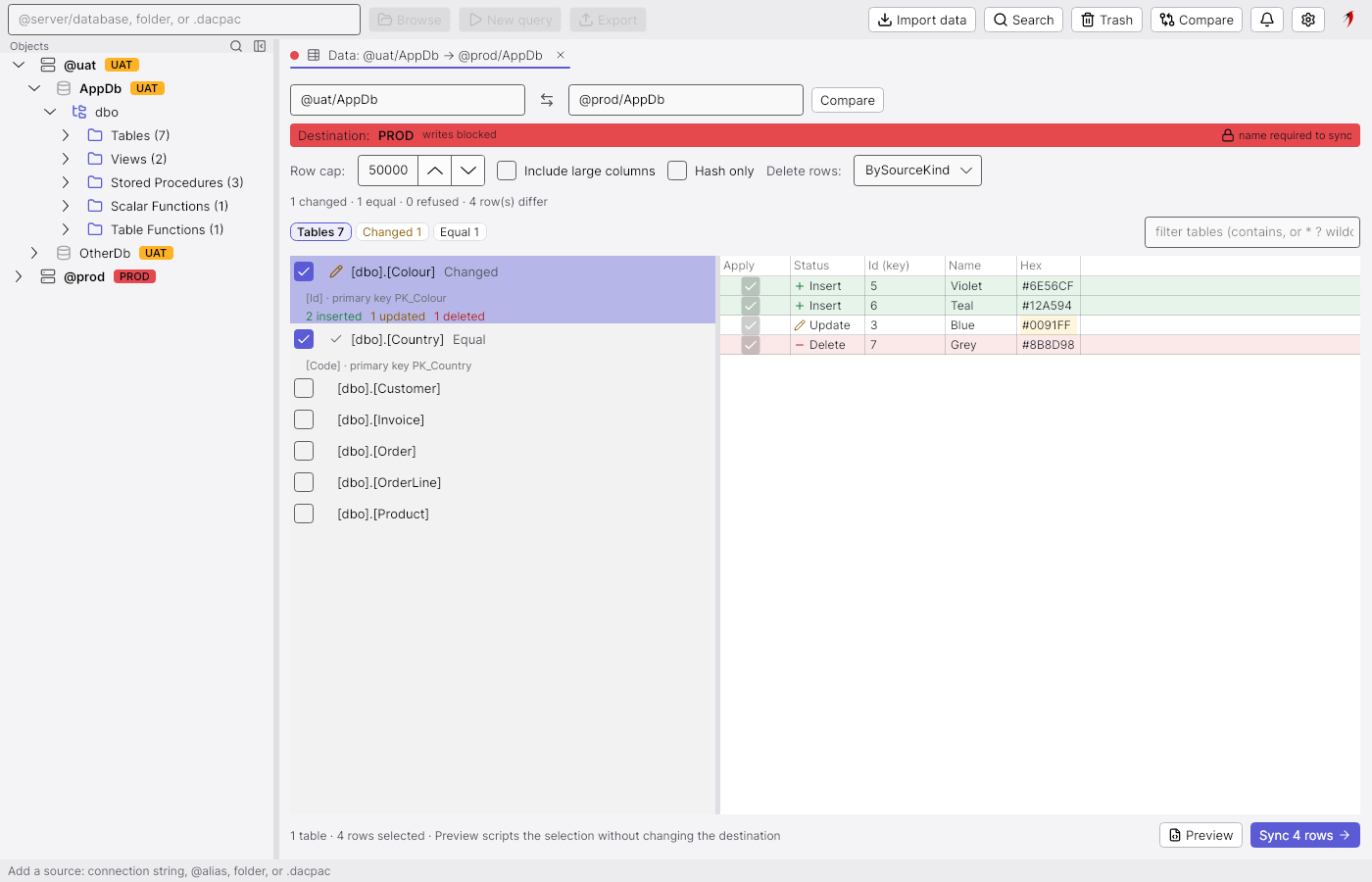
Reference tables row by row: the status in words, and the old value on a changed cell.

The Data button on a compare opens the data compare for the same two sides. The left list holds the tables of the configured data set (lookup and reference tables named in the workspace), each with the key the tool inferred — the primary key, a unique index or a key given by hand — and a count of rows to insert, update and delete. The grid on the right shows the rows of the selected table: the status is written in words as well as coloured, and a changed cell carries the destination's old value in its tooltip. Rows are ticked individually; Sync writes the selection as one MERGE script per table, shown before it runs.

Export a schema

Export a schema

A database written out as a clean folder of SQL files, a SQL project or a .dacpac.
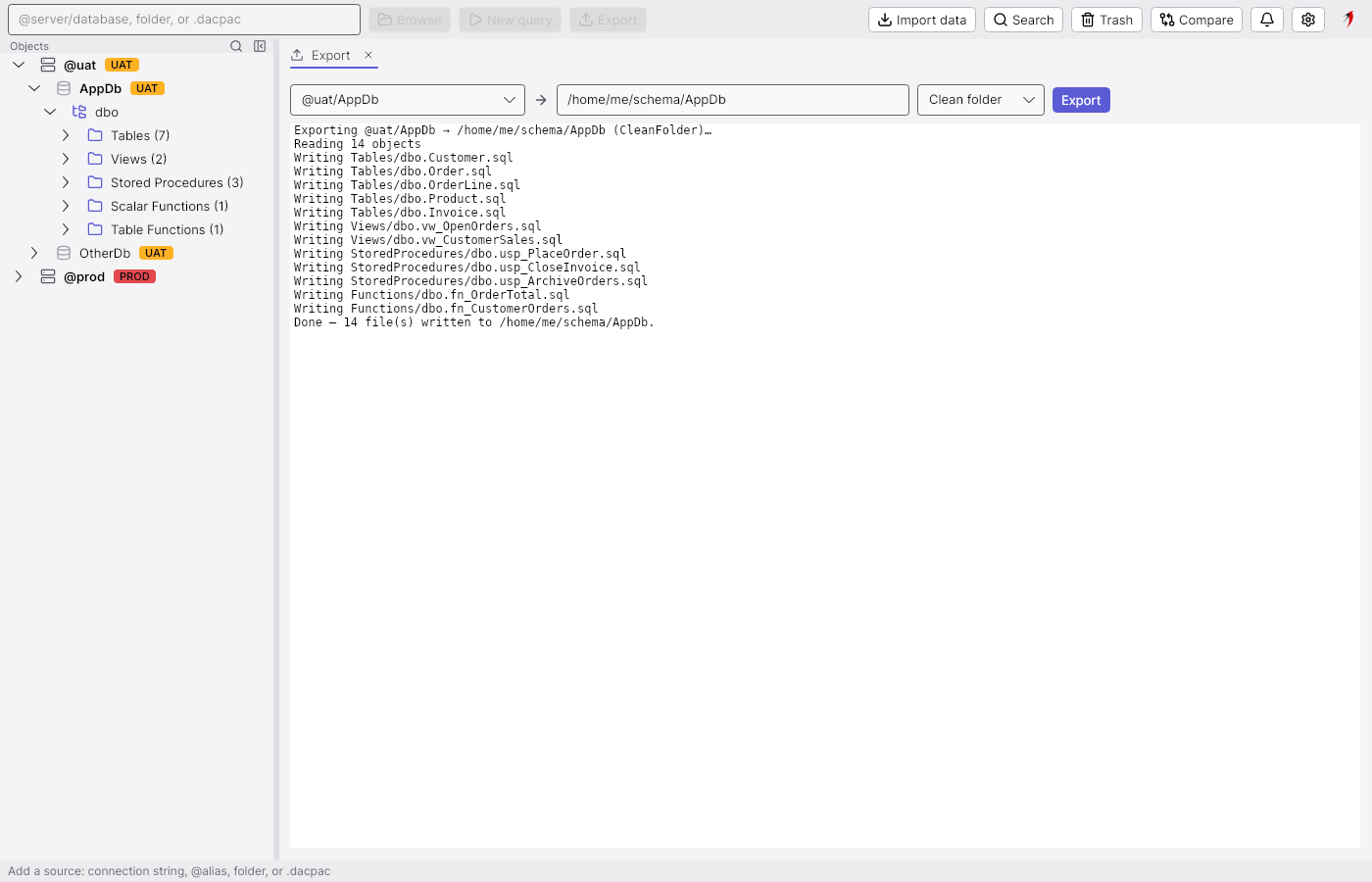
The export tab writes a source to disk. Clean folder gives one .sql file per object under a folder per type (Tables/dbo.Customer.sql), which is what a repository wants and what the compare can read back as a source; Project adds the .sqlproj that builds it; .dacpac builds the package. The log lists every file as it is written and ends with the count; warnings from the engine land in the tab's problems list. The export runs in the background with a cancel button and a notification when it finishes.

Import a CSV file

Import a CSV file

A data file opened as a grid, with the SQL that loads it written live below.

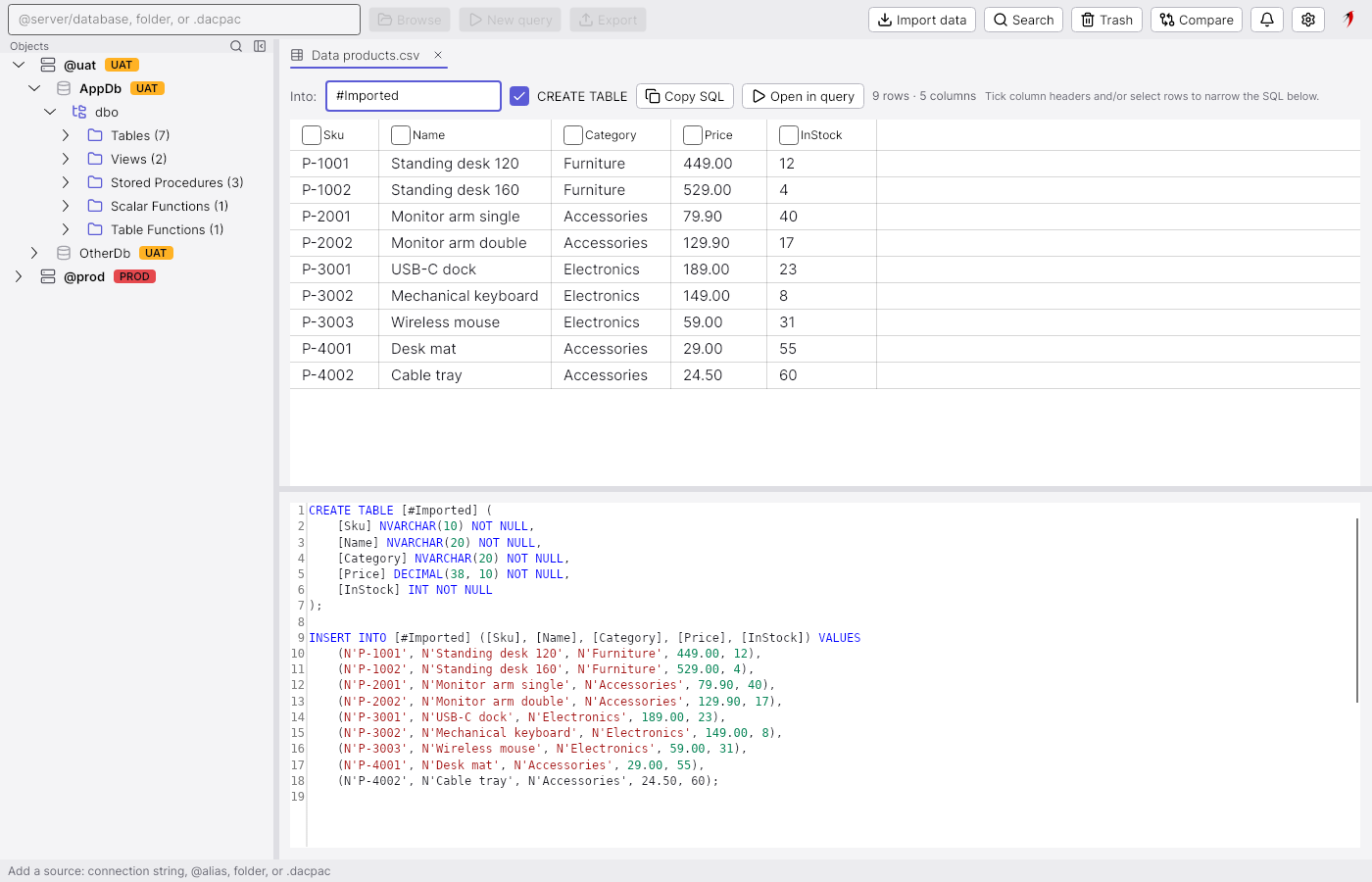
Import data on the toolbar opens a CSV, TSV, text or Excel file as a read-only grid. The separator is sniffed from the first line (a UTF-8 file, with or without a byte-order mark); every column gets a type from its values (INT, DECIMAL, DATETIME2, NVARCHAR sized to the longest value). The editor below is the SQL that loads the file into the table named in the box — a CREATE TABLE when the checkbox is on, then the INSERTs — and it rewrites itself as you tick column headers or select rows, so a subset of the file is a few clicks. Copy SQL takes it to the clipboard; Open in query puts it in a query tab on the connection of your choice.

Import an Excel workbook

Import an Excel workbook

The same for a workbook: pick the sheet, tick the columns, take the SQL.

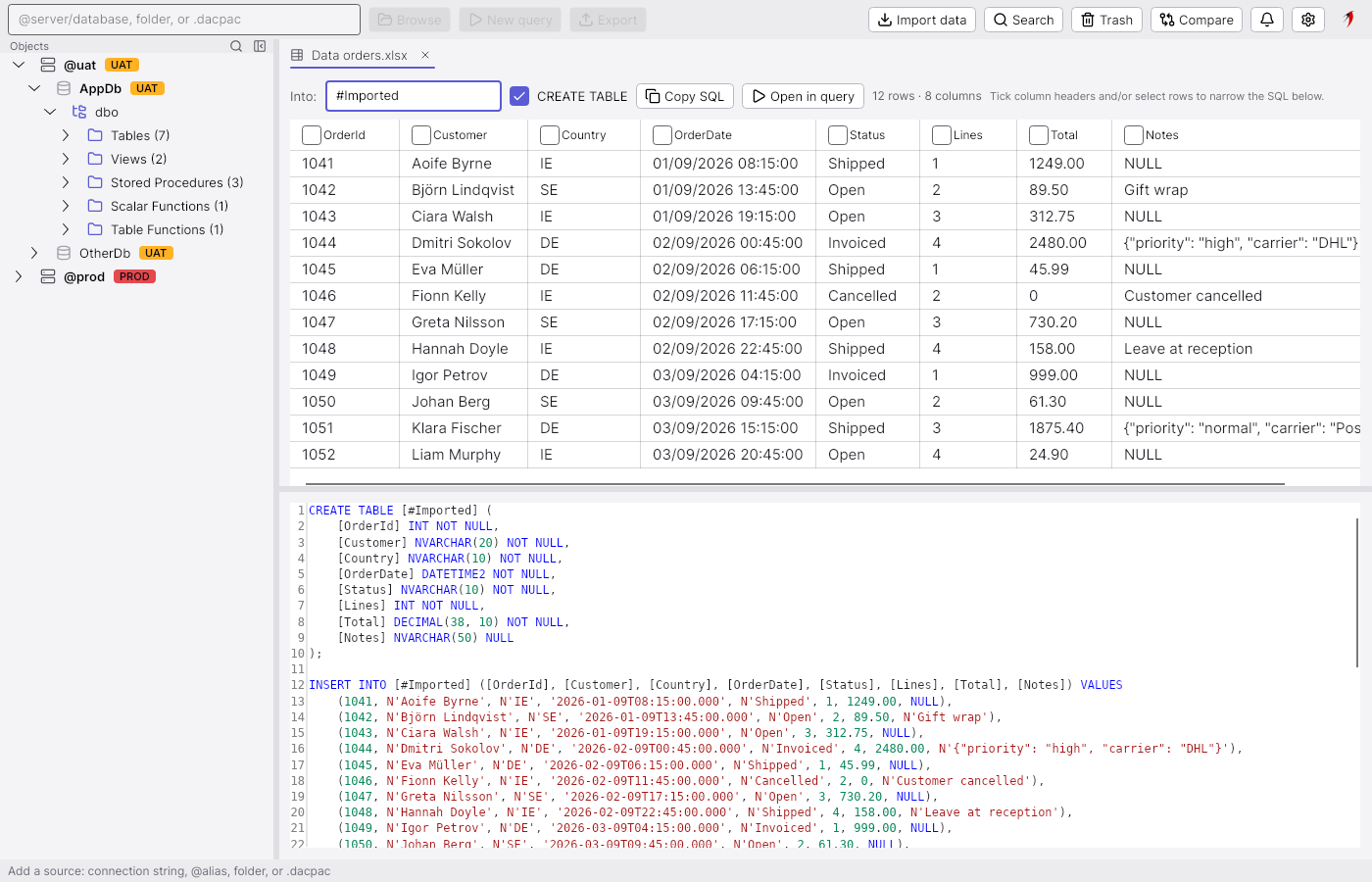
An .xlsx opens the same way; a workbook with several sheets adds a sheet picker above the grid. Cells keep their Excel types — numbers, dates and booleans arrive typed, not as text — so the generated CREATE TABLE matches the data. The file is read through a shared handle, so a workbook that is open in Excel at the same time still loads. Nothing is executed from this tab: the SQL is text you take somewhere.

Query history

Query history

Every statement run, by connection, searchable; Enter reopens one.

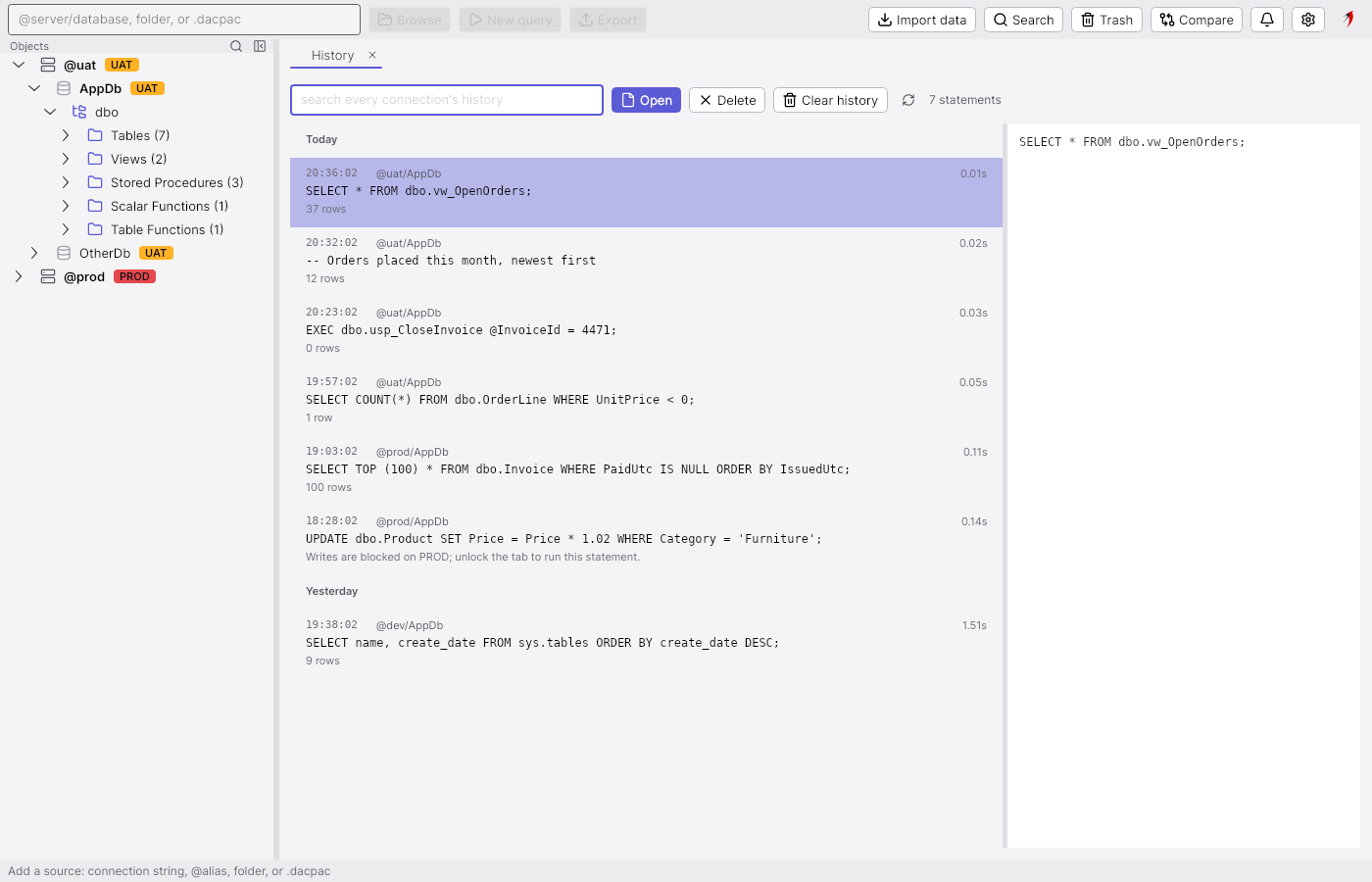
Ctrl+H opens the history: every statement executed in any tab, newest first and grouped by day, with the connection it ran on, when, how long it took and how many rows came back — or the error it ended with, in red under the statement. The search box narrows the list across every connection; Enter on an entry (or Open) opens it in a new query tab on the same connection, disconnected until you say so. Entries can be deleted one by one or all at once; how many are kept is a number in the configuration file.

Search

Search

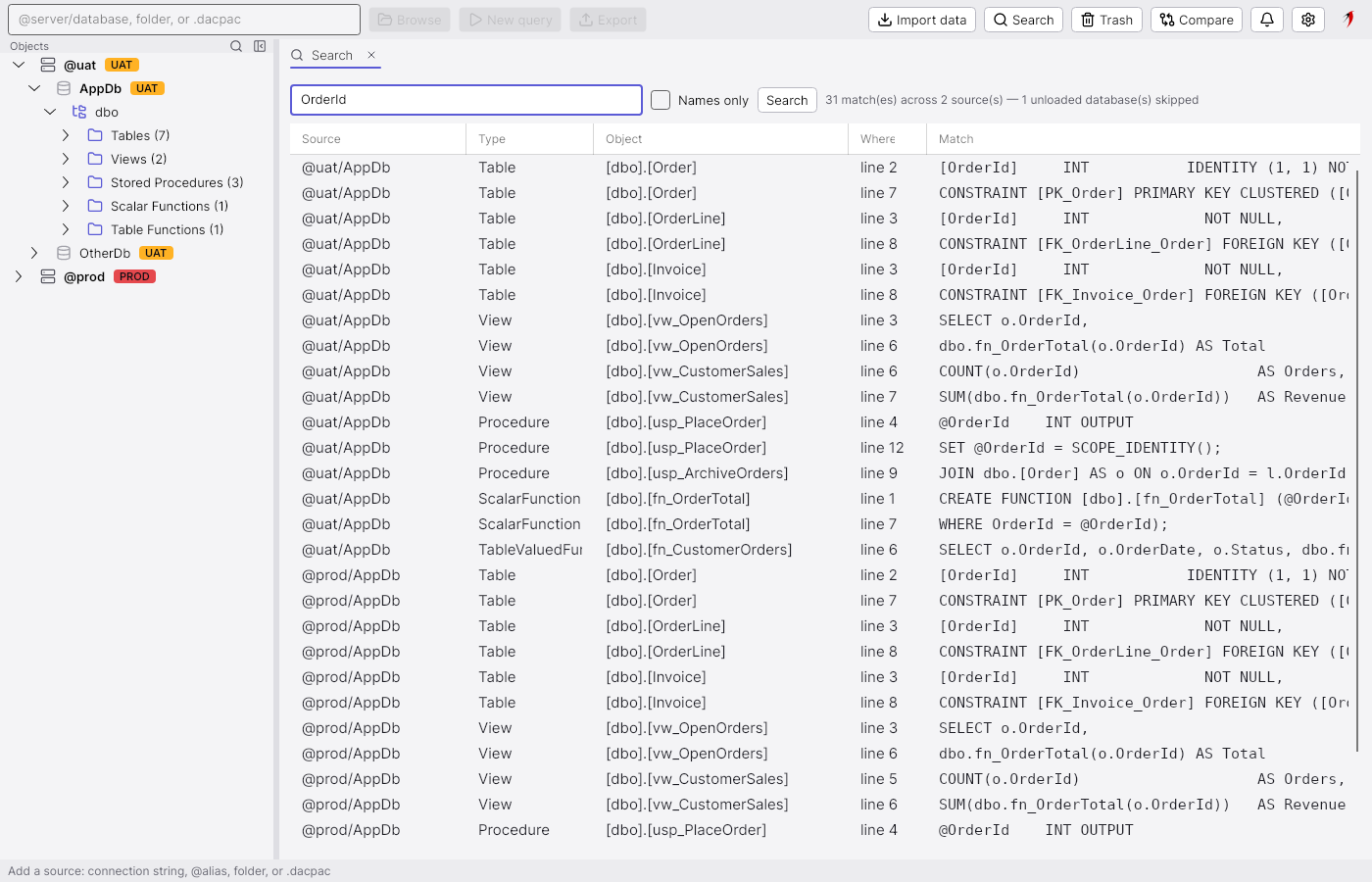
Object names and script text across every loaded source.

The search tab looks through every loaded database at once: an object whose name matches is one row, and each line of a script that contains the text is another, with the line number under Where. Names only limits it to the first kind. Here OrderId is found in the tables that carry the column, the views and functions that read it and the procedures that set it, on UAT and on PROD. Enter on a row opens the object's script in a tab at that line. Databases that are not loaded yet are skipped and counted in the summary rather than fetched behind your back.

Object info

Object info

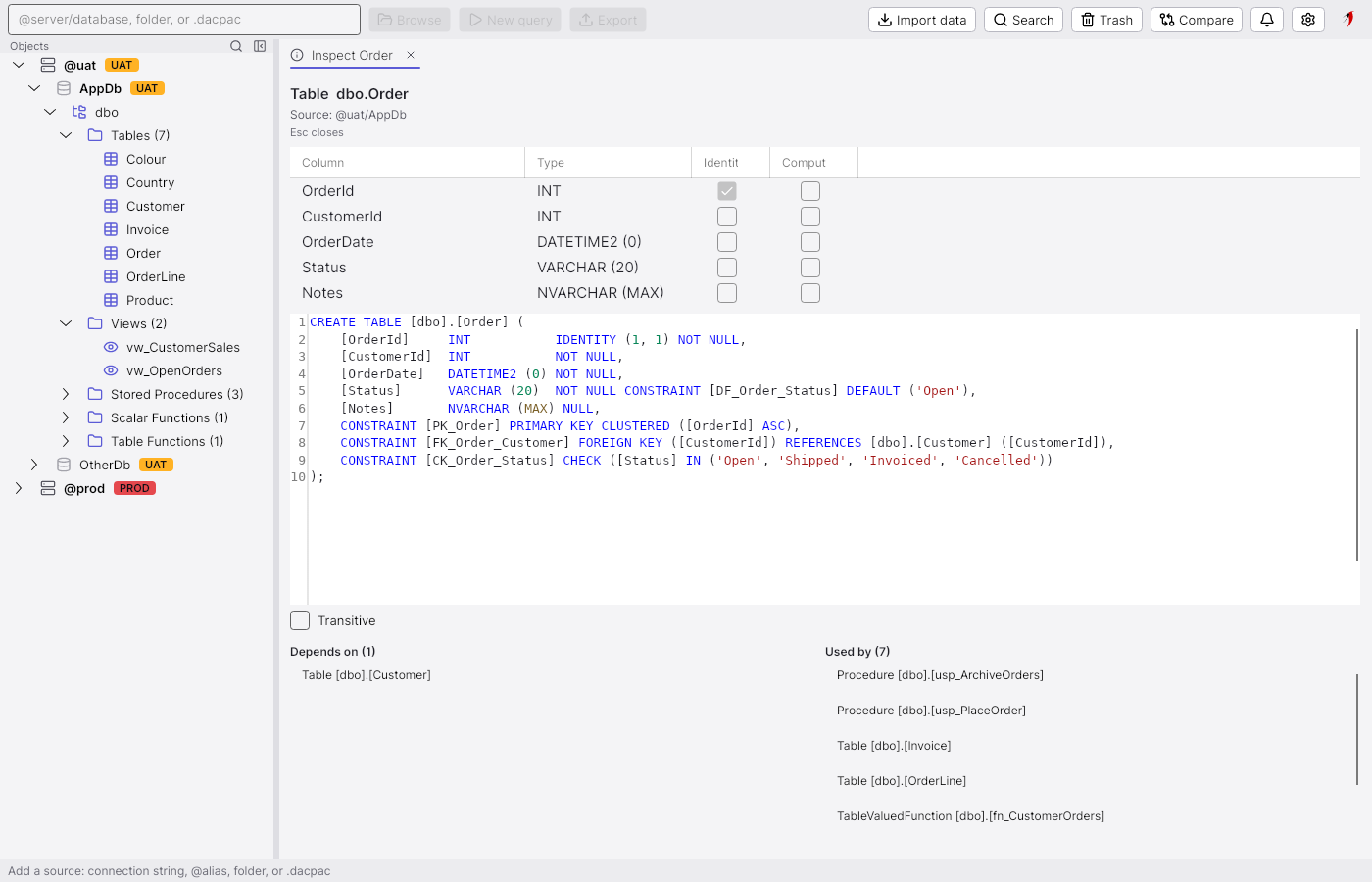
Columns, script and dependencies of one object.

Alt+F1 on an object in the explorer, or Object info on the name under the caret in the editor, opens this page: the columns with their types and whether they are identity or computed, the full script, and below it what the object depends on and what depends on it — Order needs Customer and is used by two procedures, two tables, a function and the views. Transitive follows the chain further. Synonyms are followed to their target and the chain is shown. Escape closes the page and returns to where the request came from.

Connections

Connections

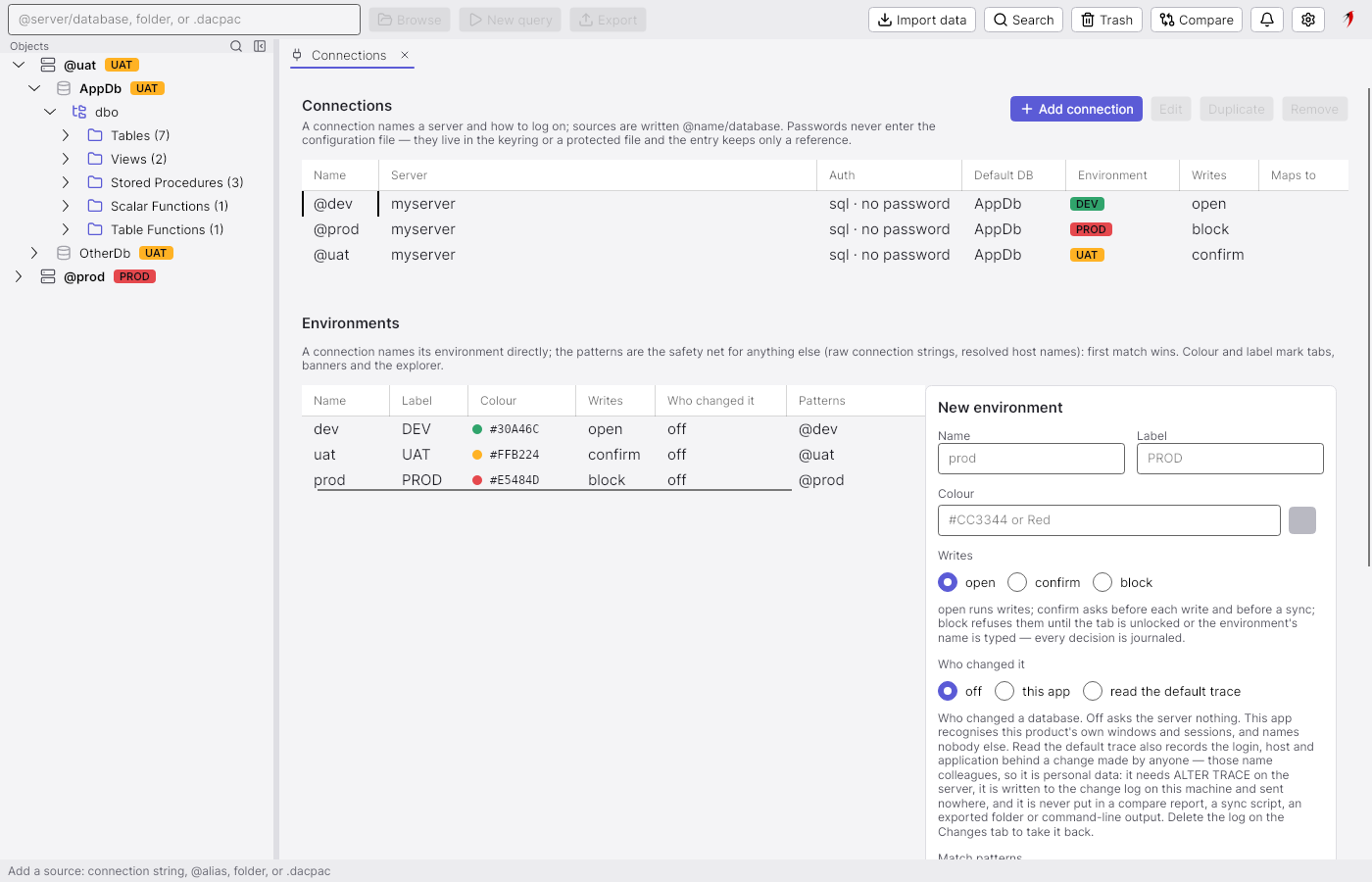
Named connections, their environments and where a database maps to on another server.

Ctrl+Shift+C opens the connections page. The top table is the named connections: each is written @name/database everywhere else in the tool, and the row shows its server, how it authenticates, its default database, the environment it belongs to, that environment's write policy and, for the compare, the server it maps to. Passwords are never in the configuration file; they live in the OS keyring or a protected file and the entry keeps a reference. Below are the environments: a name, a badge label and colour, a write policy (open, confirm or block), whether the tool may ask the server who changed a database, and the patterns that catch connection strings which are not a named connection.

Connection editor

Connection editor

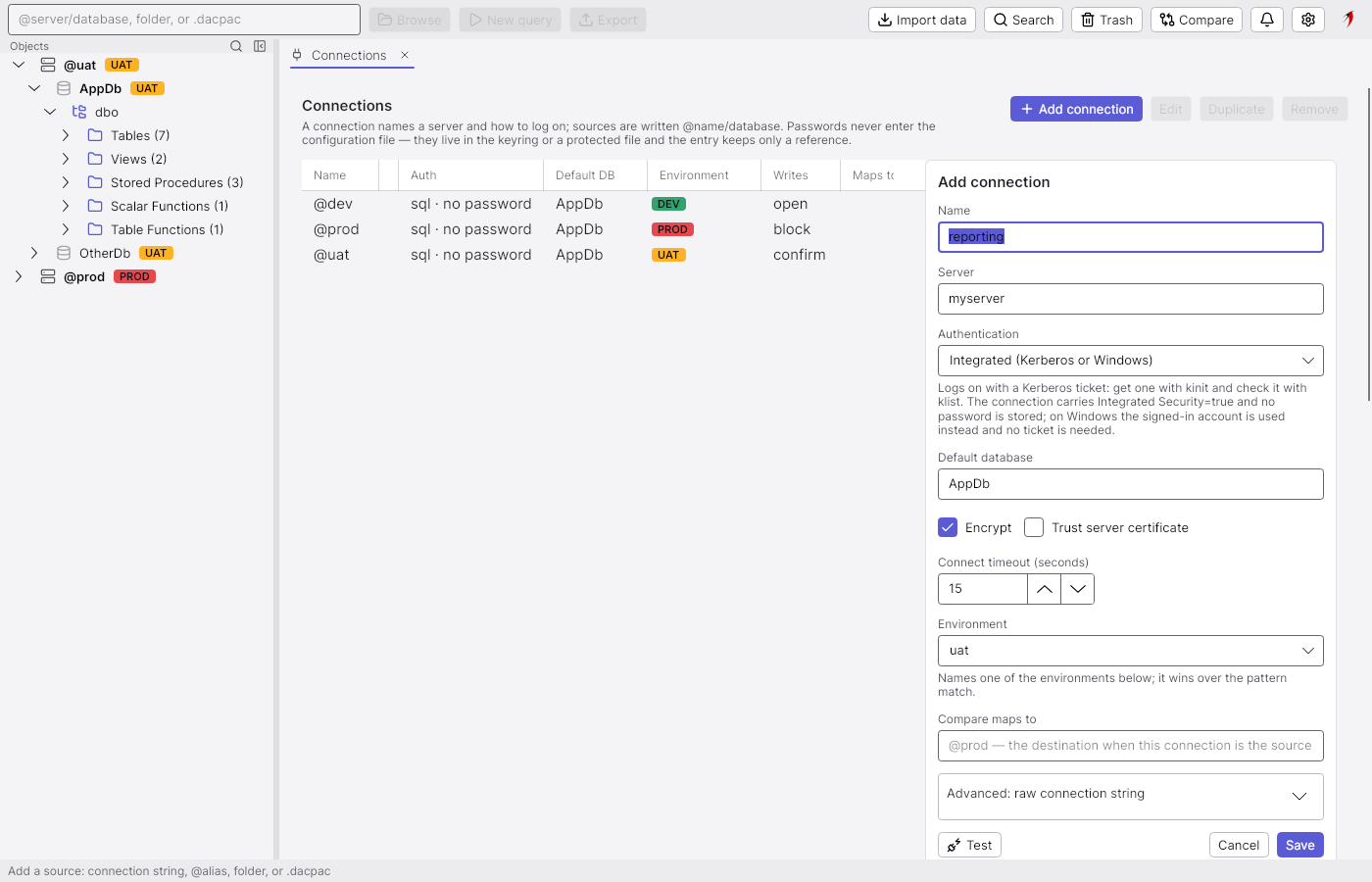
Adding a connection: server, authentication, the keyring and the environment.

Add connection opens the editor beside the list. Name and server are required; authentication is integrated (a Kerberos ticket on Linux, the signed-in account on Windows), a SQL login with the password kept in the keyring, or Entra ID with the default credential or an interactive sign-in. Encryption is on by default, the timeout is the driver's, and the environment is chosen from the list below, which wins over any pattern match. Test opens a connection with what is typed and reports the outcome in the editor. The advanced section shows the raw connection string the fields produce and accepts one pasted in.

Command palette

Command palette

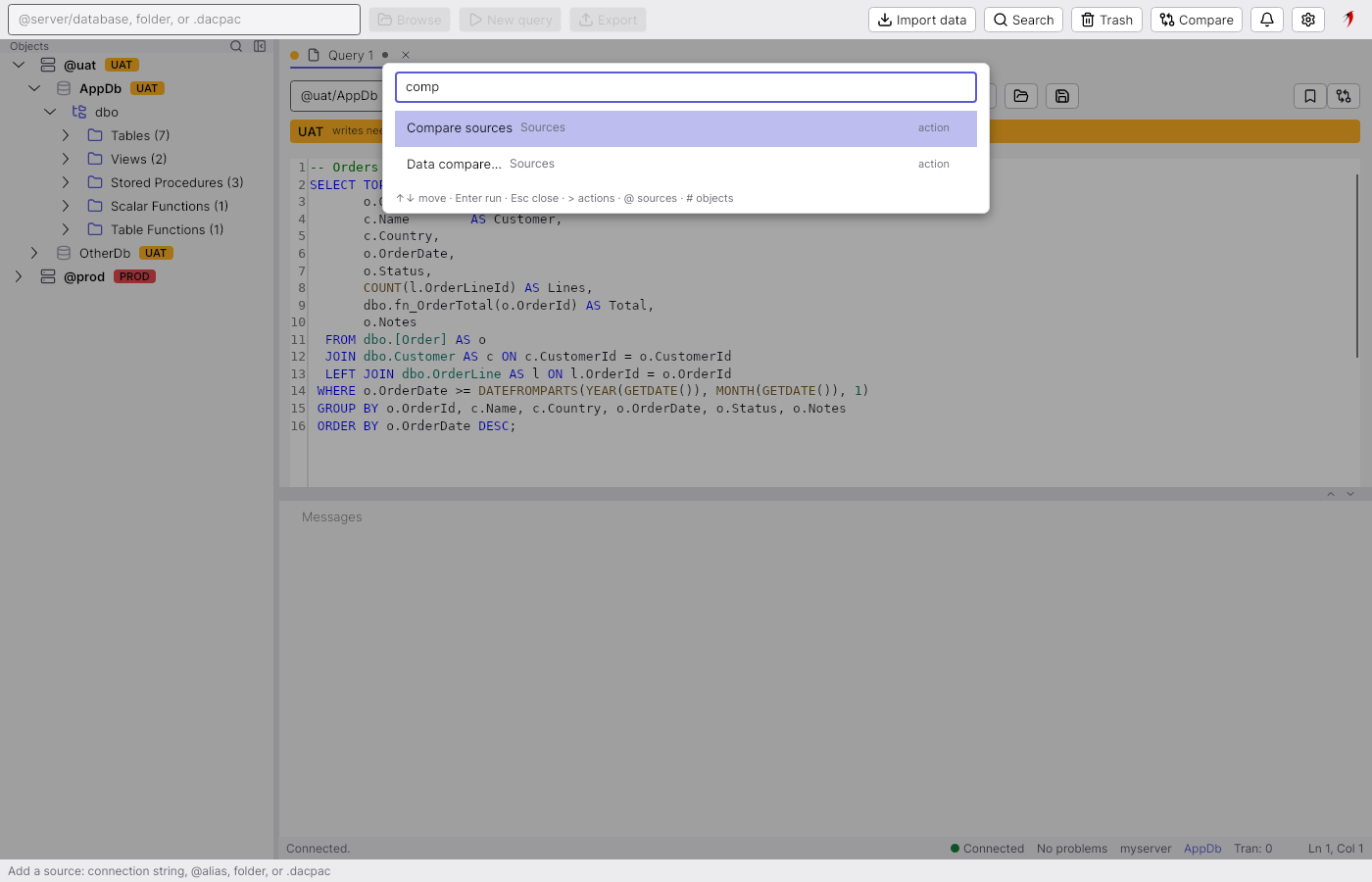
Ctrl+K: every command, source and object, a few letters away.

Ctrl+K opens the palette over whatever is on screen. It searches three things: the actions of the toolbar and the current tab with their shortcuts (> limits to those), the sources in the explorer (@) and the objects of the loaded databases (#). Typing narrows the list, Enter runs the entry, Escape closes it and the keyboard goes back exactly where it was. Recent choices float to the top on the next session. Here comp finds the schema compare and the data compare.

Schema change feed

Schema change feed

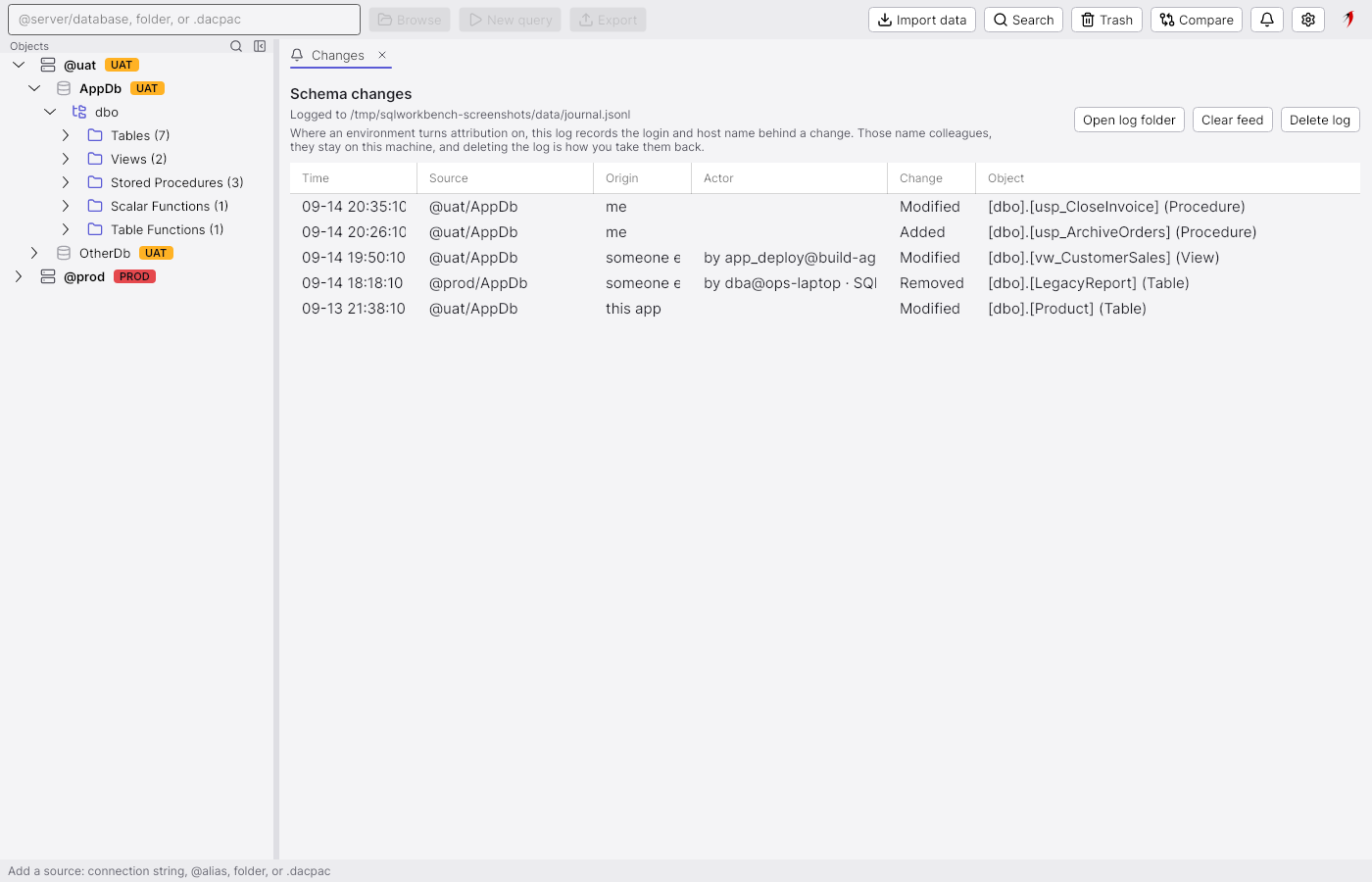
What changed on the watched databases, when, and who did it.

Every source in the explorer is watched: a cheap stamp is polled, and when it moves the tool reads what changed and records it here — the object, the kind of change, and where it came from. me is a change made from this window; this app is another instance of the workbench on this machine; someone else is anything else, and when an environment allows it, the login, host and application the server's default trace names. The feed is a local journal file (its path is at the top), bounded in days, and Delete log removes it, because those names are personal data. The bell on the toolbar opens this page, and a change can also raise a notification.

Trash

Trash

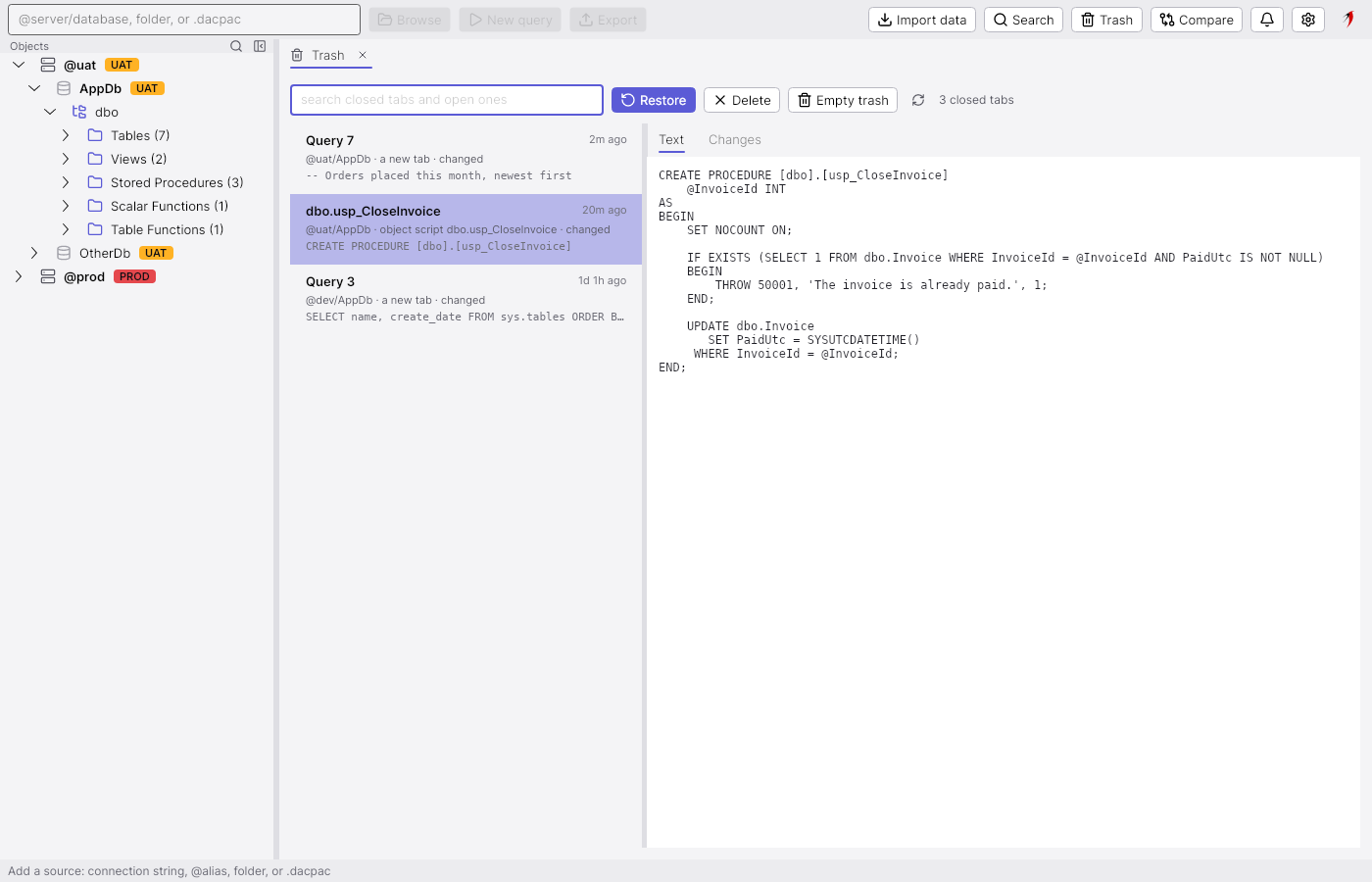
Closed query tabs are kept, with their text and a preview of what changed.

Closing a query tab does not lose it: the text, its connection, the baseline it was opened from and when it was closed go to the trash, which Ctrl+Shift+Delete opens (an empty or unchanged script is skipped by rule). The list is searchable across closed tabs and open ones; the right side shows the text of the selected entry and, on Changes, the diff against its baseline. Restore reopens the tab as it was, disconnected; Ctrl+Shift+T restores the last one without opening this page. The trash keeps a bounded number of entries for a bounded number of days, both set in the configuration file.

Closing a changed tab

Closing a changed tab

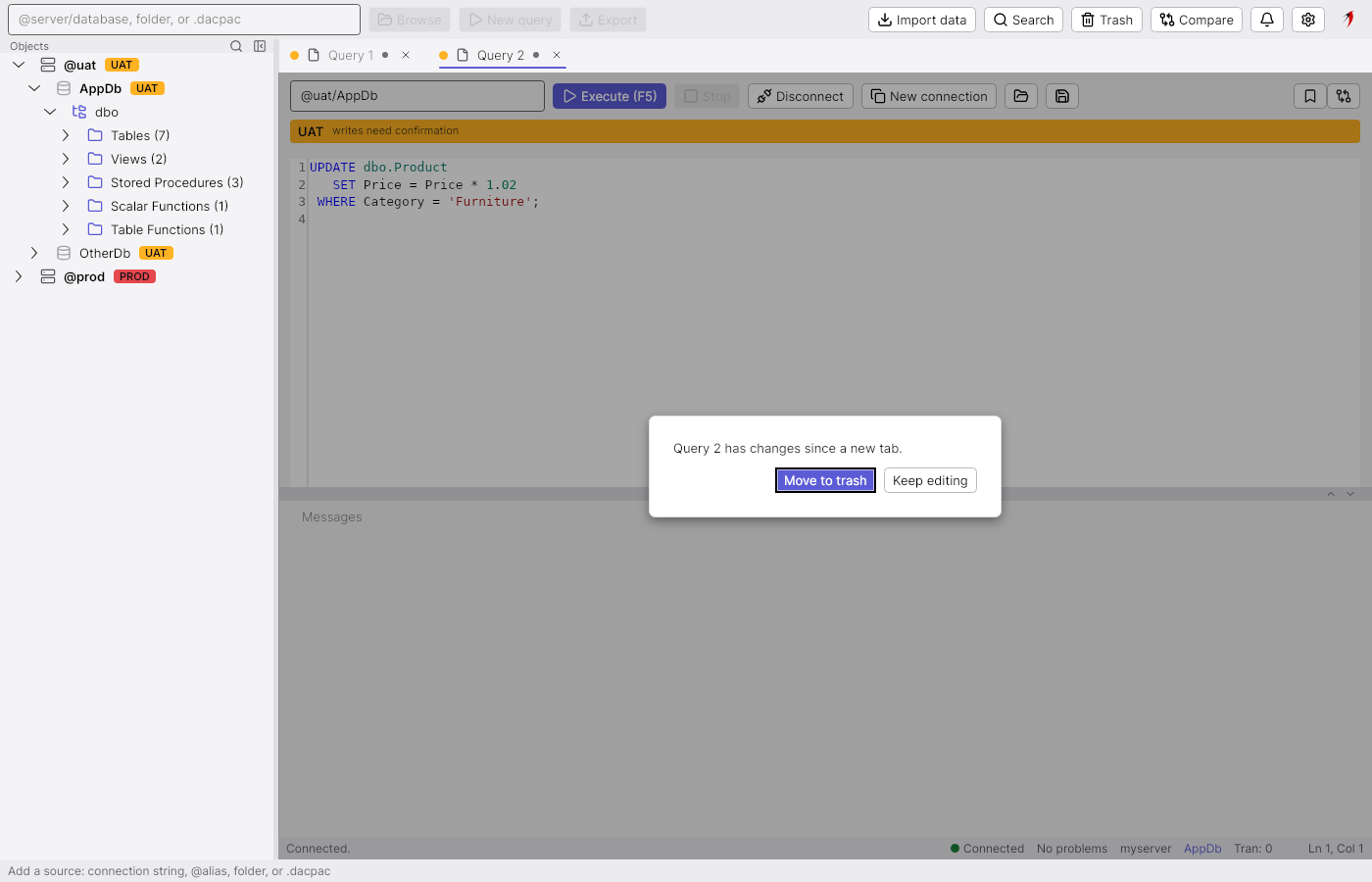
A modal question over the tab, answered with Enter or Escape.

Ctrl+W on a tab with changes since its baseline, or with a transaction still open, asks first. The question is an overlay on the tab itself, not a separate window: the tab behind it is dimmed, the default choice has the keyboard, Enter takes it and Escape takes the way out. The choices are written most consequential first, and a destructive one is coloured as such. Every confirmation in the workbench (a sync, a write on a confirm environment, emptying the trash) uses this same overlay.

Notifications and progress

Notifications and progress

Toasts for finished work and the background strip while something runs.

Work that runs in the background reports in two places. Toasts at the bottom right say that something finished — an export written, a database that changed under a watch — with a level colour and a button that goes to the tab or page concerned; they fade on their own and pause while the pointer is on them. The status bar's right side is the background strip: what is refreshing now and how far along, and when the next scheduled check is. What a notification announced is also on the page it points to, so a toast that faded is not lost.

Production guard

Production guard

A blocked environment: the badge, the banner and no writes until unlocked.

@prod belongs to an environment whose write policy is block. The tab shows it before anything runs: the red banner, the PROD badge on the tab and in the explorer, and Safe mode on the right of the banner. A statement the analysis classifies as a write — this DELETE — is refused with a message; reads run as usual. Safe mode — break glass to write unlocks writes for this tab only, and the unlock and every statement it lets through are journaled in the change feed. A confirm environment (the amber UAT banner elsewhere in these pictures) asks once per write instead.

Settings

Settings

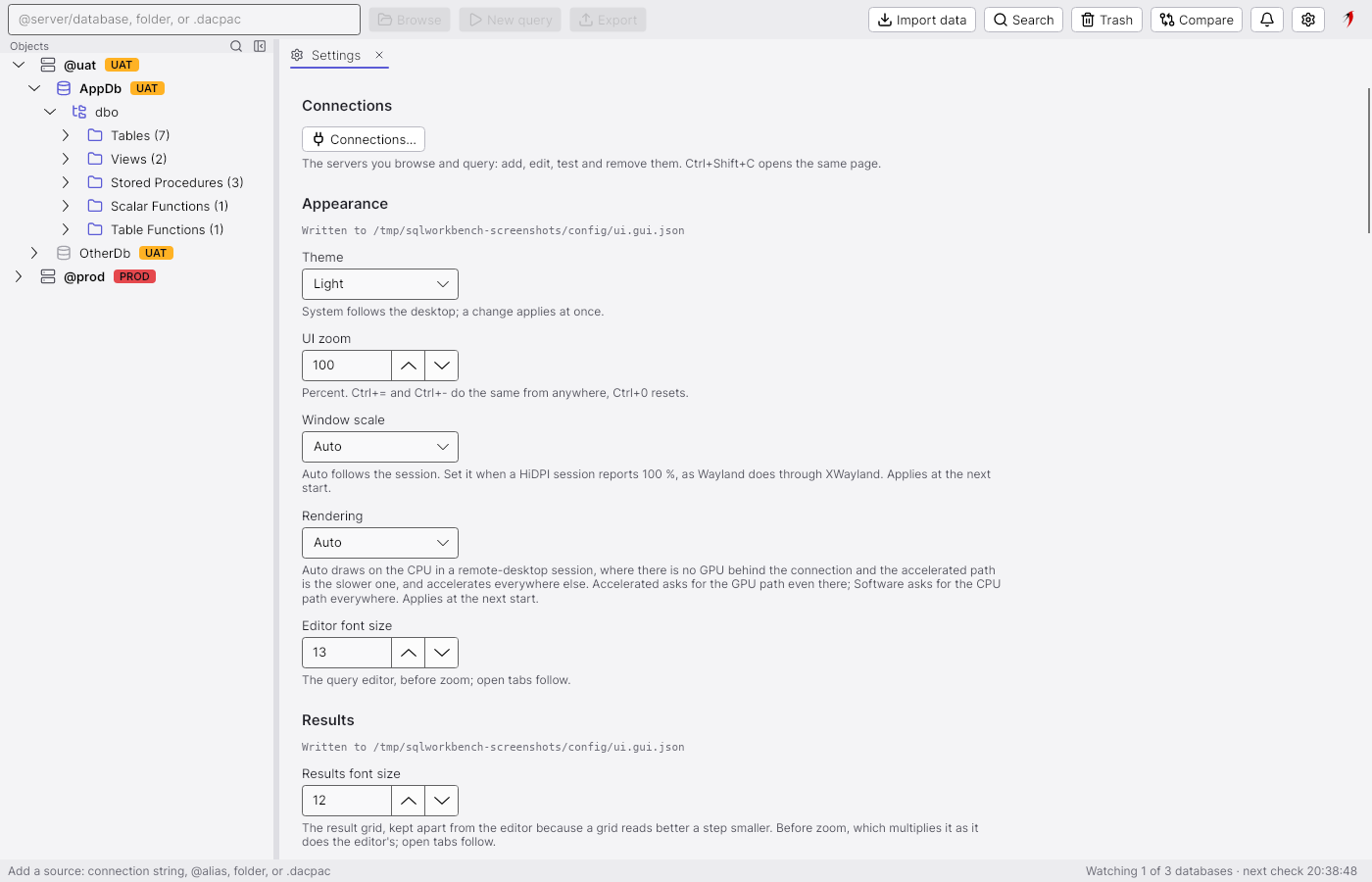
Theme, zoom, editor, results and the explorer, with the file each one lives in.

One page for the preferences, grouped by area, each group saying which file it is written to. Appearance has the theme (System follows the desktop and switches live), the UI zoom that scales the whole window, the window scale for sessions that report the wrong DPI, and the rendering path for remote desktops. Results holds the grid font, density, layout and the CSV conventions; Explorer its grouping, its width behaviour and the hover tint; Trash and Notifications say where closed tabs go and what is announced. Every shortcut is listed at the bottom of the page, and Connections… at the top links to the connections page.

About

About

Version, release notes and the system report.

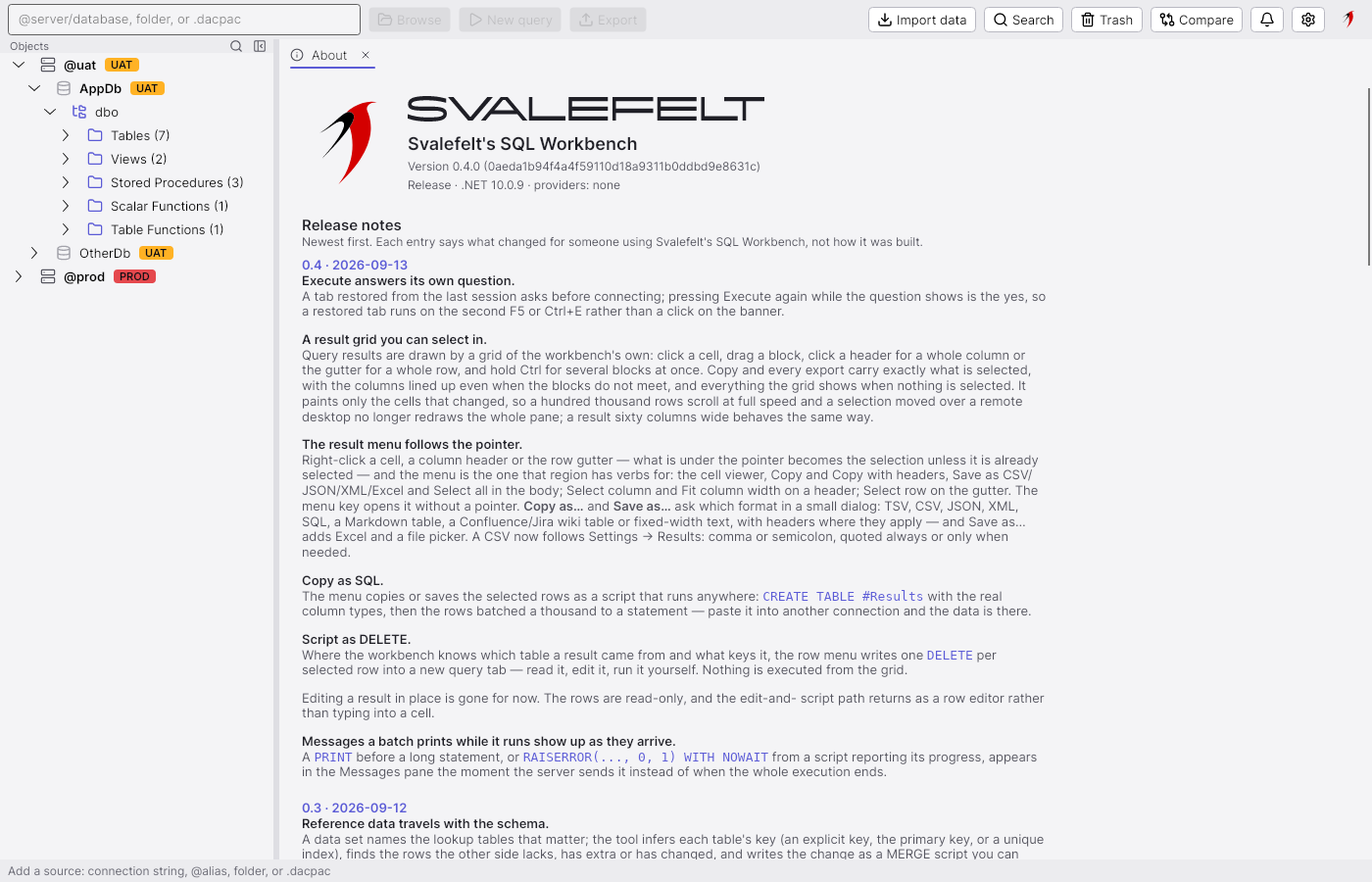
The About page names the build — version, commit, runtime and the provider packages compiled in — and carries the release notes, newest first, so what changed is readable inside the tool. Below them the System report says what the process looks like right now: paths, settings in effect, the rendering backend, the display, and the performance counters of this session (key press to paint, dispatcher lag, frame times). Copy as JSON takes the whole report to the clipboard for a bug report; it carries paths, never a password or a connection string.

Get SQL Workbench

Free to download and use. No registration, no email address.

Requirements

  • Windows, macOS or Linux
  • SQL Server 2016 or later, Azure SQL and SQL Server on Linux
  • PostgreSQL, MySQL and SQLite